MOVIN TRACIN Stage · Reference
Update · 2026-11-10 bundle
On this page
This is a maintenance procedure for the specific bundle below, not a step in first-time setup. Run it only when MOVIN support has confirmed that this bundle is intended for your server. The date identifies this bundle; it does not mean it is the latest release.
For daily operation, use the show checklist.
Everything is in the one file you download — no git, no compiler, no administrator password. Installing it is three short steps, and one of them is just restarting the computer.
This guide belongs to one specific update file:
| Item | Value |
|---|---|
| File | mlb-update-28aefd6-20261110.tar.gz (3.6 MB) |
| Download | Google Drive |
If the file you were sent has a different name, ask MOVIN support for the matching guide.
Before you start
- If the system is running, press Stop pipeline in the GUI. No such button means nothing is running, so there is nothing to stop.
- Never put
sudoin front of these commands. Nothing here asks for a password — if something does, stop and contact MOVIN support.
Get the machine online
The show machine normally runs without internet.
Plug an internet cable into the port marked INTERNET in Connect and power on — the motherboard LAN port, in the left group of ports on the back. If the motherboard has two LAN ports, use the left one.
If pages still do not load a minute later:
- Click the top-right corner of the screen → Wired → Wired Settings.
- Select the gear (⚙) next to Realtek Ethernet.
- In the IPv4 tab, choose Automatic (DHCP) → Apply, then switch that connection off and on again.
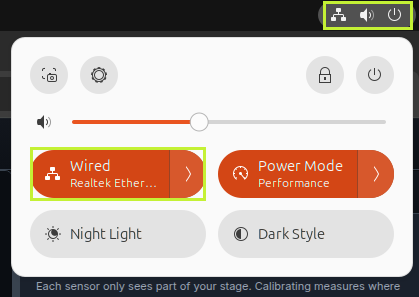
Step 1 — click the top-right corner, then select Wired.
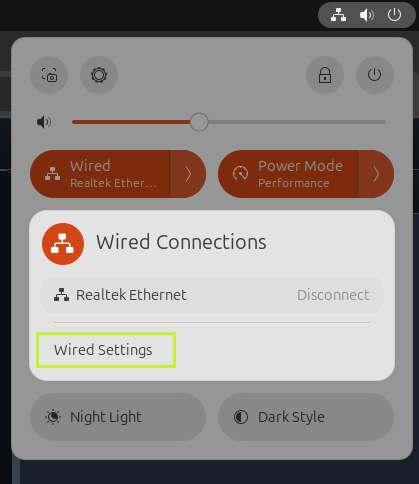
Step 1 — then select Wired Settings.
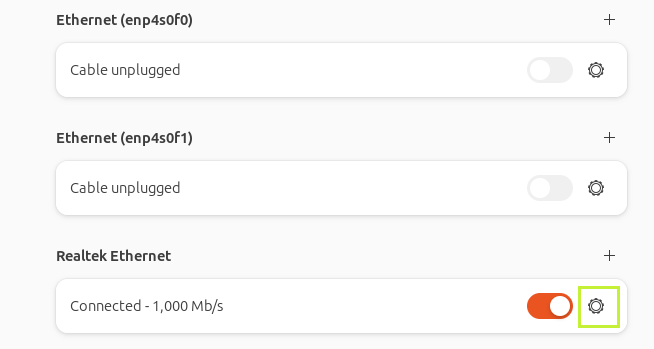
Step 2 — the gear next to Realtek Ethernet. Leave the other two alone.
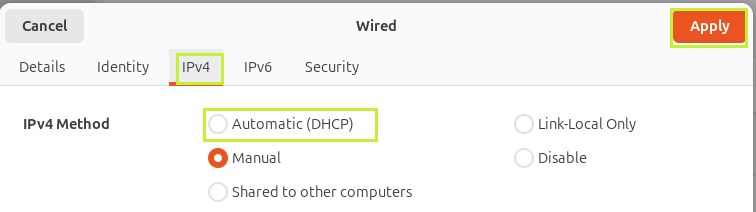
Step 3 — IPv4 tab → Automatic (DHCP) → Apply.
Only touch Realtek Ethernet. The other network devices belong to the sensors — changing those can take the show down.
Install it (~15 minutes)
1. Download the update file:
Download mlb-update-28aefd6-20261110.tar.gz (3.6 MB)
On the Google Drive page, use the Download button at the top right.
Then open a terminal and run:
cd ~/Downloads
tar -xzf mlb-update-28aefd6-20261110.tar.gz
cd mlb-update-28aefd6-20261110
bash apply_update.sh --apply --no-restart
It prints a short report and asks — type y. If a line warns about glibc,
answer n and contact MOVIN support instead.
It backs everything up first and prints the backup path. Write that path down — it is your undo button.
2. Restart the computer. Until you do, the machine is still running the old version.
3. After it boots, the show screen comes up on its own. That is the whole update — the machine is now on the new version.
Your settings, calibrations, and zones are never touched by the update.
If something is wrong — undo
cd ~/Downloads/mlb-update-28aefd6-20261110
bash apply_update.sh --rollback <the backup path you wrote down> --no-restart
Then restart the computer again.
Send your calibration files to support (~5 minutes)
Safe to run any time.
cd ~/Downloads/mlb-update-28aefd6-20261110
python3 collect_site_data.py --collect
It writes one file into Home → mlb-collect (/home/movin/mlb-collect/).
Send that file to MOVIN support, any way that suits you.
If you get stuck
| What you see | What to do |
|---|---|
| Any password prompt | Stop — that command was not from this guide. Report what you ran. |
checksum mismatch — the bundle did not survive the transfer | The download broke. Download it again. |
the pipeline is running (N processes) | Press Stop pipeline in the GUI, then run the command again. |
... need GLIBC_2.34 but this host has ... | Stop and contact support. Do not use --force. |
Permission denied while installing | Stop and contact support — do not retry with sudo. |
| Screen looks unchanged after the restart | Press Ctrl+Shift+R on the show screen. If it is still unchanged, contact support. |
| The screen does not come back | Give it two minutes, then contact support. Your backup is untouched. |