MOVIN TRACIN · MOVIN Studio Usage Guide
Play, Export and Stream Mocap Clip
On this page
Goal of this chapter: Your clip is checked, trimmed to the part you need, and exported or streamed to your tool.
Click Clips in the left sidebar. You can review clips anytime - even without TRACIN connected.
Get to know the Clips screen
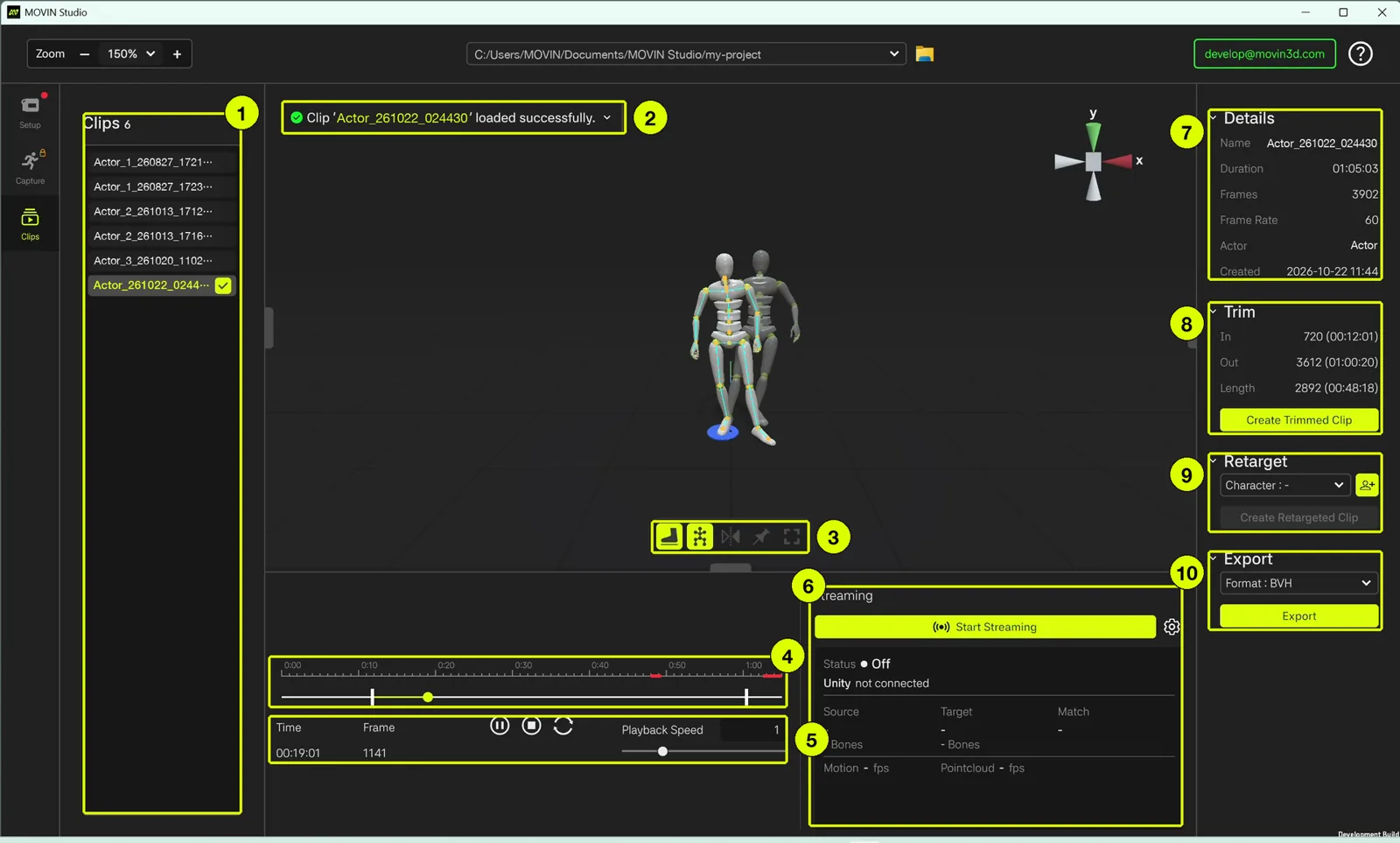
- Clips list (left): every clip in your project. The number next to Clips shows how many there are. The open clip has a check mark.
- Notifications: e.g. Clip 'Actor_261022_024430' loaded successfully.
- Toolbar: Foot Contact, Show Skeleton, Mirror, Inplace and Fullscreen - check the quality of your clip. → Toolbar
- Timeline: the playhead (round handle) and the two trim handles (bars at each end). Red marks show missing motion frames - parts of the clip where the actor wasn't tracked.
- Player: current Time and Frame, Play/Pause, Stop, Loop, and Playback Speed.
- Streaming: stream the clip to another app. → Live-streaming
- Details: name, duration, frames, frame rate, actor and creation date of the clip.
- Trim: the In / Out frames and length of the trimmed range, and Create Trimmed Clip.
- Retarget: choose a character and click Create Retargeted Clip.
- Export: choose a format and click Export.
Play a clip
- Double-click a clip in the Clips list to open it.
- Click Play / Pause to play it, Stop to stop it, and Loop to repeat it.
- Drag the playhead on the timeline to jump to any moment.
- Change Playback Speed to play it slower or faster.
💡 Turn on Foot Contact and Show Skeleton in the toolbar to check foot grounding and joints in detail.
Trim a clip
Trimming creates a new clip with only the part you need. Your original clip stays as it is.
-
Set the range
- Drag the left trim handle to where you want the clip to start, and the right trim handle to where it should end.
- Trim in the Details panel shows the In, Out and Length of your range.
- The player now plays (and loops) only within the range, so you can check it before you create the clip.
-
Click Create Trimmed Clip
- Click Create Trimmed Clip in the Trim section.
- A new clip named [Clip Name]_trimmed is added to the list and opens.
Moving the trim handles alone doesn't change what's exported. Export the trimmed clip to get only that range.
Retarget a clip to a character
Retargeting creates a new clip where your character performs the motion.
-
Choose a character
- In the Retarget section, select a character from Character.
- Don't see your character? Click the Import Character button next to the list - see Import Character and Retargeting.
-
Click Create Retargeted Clip
- A new clip named [Clip Name]_retargeted_[Character] is added to the list and opens with the character.
- Its Details now show the Character, plus two buttons:
- Clip Retarget Settings: opens the same 5-step window as Import Character and Retargeting to fine-tune how the motion fits the character. Save to Clip changes this clip only.
- Remove Character: removes the character from this clip.
Export a clip
-
Choose a format
- In the Export section, open Format and choose:
- BVH
- FBX (Blender), FBX (Unity), FBX (Unreal) or FBX (MotionBuilder)
- For FBX, you can also set Export Root Scale, Root Scale Multiplier, Unit Scale and Translation Scale.
- In the Export section, open Format and choose:
-
Click Export
- Click Export and choose where to save the file.
- The notification shows [Clip Name] is exported when it's done.
Mirror and Inplace apply to exports too. If either is on in the toolbar, the exported motion is mirrored or kept in place, and the file name ends with (mirrored) or (inplaced). Turn them off first if you want the original motion.
Manage your clips
Right-click a clip in the Clips list to:
- Rename it - or click it slowly twice.
- Delete it - to delete several at once, hold Ctrl and click each clip first.
- Duplicate it - a copy named [Clip Name]_(clone) is added.
Clips are saved in your project folder. They stay there even after you quit MOVIN Studio.
Stream a clip
- Open the clip, then click Start Streaming in the Streaming section of the bottom panel.
- Turn on Loop in the player to stream the clip over and over.
- To set where the motion goes, click ⚙ next to the button. → Live-streaming
Your motion is ready to use! Want it live in another app?
→ Live-streaming