MOVIN TRACIN · MOVIN Studio Usage Guide
Hand Tracking
Goal of this chapter: You know which hand option fits your shoot, and where to set it up.
MOVIN Studio gives you three ways to handle the hands. Choose one in Tracking Options, at the bottom of the Capture screen.
Get to know Tracking Options
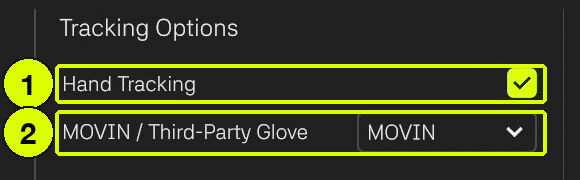
Hand Tracking on
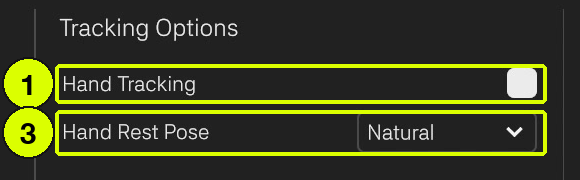
Hand Tracking off
- Hand Tracking: turns hand tracking on or off.
- MOVIN / Third-Party Glove (Hand Tracking on): what tracks the hands - MOVIN (TRACIN's camera), MANUS, Rokoko or Quest. Glove-specific settings appear below it.
- Hand Rest Pose (Hand Tracking off): the fixed hand shape used instead - Default, ThumbOut or Natural.
Which option should I use?
| You want to… | Set Tracking Options to… | Guide |
|---|---|---|
| Track wrists and fingers with TRACIN alone | Hand Tracking on → MOVIN | MOVIN Hand Tracking |
| Track hands that TRACIN can't see - behind the body, or in the dark | Hand Tracking on → MANUS or Rokoko | Integrate with Rokoko / MANUS |
| Track hands with a Meta Quest headset the performer wears | Hand Tracking on → Quest | Integrate with Meta Quest |
| Keep the hands still in a natural shape | Hand Tracking off → Hand Rest Pose | Set Hand Rest Pose |
- Hand Tracking needs an Unlimited License. On the free Basic License, use a Hand Rest Pose.
- MANUS and Rokoko are available on Windows only.
- In Night Mode, MOVIN hand tracking isn't available - the option reads Third-Party Glove.