MOVIN TRACIN · MOVIN Studio Usage Guide
Hand Tracking Devices
On this page
- MOVIN Hand Tracking
- Tips for MOVIN Hand Tracking
- Integrate with Rokoko Smartgloves
- 1. Select 'Rokoko' in the 'MOVIN / Third-Party Glove' dropdown.
- 2. Install Rokoko Studio and pair Smartgloves.
- 3. Enable Unity Streaming in Rokoko Studio.
- 4. Click 'Calibrate ROKOKO' if the calibration is needed.
- Integrate with MANUS Smart Gloves
- 1. Select 'MANUS' in the 'MOVIN / Third-Party Glove' dropdown.
- 2. Install MANUS Core and pair the gloves.
- 3. Calibration the glove in MANUS Core.
- Integrate with Meta Quest
- Network and firewall
- Troubleshooting
Goal of this chapter: The hands are tracked with the device you chose - TRACIN's camera, gloves or a Meta Quest.
In Tracking Options, the MOVIN / Third-Party Glove dropdown sets what tracks the wrists and fingers. TRACIN's camera works on its own; gloves and a Meta Quest keep tracking the hands even when they're hidden from TRACIN's camera.
| Device | PC | Guide |
|---|---|---|
| MOVIN (TRACIN's camera) | Windows, Ubuntu | MOVIN Hand Tracking |
| Rokoko Smartgloves | Windows | Integrate with Rokoko Smartgloves |
| MANUS gloves | Windows | Integrate with MANUS Smart Gloves |
| Meta Quest | Windows, Ubuntu | Integrate with Meta Quest |
Hand Tracking needs an Unlimited License. It's not available on the free Basic License.
If you are using a different glove system and would like support, please share your request via the MOVIN discord server.
MOVIN Hand Tracking
With MOVIN, TRACIN tracks wrist and finger movements using its camera - no gloves or extra devices needed.
Not available in Night Mode, which tracks with LiDAR only. To track hands in the dark, use gloves or a Meta Quest.
-
Turn on Hand Tracking and select MOVIN
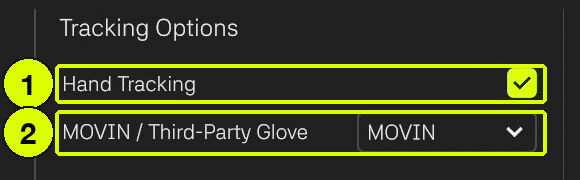
- In Capture, go to Tracking Options in the bottom panel.
- Check Hand Tracking (1), then select MOVIN in MOVIN / Third-Party Glove (2).
-
Calibrate the actor
- Calibrate the actor as usual. Once calibration is done, the actor's wrists and fingers move with the performer in real time.
Hands not moving? Check that TRACIN can see your hands: in Set up your Camera, each hand should have its own blue or red box. No boxes usually means the lighting needs adjusting.
Tips for MOVIN Hand Tracking
- Distance: keep the hands 1-4 m from TRACIN. For the best accuracy, stay within 1.5-3.5 m.
- One performer: tracking works best with a single person in the camera's view.
- Face the camera: keep the hands and wrists clearly visible, and stand facing TRACIN.
- Clothing: sleeves shouldn't cover the wrists. Dark clothing makes the hands harder to tell apart - wear something that contrasts with your hands.
- Keep TRACIN still: if the camera shakes or vibrates, hand tracking may become unstable.
- Lighting: see Fix the lighting in Set up your Camera.
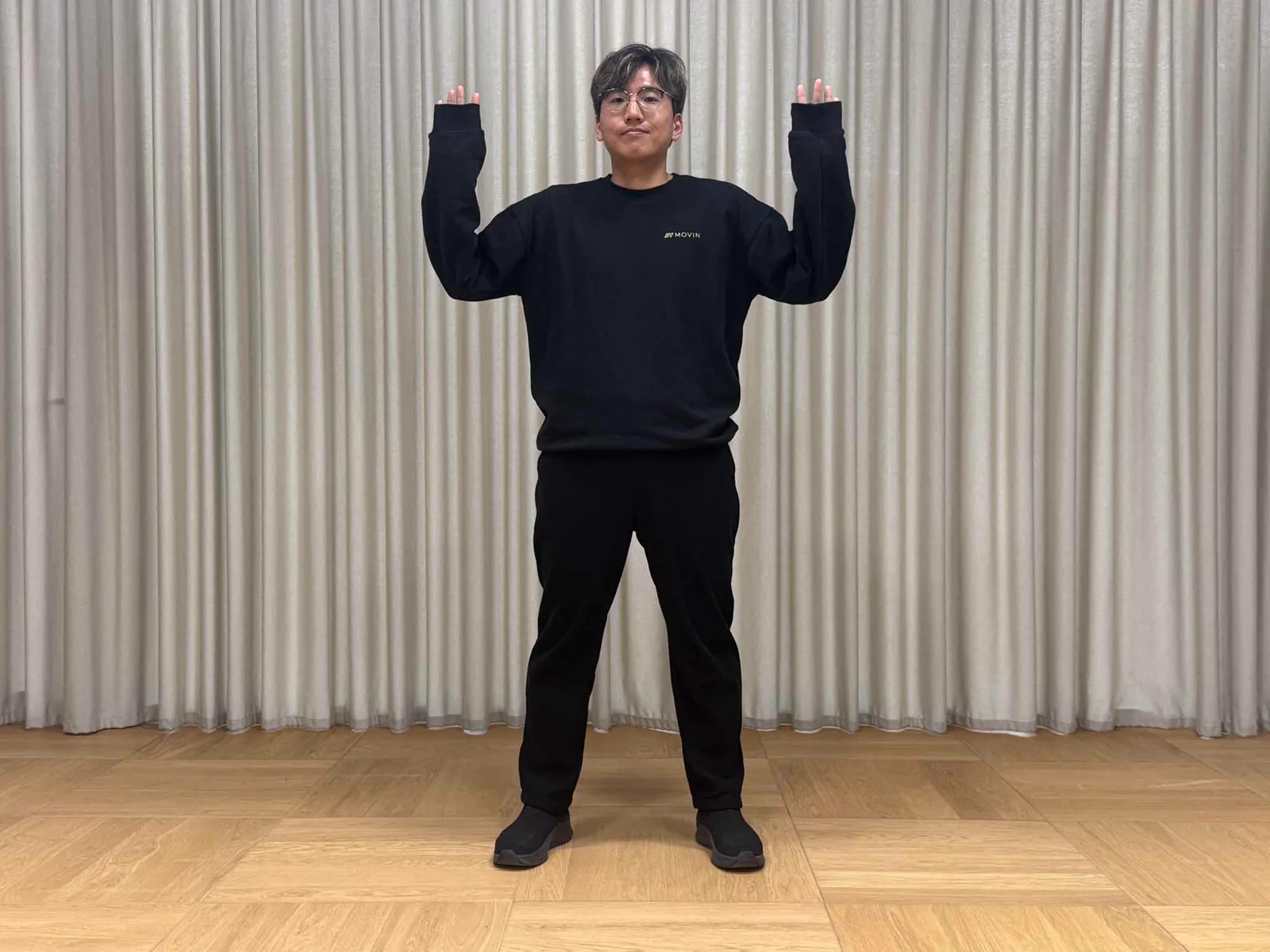
Wrists hidden by long sleeves
Keep both hands in the camera's view
TRACIN's camera sits about 95 cm above the ground, so the hands are tracked only while they're inside its field of view (FoV) and not hidden by the body. Check the Camera View in MOVIN Studio: body parts outside the FoV appear gray.
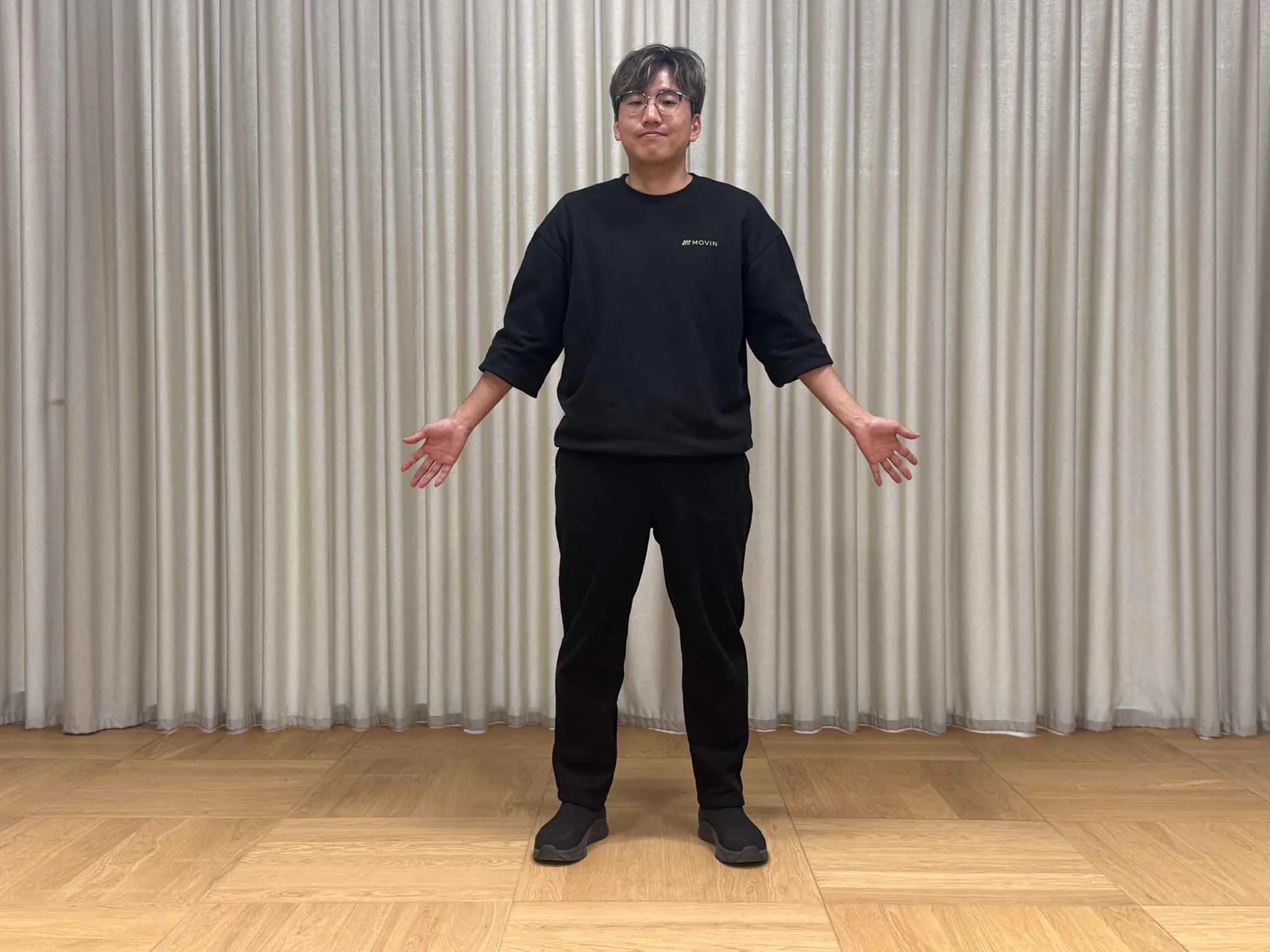
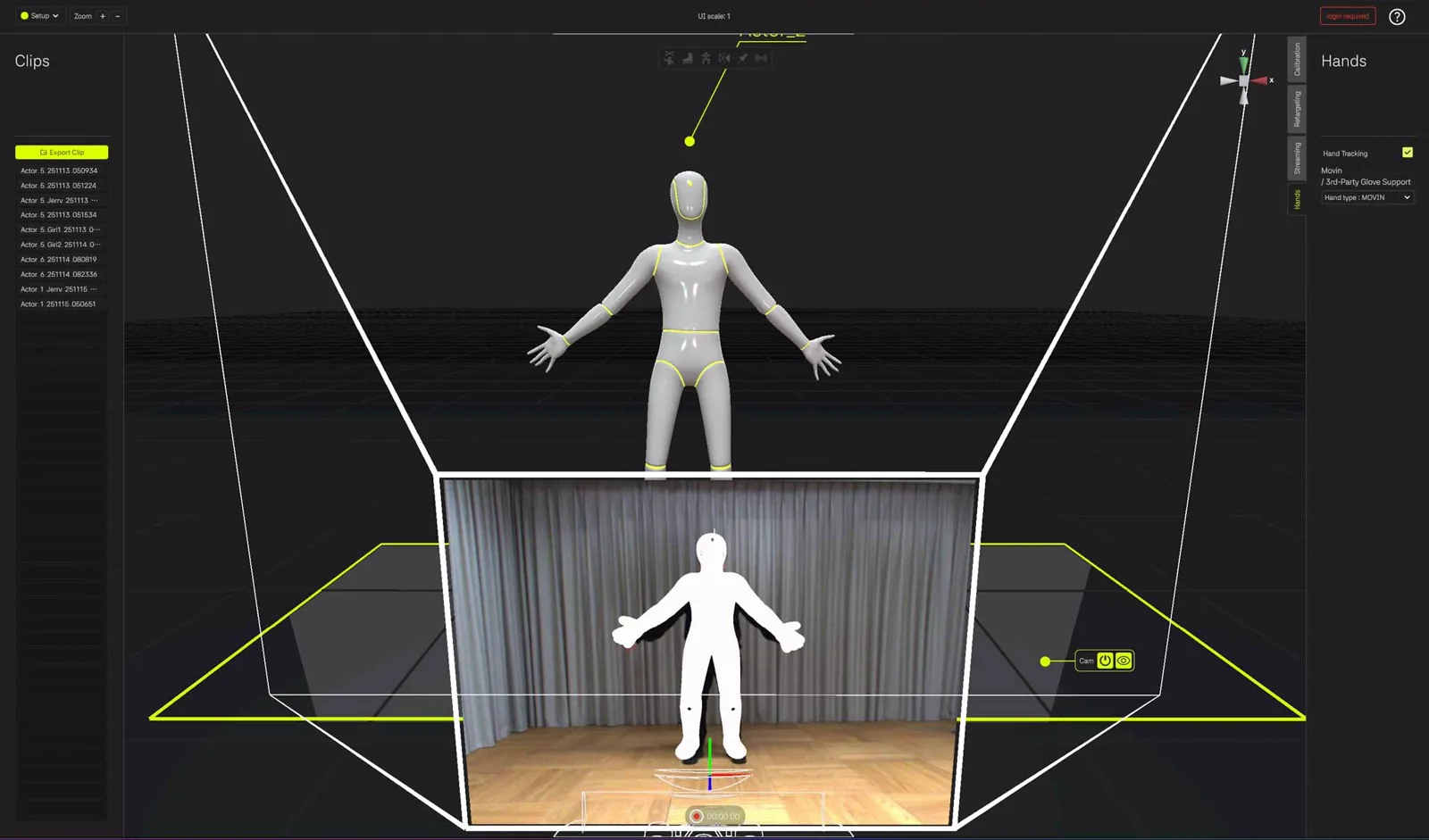
Good: the full body and hands are within the FoV
These poses lose the hands:
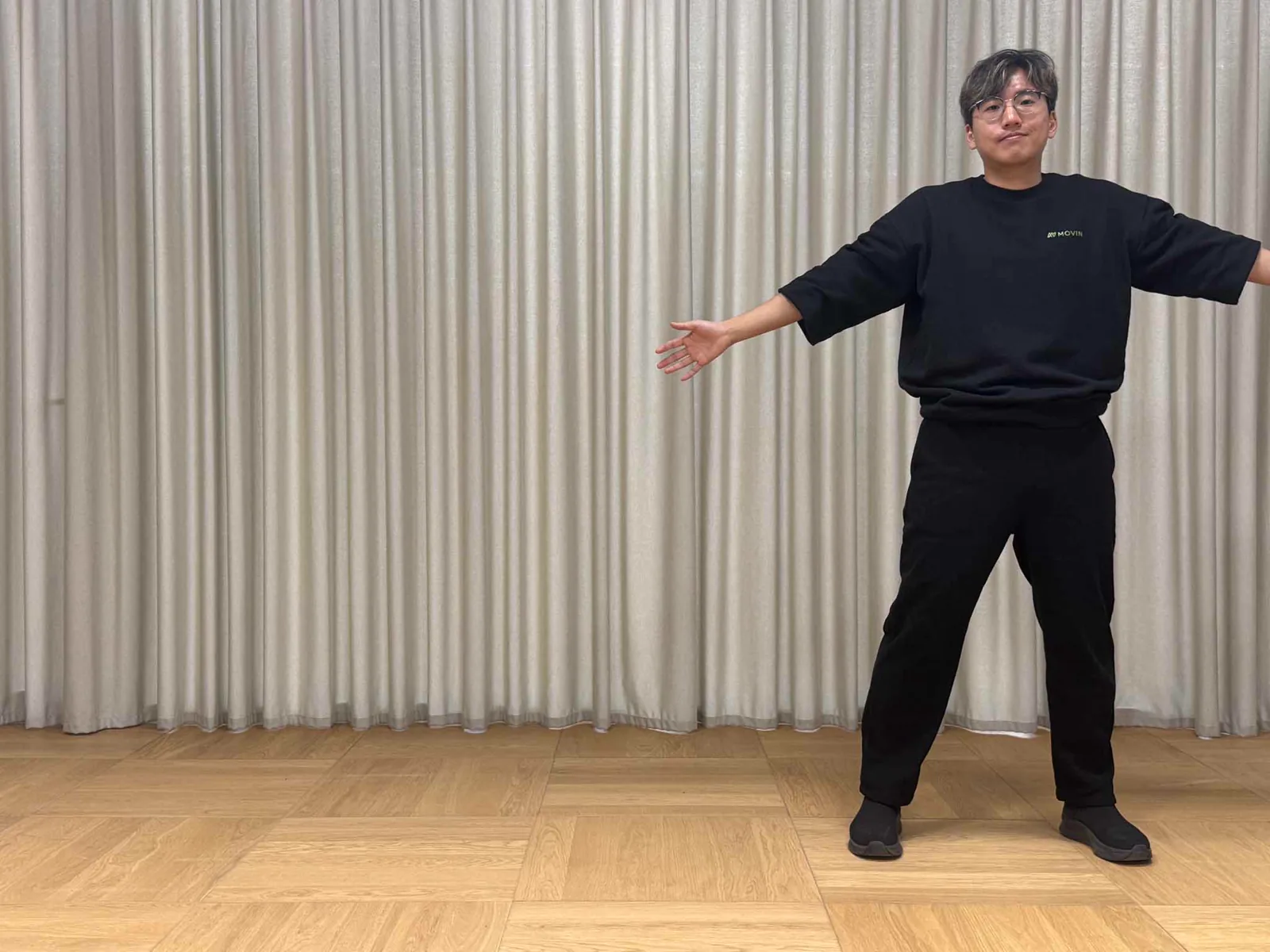
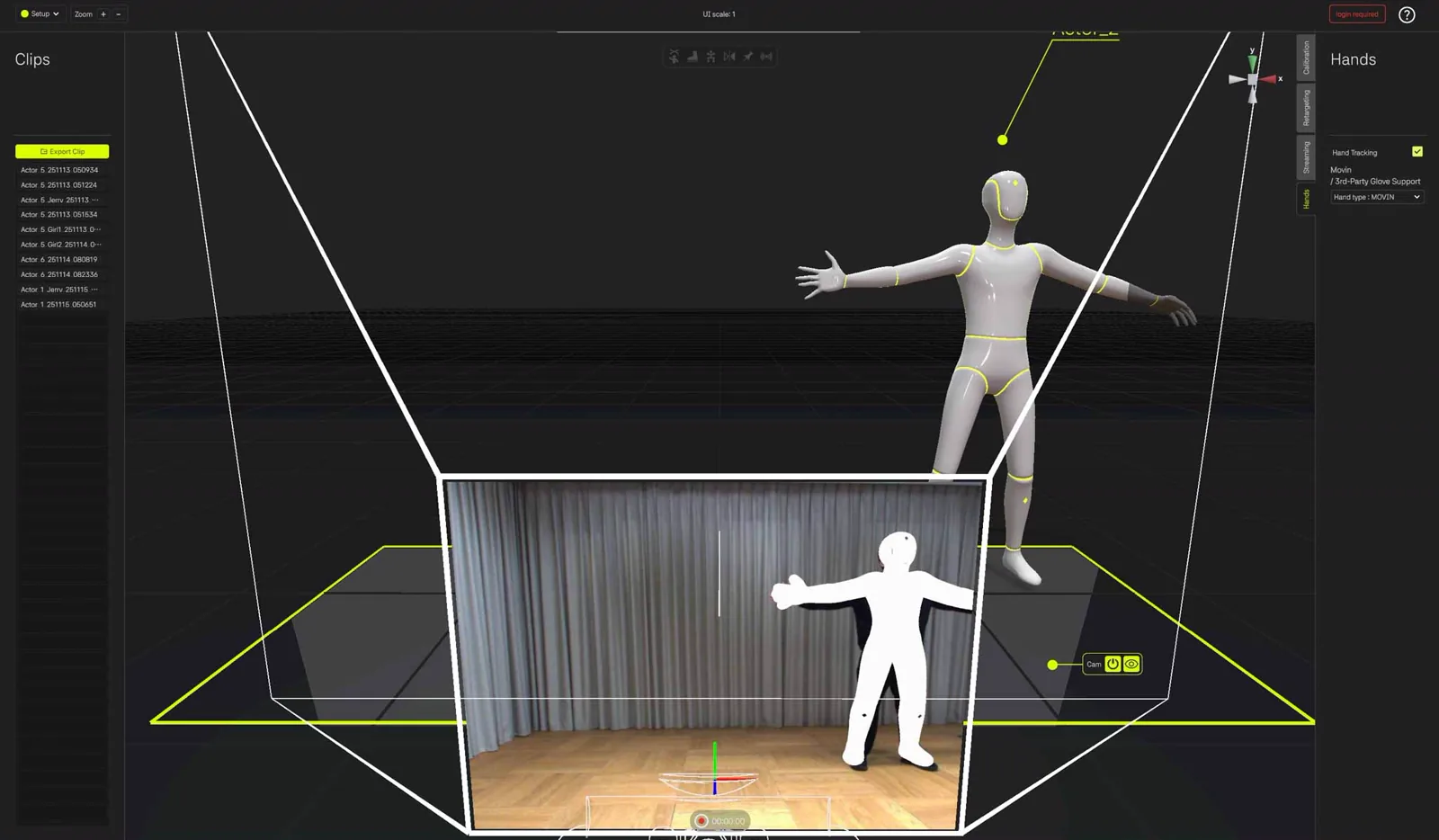
The left hand is positioned outside the FoV
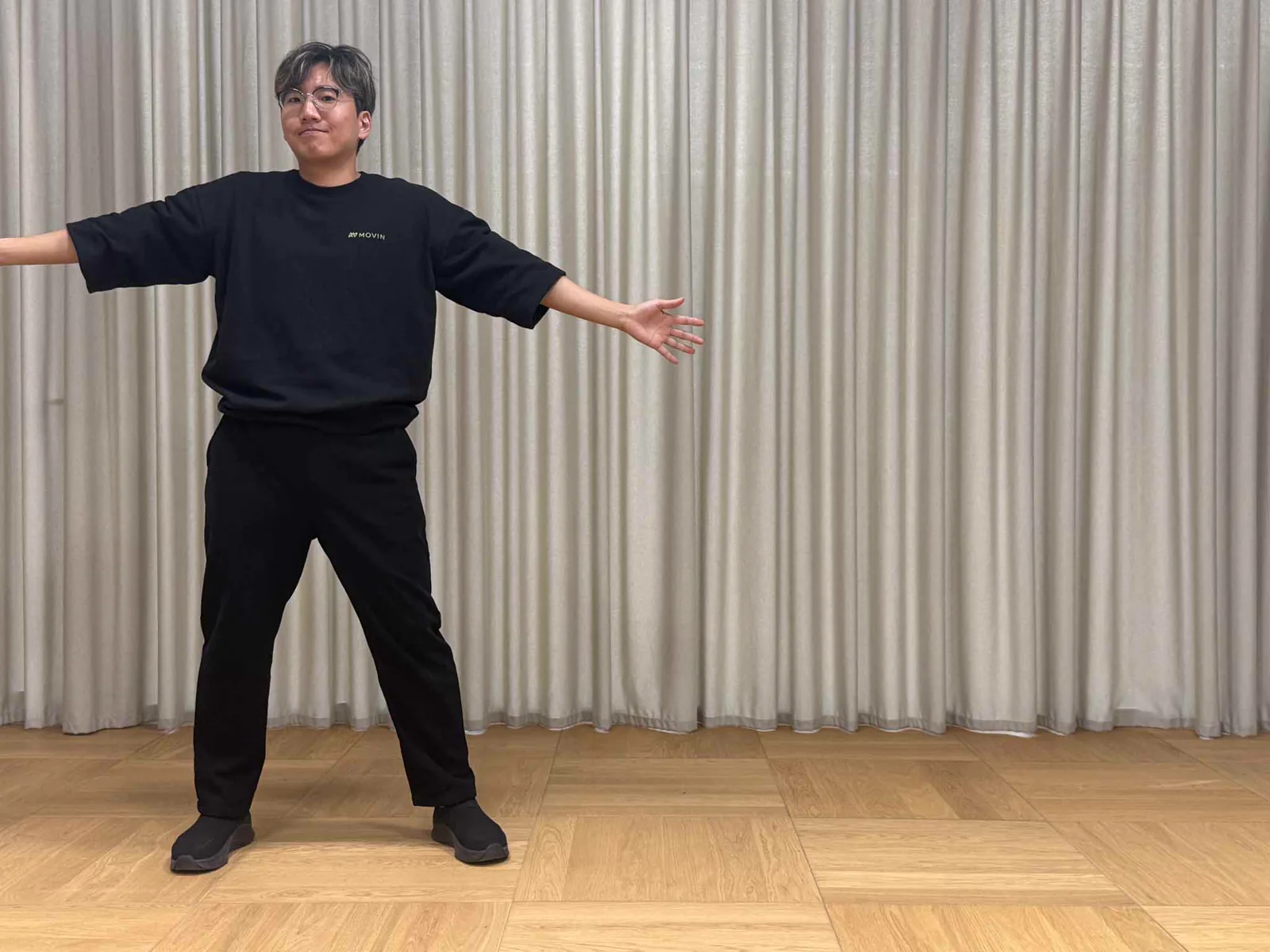
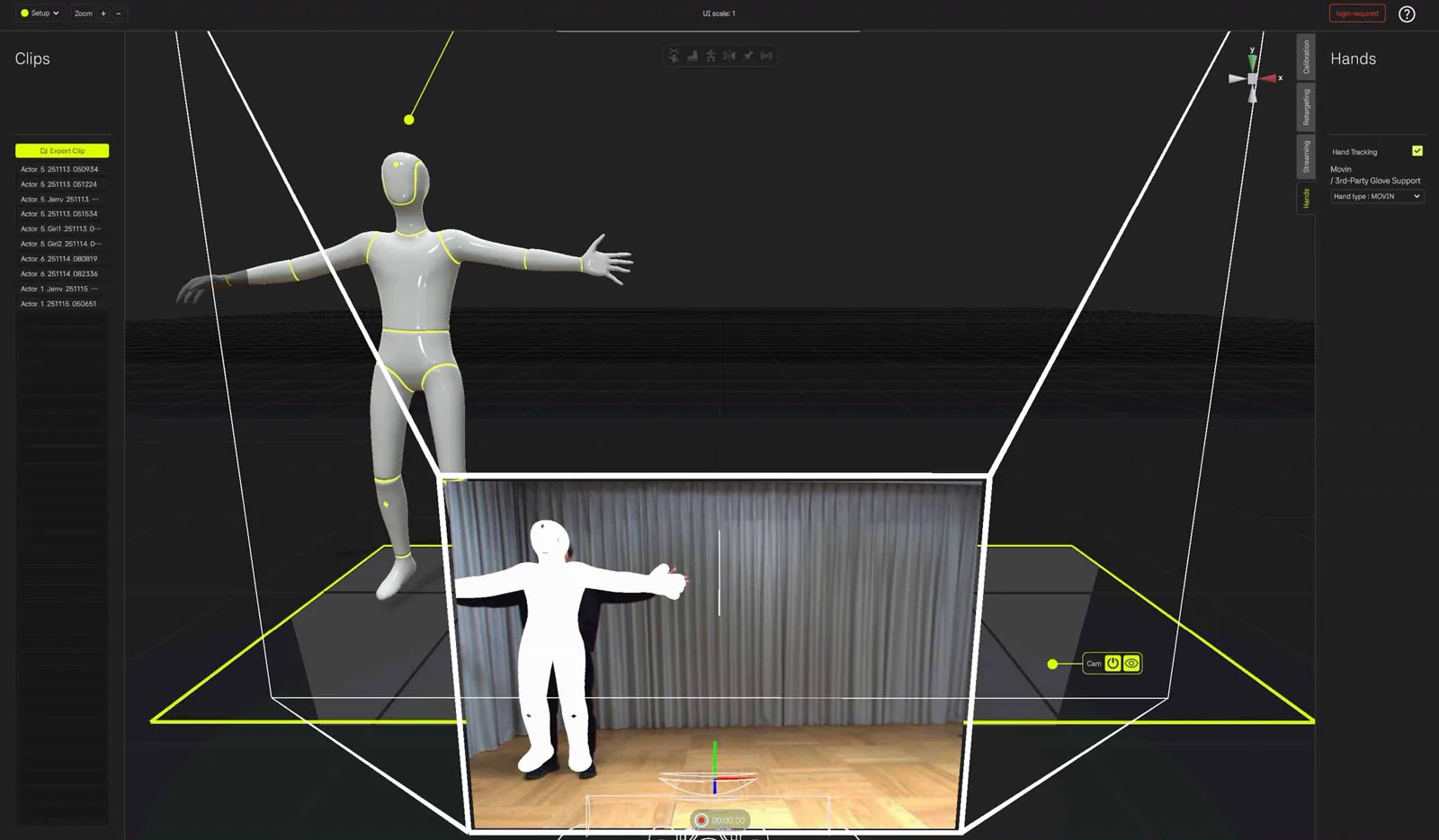
The right hand is positioned outside the FoV
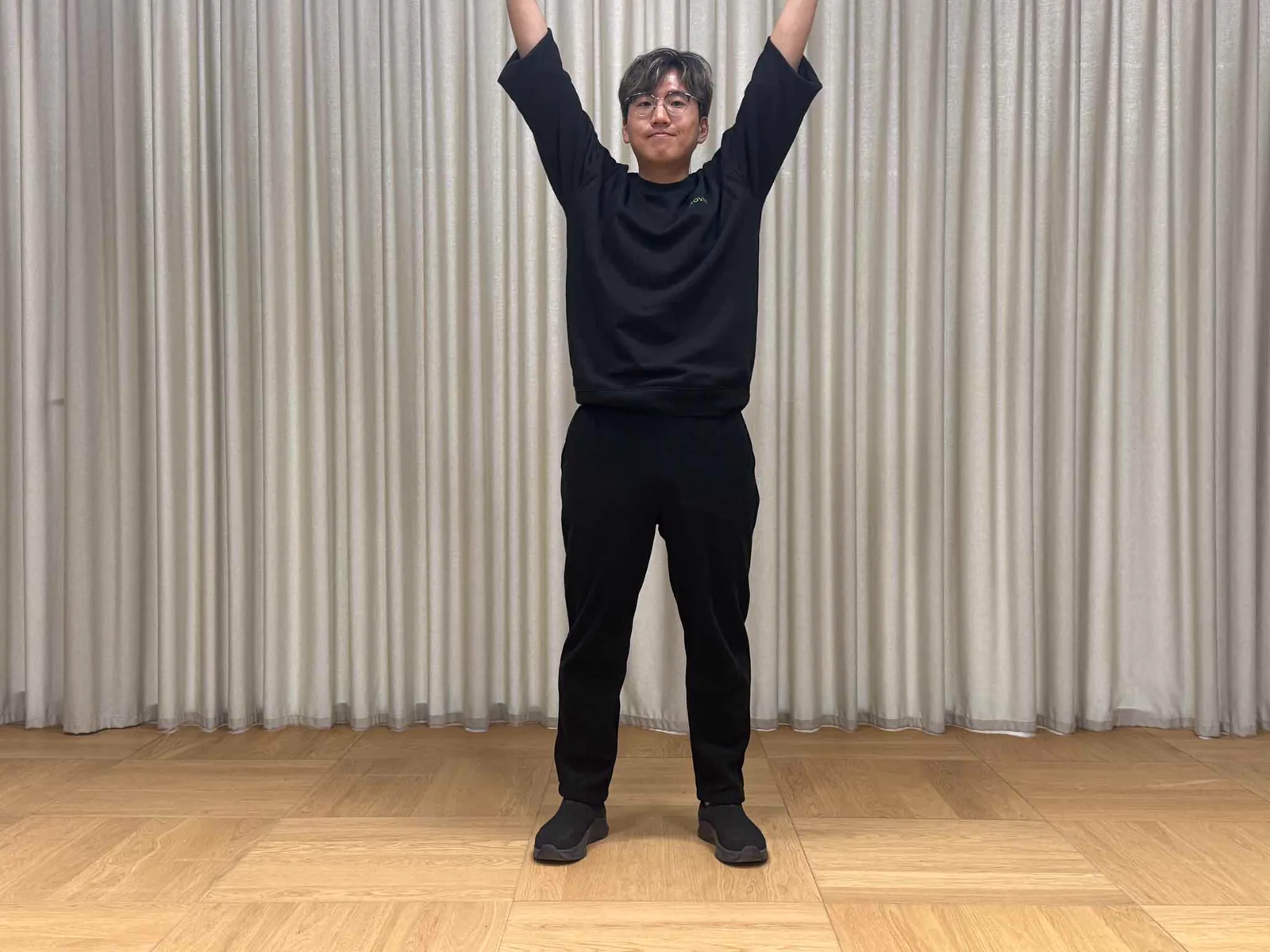
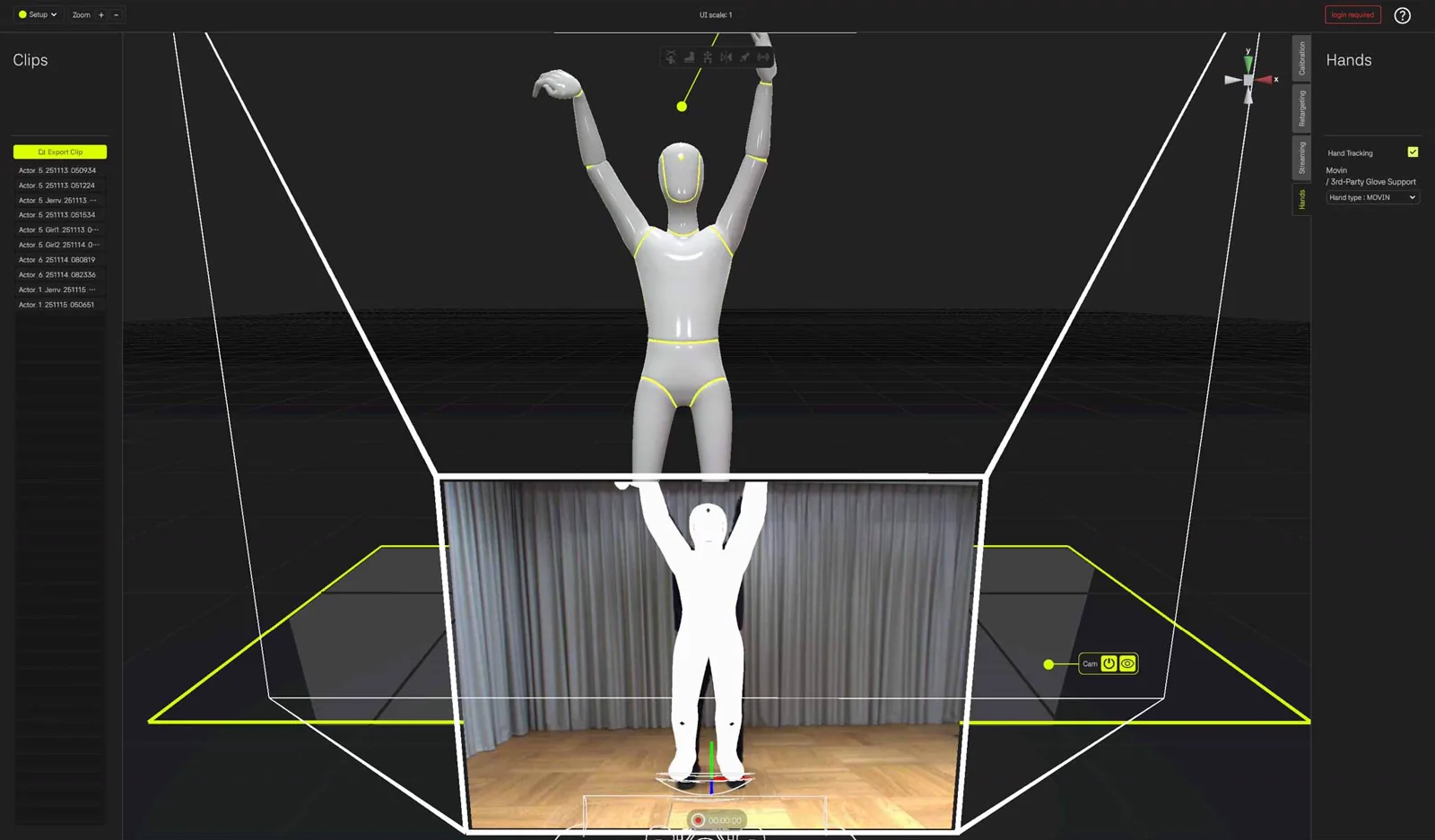
Hands move out of the camera’s FoV when both arms are raised
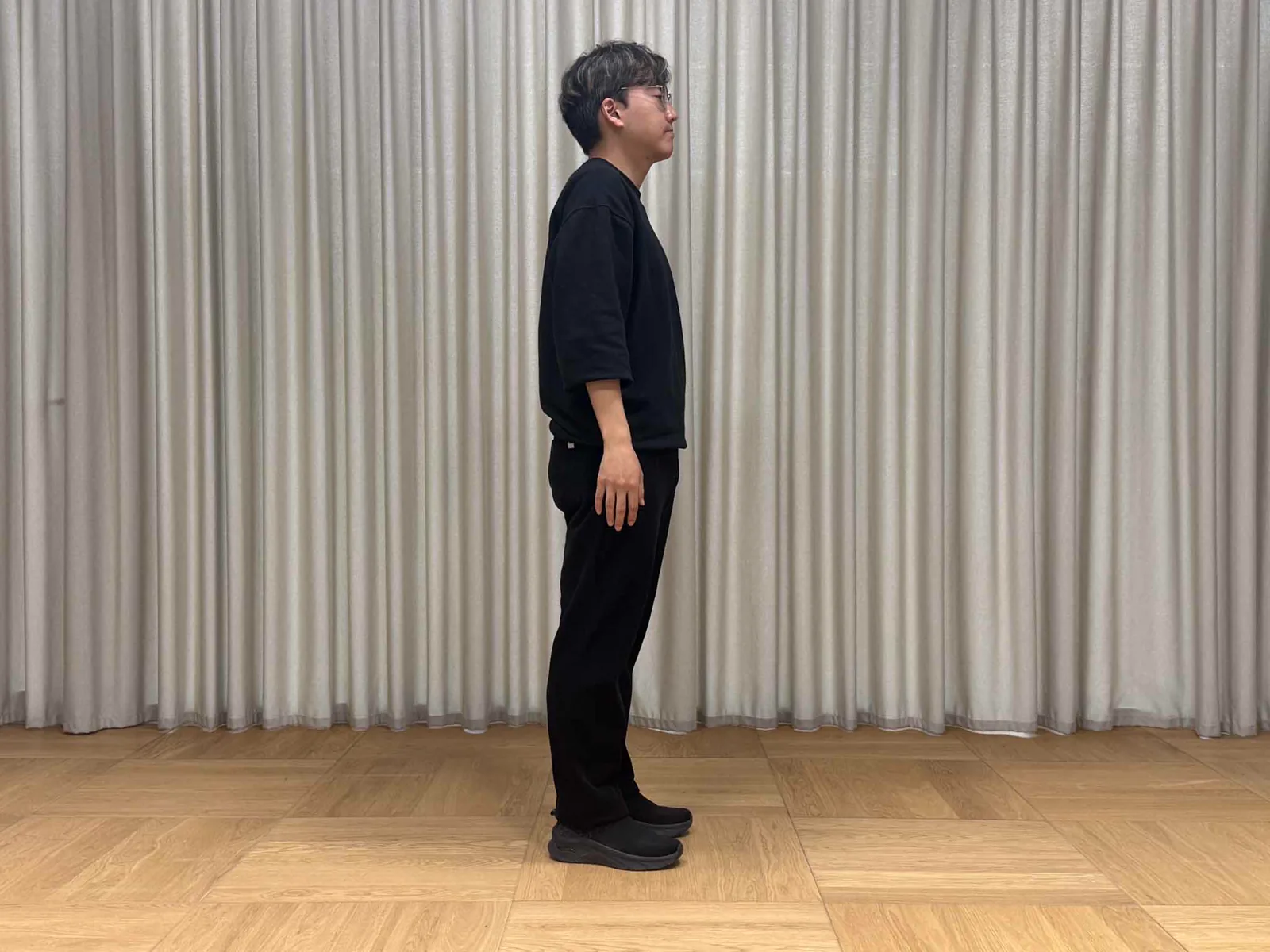
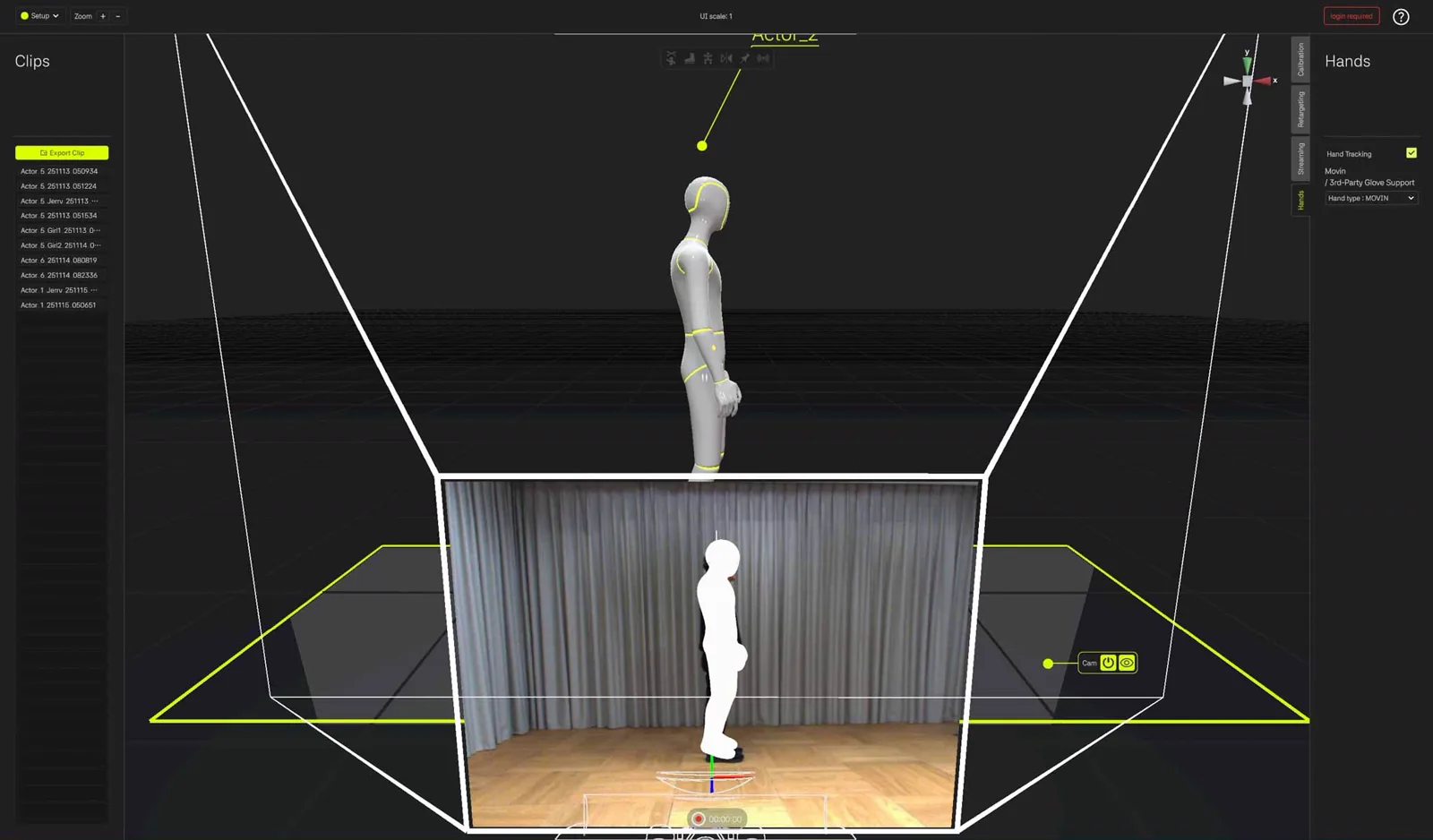
The hand becomes hidden when it is positioned behind the torso
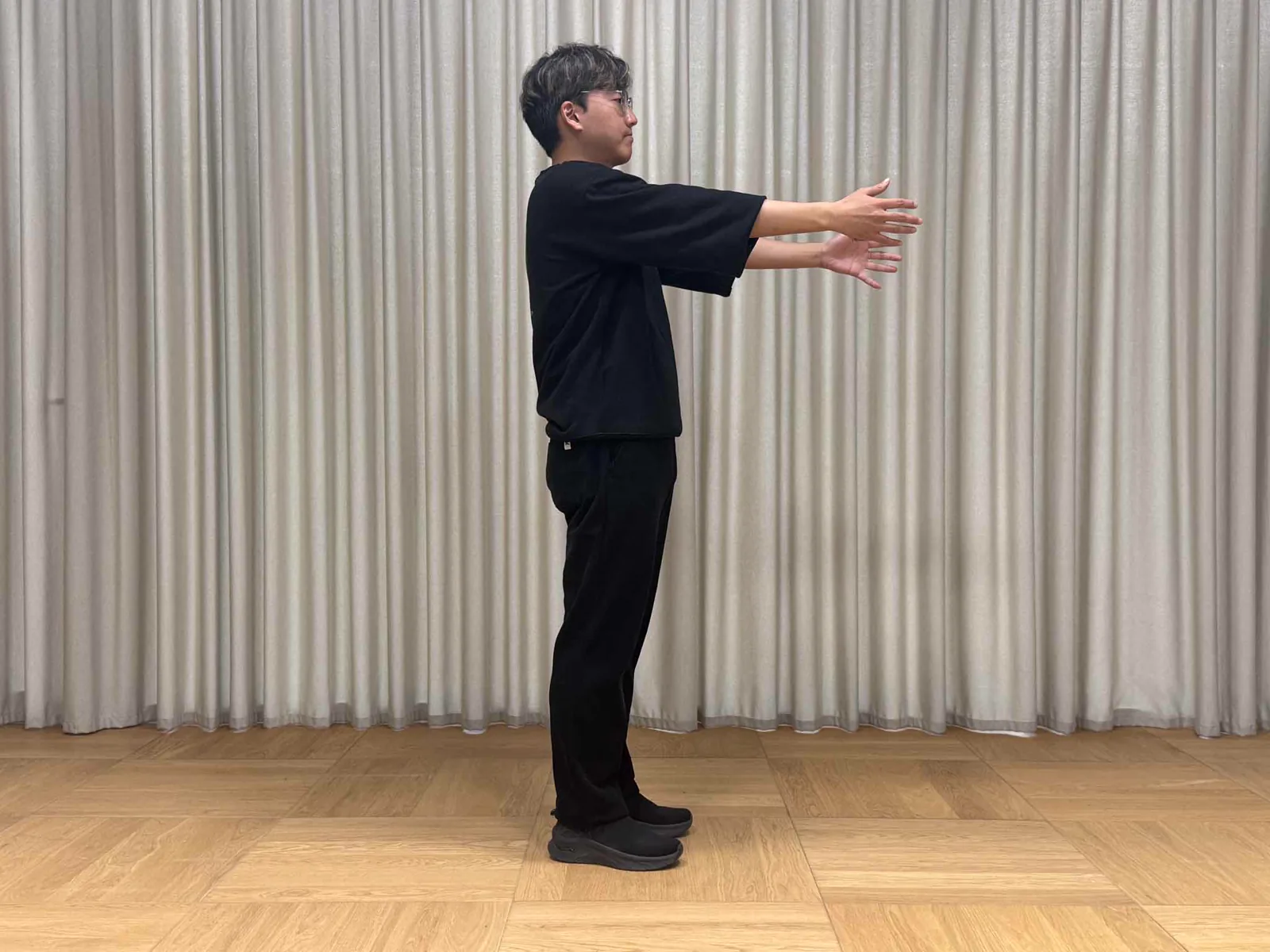
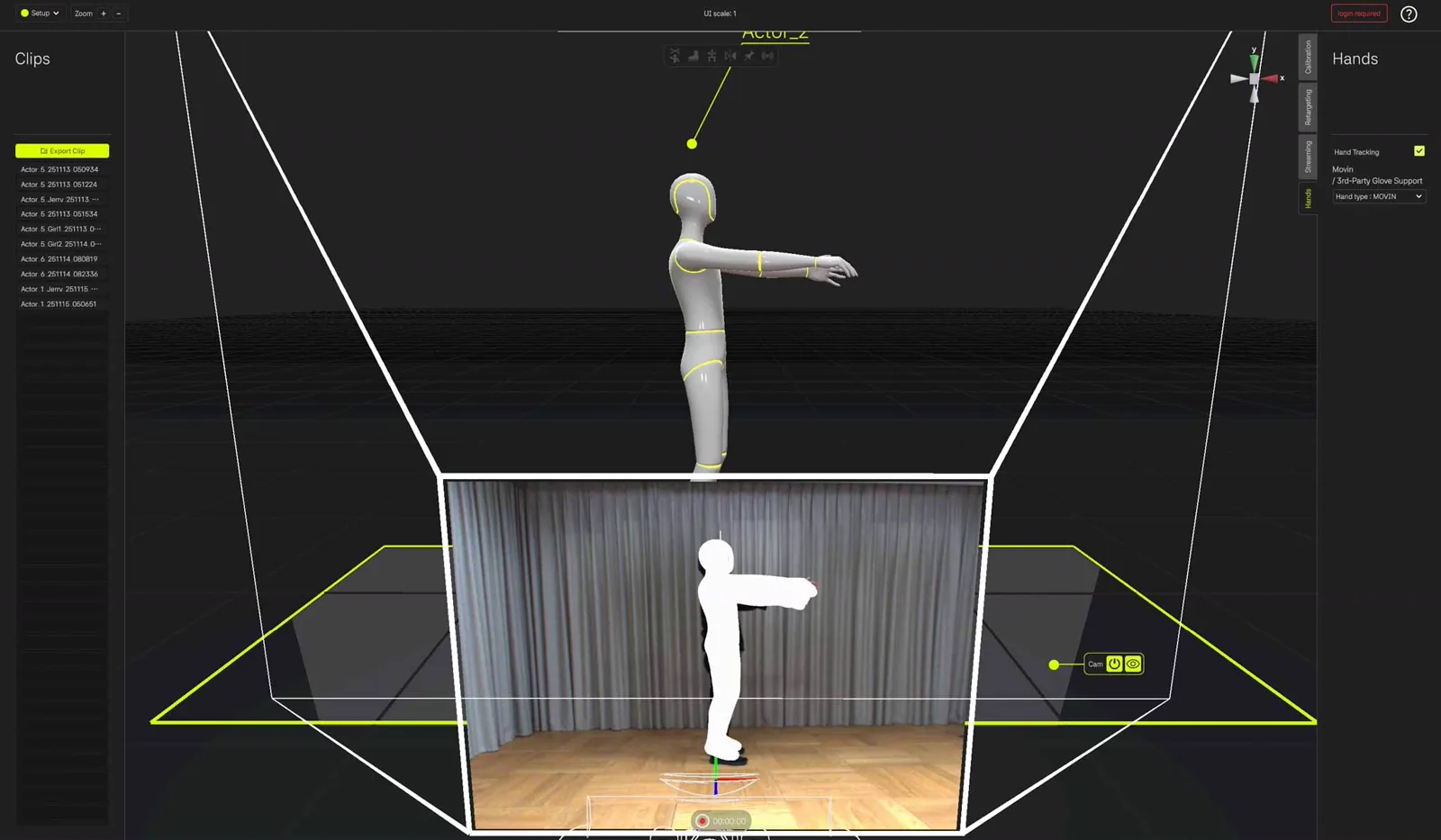
One hand becomes occluded when the other hand blocks it.
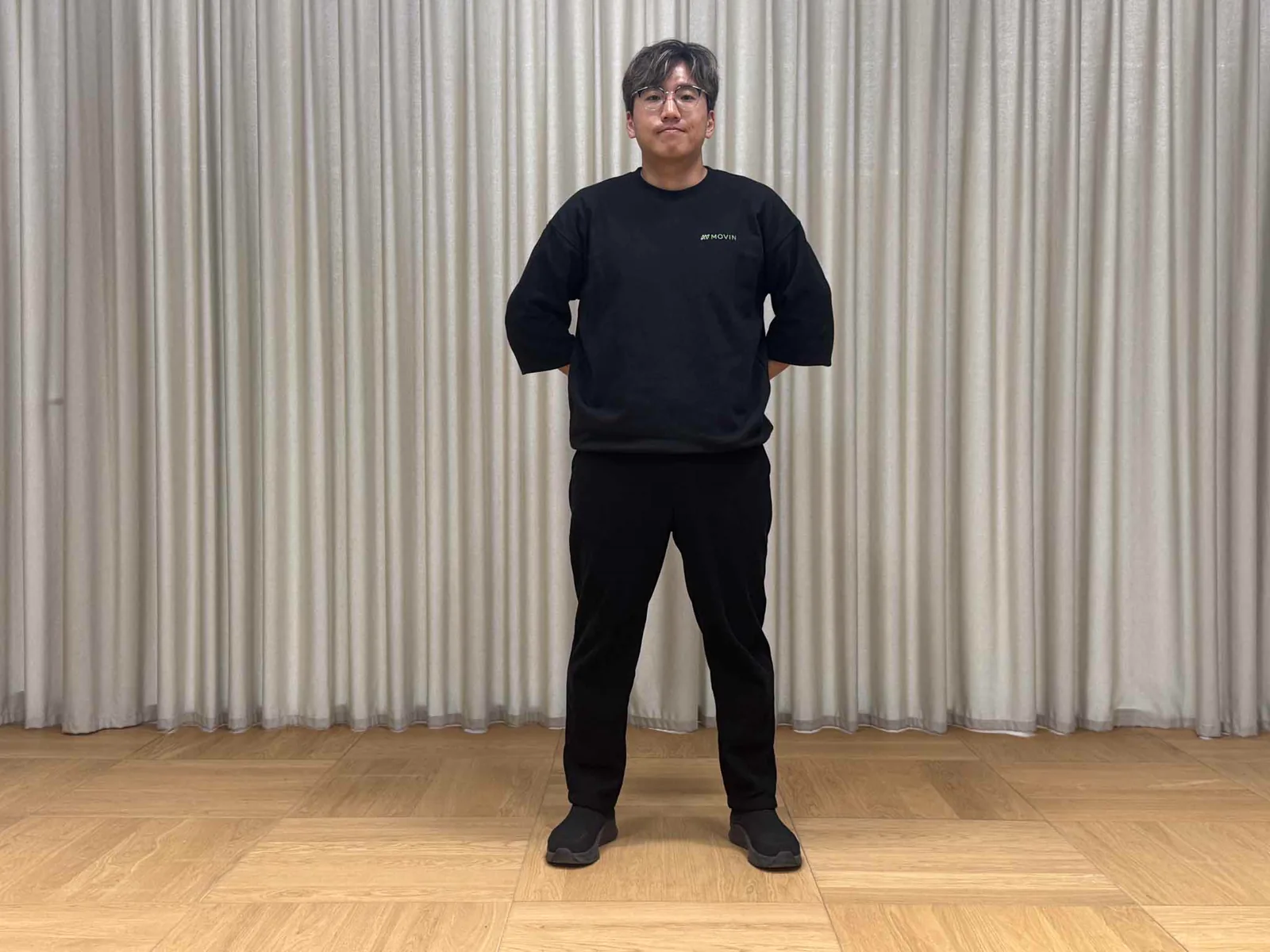
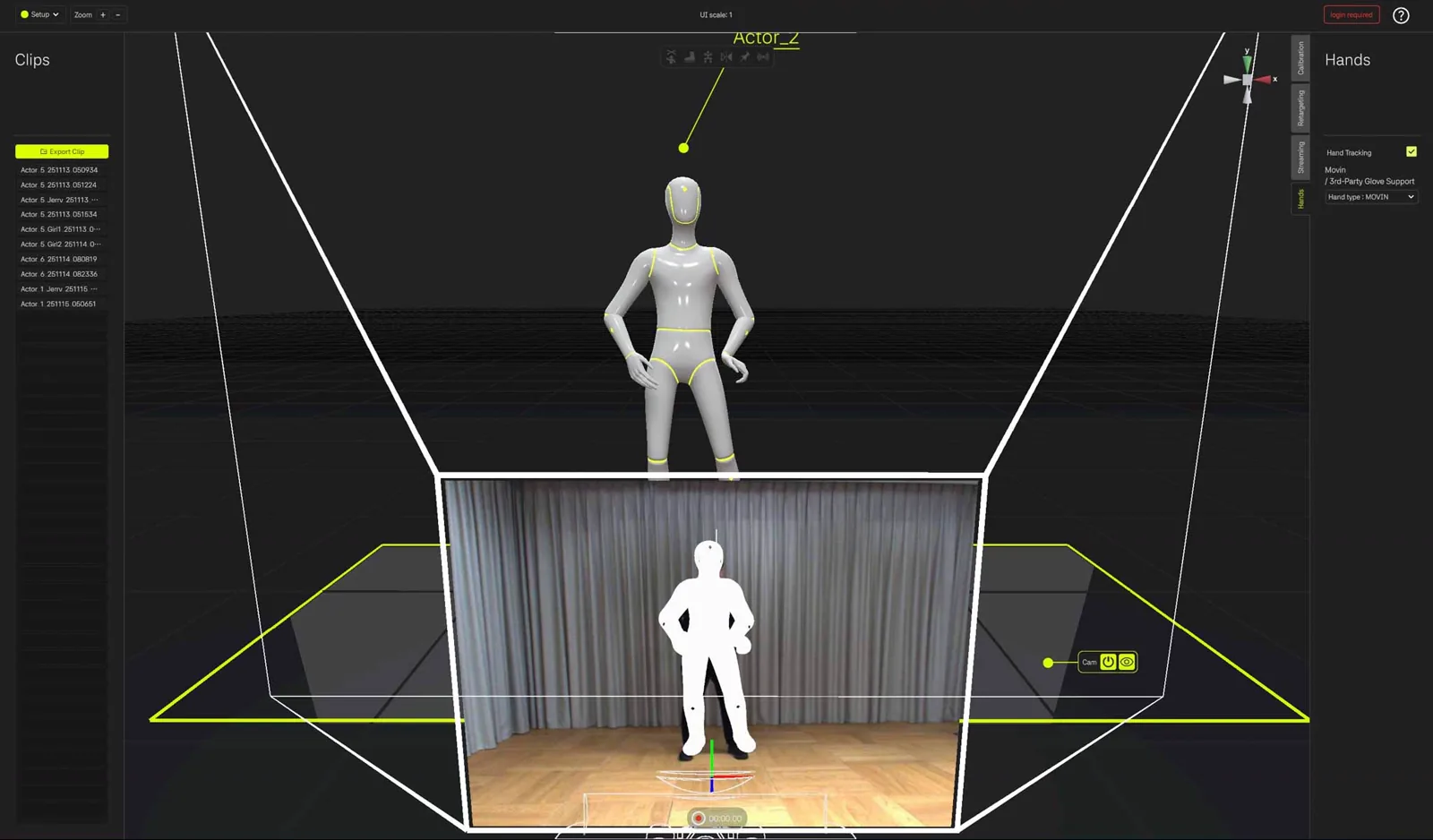
Both arms are moved behind the body, causing the hands to become hidden.
Integrate with Rokoko Smartgloves
To use Rokoko Smartgloves, you must have an active Plus subscription for Rokoko Studio.
For subscription details, please visit Rokoko's official site.
1. Select 'Rokoko' in the 'MOVIN / Third-Party Glove' dropdown.
- In MOVIN Studio, go to Tracking Options in the bottom panel of the Capture screen.
- Turn Hand Tracking on, then select Rokoko in the MOVIN / Third-Party Glove dropdown.
2. Install Rokoko Studio and pair Smartgloves.
- Install Rokoko Studio on your PC.
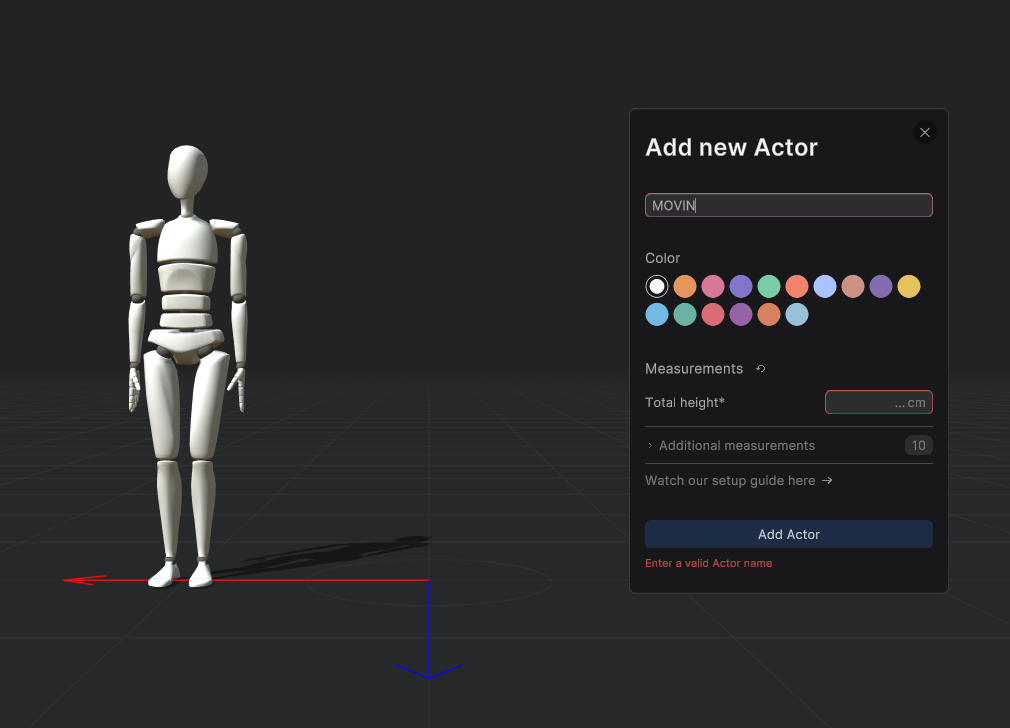
- Launch the app and create a new project. Next, create an actor named "MOVIN".
- Be careful to write the name in capital letters. Integration may not work if "MOVIN" is not written in uppercase.
- Pair your Rokoko Smartgloves to Rokoko Studio.
Please check the gloves are connected to the actor 'MOVIN' on the left panel of Rokoko Studio.
- Drag and drop the gloves from the 'Capture devices' section onto the 'MOVIN' actor.
- If the glove emojis appear beside the 'MOVIN' actor, the gloves are connected.
- Please refer to Rokoko's official documentation for the details.
3. Enable Unity Streaming in Rokoko Studio.
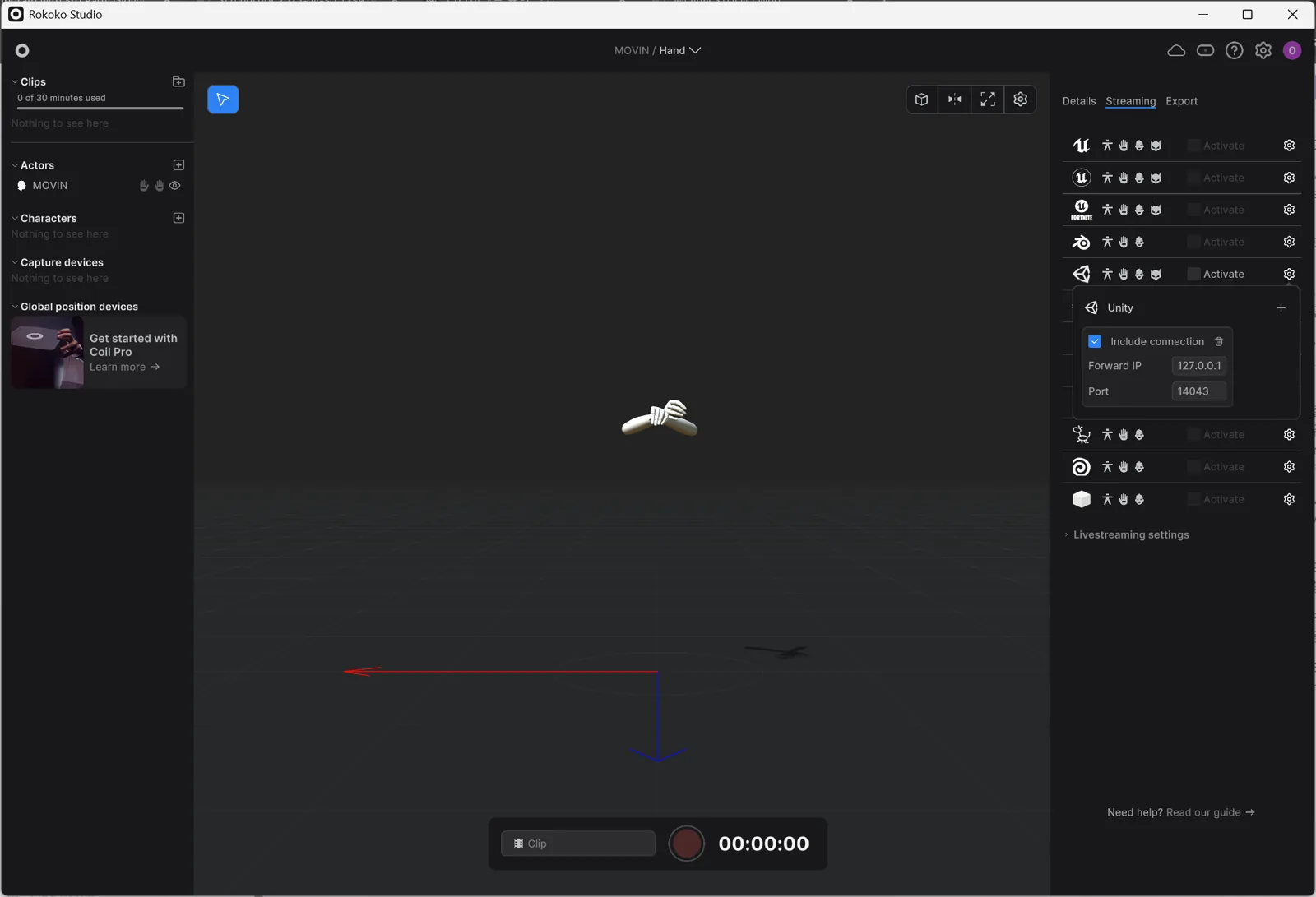
- In Rokoko Studio, Click the 'Streaming' tab on the right side, then click the gear icon (Settings) under the Unity section. Set the IP and port as shown below, and check the 'Include connection' box.
- IP: 127.0.0.1(localhost)
- Port: 14043
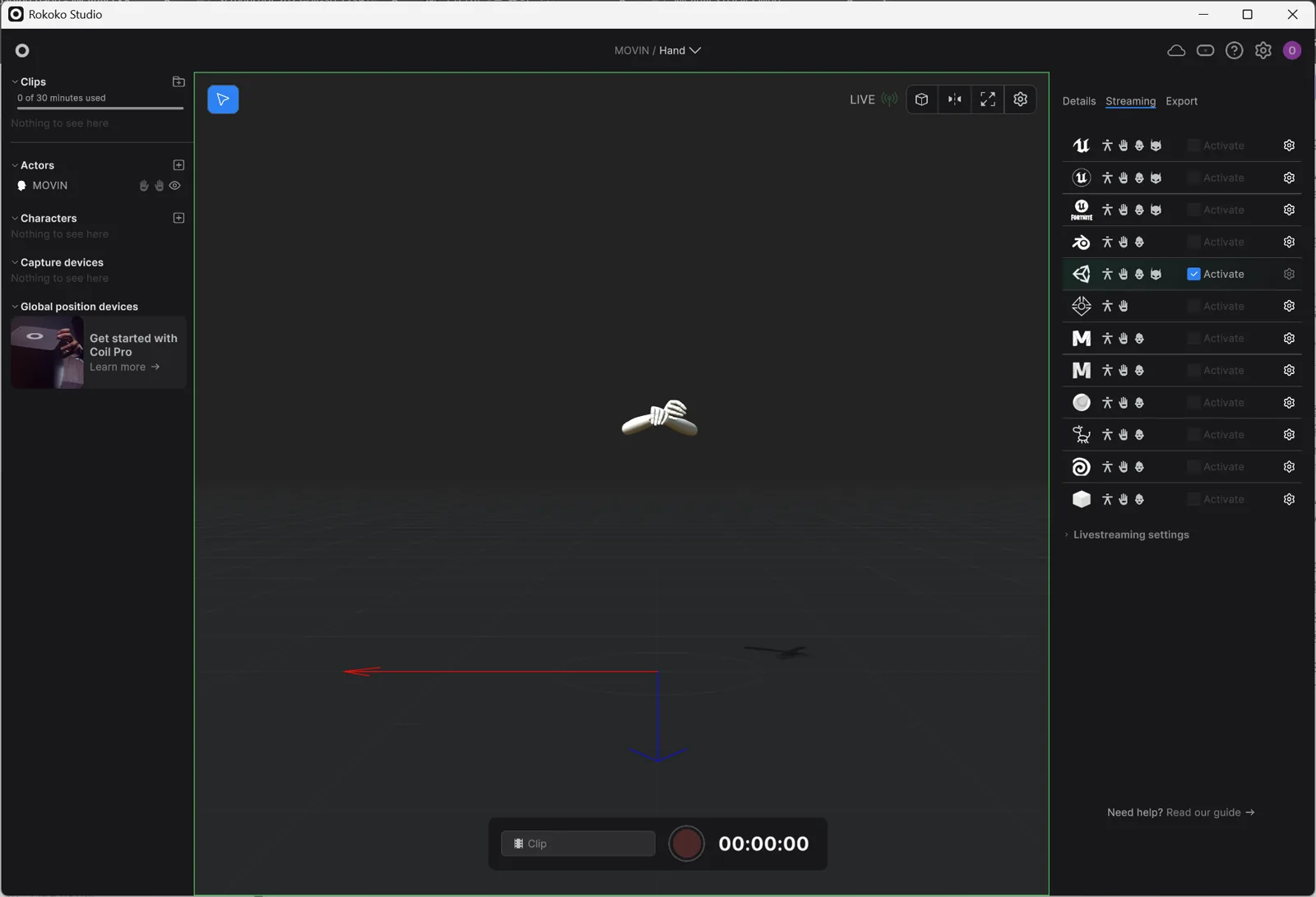
- Activate the Unity stream by checking the 'Activate' box.
- Return to MOVIN Studio and confirm that wrist and finger motion is now reflected on the skeleton.
4. Click 'Calibrate ROKOKO' if the calibration is needed.
- MOVIN Studio allows you to calibrate your Rokoko gloves directly within the app—no need to switch back to Rokoko Studio.
- In Tracking Options, click Calibrate ROKOKO below the MOVIN / Third-Party Glove dropdown.
- Hold the Rokoko calibration pose for 3 seconds to complete the process.
Integrate with MANUS Smart Gloves
To use MANUS Smart Gloves, you need a MANUS Core 3.0+ license that supports live streaming to Unity. In the License section, make sure the Unity plugin is marked as 'active'.
1. Select 'MANUS' in the 'MOVIN / Third-Party Glove' dropdown.
- In MOVIN Studio, go to Tracking Options in the bottom panel of the Capture screen.
- Turn Hand Tracking on, then select MANUS in the MOVIN / Third-Party Glove dropdown.
- If a hand looks rotated, adjust MANUS left / right Y Rotation Offset below the dropdown.
2. Install MANUS Core and pair the gloves.
- Download and install MANUS Core on your PC.
Check the version of MANUS Core is 3.0.0 or higher. If you use a lower version than 3.0.0, integration with MOVIN may not work properly.
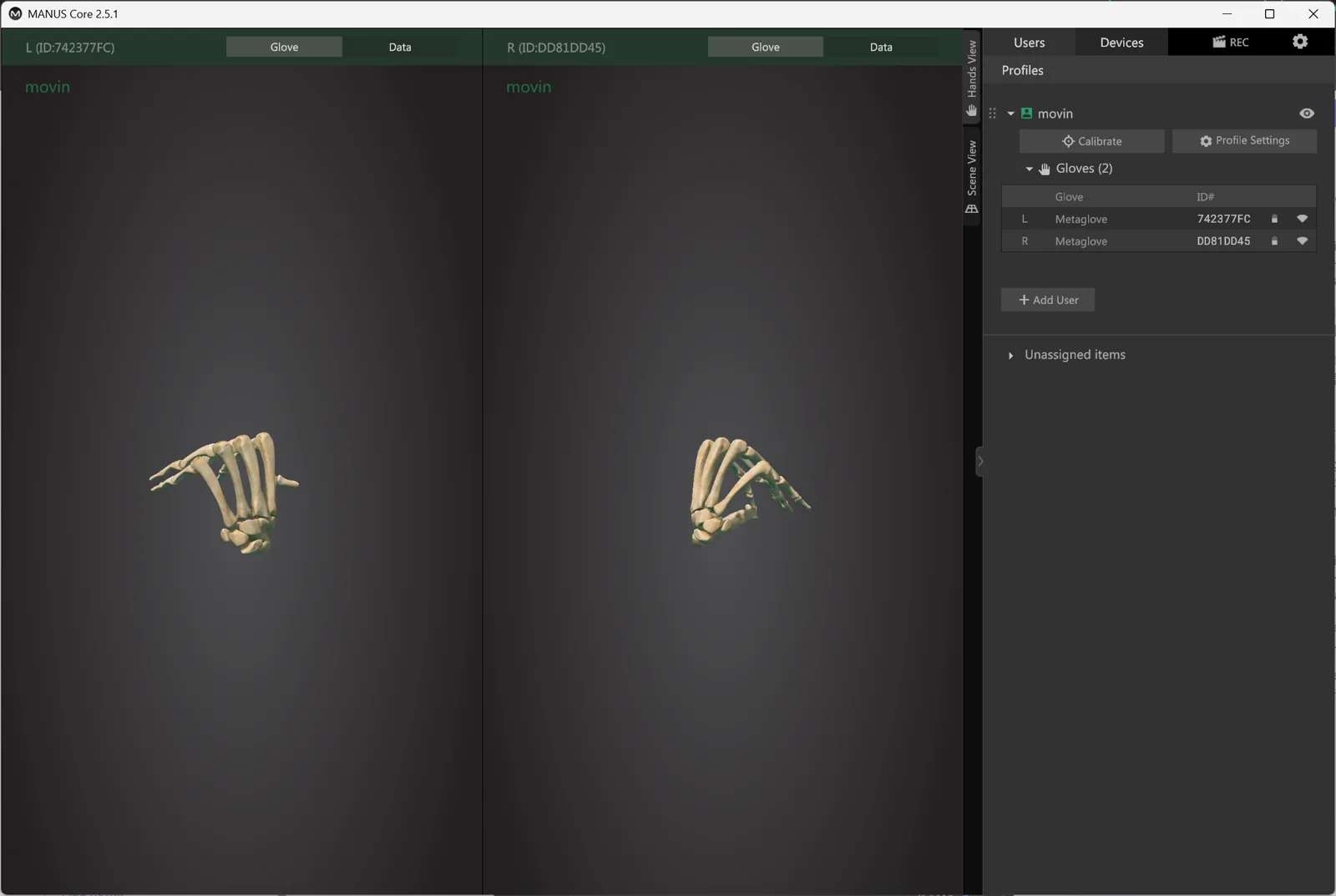
- Launch the software and pair your MANUS gloves with the system.
- Refer to MANUS’s official documentation for full setup instructions.
- Once connected, check MOVIN Studio to ensure that wrist and finger movements are mirrored on the skeleton.
If the gloves work in MANUS Core but not in MOVIN Studio, a port conflict may be preventing data transmission. In this case, try restarting your desktop to resolve the issue.
3. Calibration the glove in MANUS Core.
- For full details, refer to MANUS’s documentation on calibration procedures.
Integrate with Meta Quest
With the MOVIN Quest Companion app, a Meta Quest headset streams its hand tracking to MOVIN Studio over Wi-Fi. The performer wears the headset during capture, and its cameras track the wrists and fingers.
Before you start
- Quest 2, Quest 3, Quest 3S or Quest Pro (the first-generation Quest isn't supported)
- A Meta developer account and the Meta Horizon app on your phone - needed to turn on Developer Mode
- A USB-C cable that supports data transfer (charge-only cables won't work)
- The Quest and the MOVIN Studio PC on the same Wi-Fi
-
Turn on Developer Mode
The companion app isn't on the Meta Store, so the Quest needs Developer Mode to run it.
- Create a free Meta developer account at developers.meta.com/horizon.
- Sign in to the Meta Horizon app on your phone.
- In the app, go to
Menu→Devices→ select your Quest →Developer Mode→ ON. - Restart the Quest.
-
Install ADB on your PC
ADB installs the app from your PC onto the Quest. You only need it once, and any PC works - it doesn't have to be the one running MOVIN Studio.
- Windows: open PowerShell and run
winget install --id=Google.PlatformTools -e. Then open a new PowerShell window and runadb versionto check. - Ubuntu: run
sudo apt install adb android-sdk-platform-tools-common. The second package lets your account access the headset over USB.
- Windows: open PowerShell and run
-
Connect the Quest to your PC
- Connect the Quest to your PC with the USB-C cable.
- Wearing the Quest, find the
Allow USB debugging?dialog, checkAlways allow from this computerand selectAllow. - On the PC, run
adb devices. Your Quest should be listed asdevice.
Listed as
unauthorized? Unplug and replug the cable, then allow USB debugging in the headset again. -
Install the MOVIN Quest Companion app
- Download MOVINQuestCompanion.apk - this link always gets the latest version.
- In the folder you downloaded it to, run
adb install MOVINQuestCompanion.apk.
To update to a newer version later, run
adb install -r MOVINQuestCompanion.apk. -
Select Quest in MOVIN Studio
- In MOVIN Studio, go to Tracking Options in the bottom panel of the Capture screen.
- Turn Hand Tracking on, then select Quest in the MOVIN / Third-Party Glove dropdown.
- Choose Quest Input:
- Hand Tracking: the Quest's cameras track your wrists and fingers.
- Controllers: hold the Quest controllers. They drive the wrists, and pulling the trigger closes the fingers. Fingers aren't tracked individually.
-
Launch the app and connect
- Make sure hand tracking is on in the headset:
Settings→Movement Tracking→Hand Tracking. - In the headset, open
App Library, chooseUnknown Sourcesfrom the dropdown at the top right, and launch MOVINQuestCompanion. - On first launch, allow the Hand Tracking permission.
- Your PC appears in the list as
hostname ip:port. Select it to connect.- Not in the list? Type the PC's IP address under Or type IP manually and select
Connect. - To click, point with a controller and pull the trigger, or point with your hand and pinch.
- Not in the list? Type the PC's IP address under Or type IP manually and select
- When the status shows ● Connected with ● L ● R, your hands are being tracked.
MOVIN Studio lines the Quest up with TRACIN automatically - keep both hands in view and steady for a moment after connecting.
- Make sure hand tracking is on in the headset:
Watch your surroundings. While the companion app is open, the Quest's Guardian boundary is turned off, so the headset won't warn you near walls or objects. Keep the Mocap Zone clear.
Network and firewall
- Some office or public Wi-Fi networks block traffic between devices. If so, use a separate router with only the Quest and the MOVIN Studio PC on it.
- If Windows asks for network access when MOVIN Studio first starts, select
Allow access. - If your firewall blocks the connection, allow these UDP ports:
| Port | Direction | Used for |
|---|---|---|
| UDP 14044 | Quest ↔ PC | Hand data - required |
| UDP 14045 | Quest → network | Finding the PC automatically |
| UDP 14046 | PC → Quest | Finding the PC automatically |
Troubleshooting
When the app can't reach MOVIN Studio, it shows a hint under the status:
| Hint on the headset | What to do |
|---|---|
Not sending | Select Disconnect, connect again, and check the IP address. |
No reply → same Wi-Fi? firewall? … | Put both devices on the same Wi-Fi, and make sure MOVIN Studio is on the Capture screen. |
PC found but silent → … | In MOVIN Studio, turn Hand Tracking on and select Quest. Allow UDP 14044 through the firewall. |
Reply intermittent | The Wi-Fi is weak - move closer to the router or use 5 GHz. |
- Connected, but ○ L ○ R: your hands are out of the headset's view, or hand tracking is off in the headset. The connection itself is fine.
- No PC in the list: automatic discovery is blocked on your network - type the IP address instead.
For more installation and troubleshooting details, see the MOVIN Quest Companion repository.