MOVIN TRACIN · Setup & Installation
Set up your MOVIN TRACIN
On this page
Goal of this chapter: TRACIN is mounted, powered, and YOU are ready to get MOVIN.
Prefer to watch? The video above walks you through the full MOVIN TRACIN setup. It starts with the unboxing, so you can see exactly what’s in the box (as of Sep. 2025) before you begin.
Already set up your hardware? Skip ahead to Install MOVIN Studio.
Otherwise, follow the step-by-step guide below.
What You Need
What's in the MOVIN TRACIN Package
MOVIN TRACIN ships in a protective hard case, built to protect it in transit, on set, and in storage.
Before you set it up, make sure everything below is in the box:
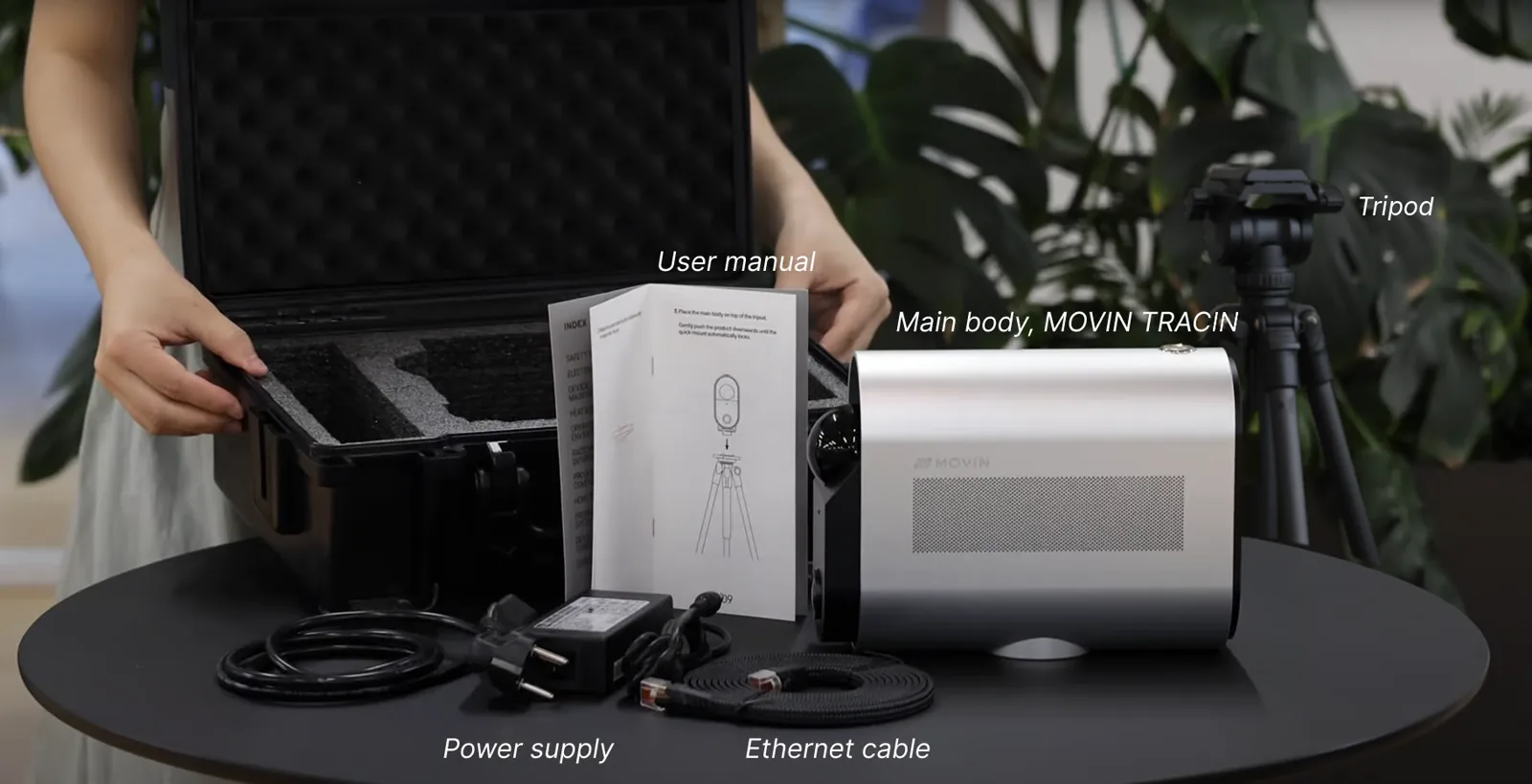
MOVIN TRACIN Package
- MOVIN TRACIN main body
- Power supply
- Ethernet cable (1.5 m / 5 ft)
- User manual
- Warranty card (with product serial number)
- Tripod
Missing something? Message us in #cs-chat on the MOVIN Discord. We are always here to help.
Your PC
TRACIN pairs directly with your PC, which makes your PC the one other piece of the setup. Check that it meets the specs below.
- Operating System: Windows 11 (64-bit) / Ubuntu
- Processor: 3.0+ GHz i7 CPU
- Memory: 16 GB or higher
- Network: Dedicated 1 Gigabit Ethernet port (must be separate from your local network port)
Additional Accessories
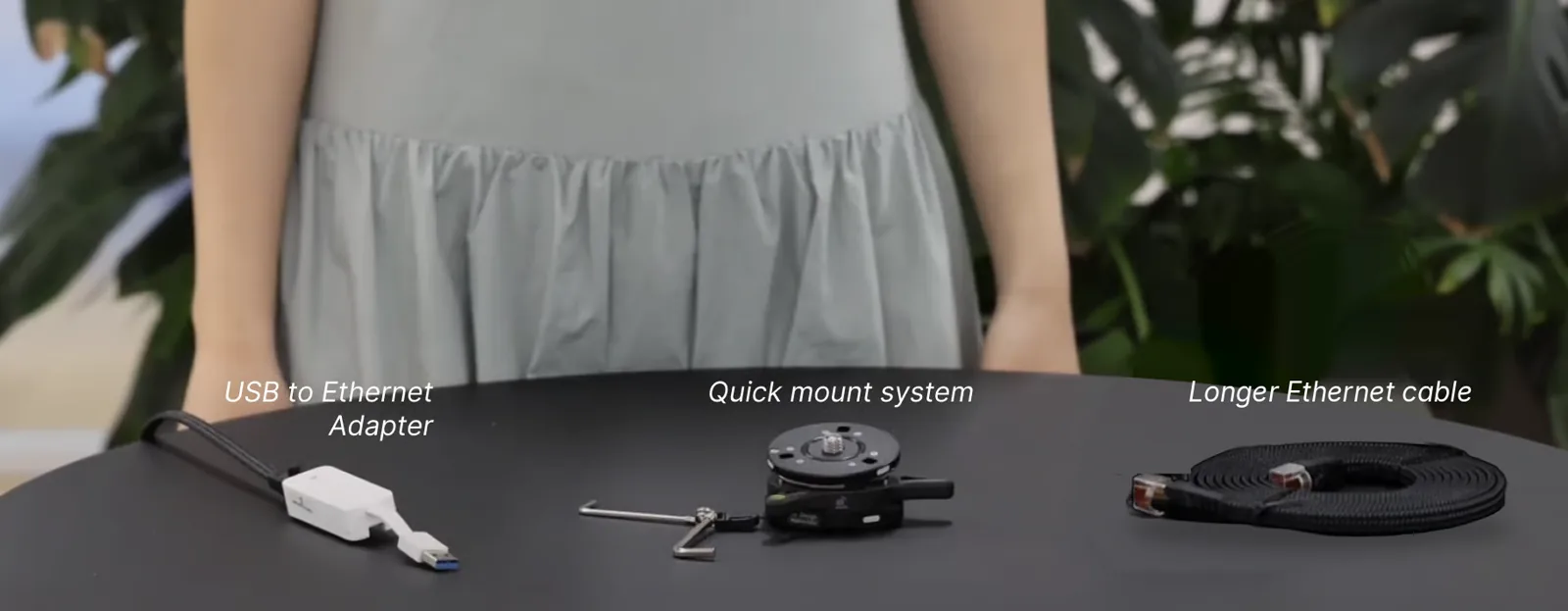
These items are not included with MOVIN TRACIN and are purchased separately. Depending on your setup, additional accessories may be required to ensure stable use of MOVIN TRACIN.
- USB-to-Ethernet adapter
- For laptops without a free Ethernet port, prepare a USB to Ethernet Adapter to maintain a direct connection.
- MOVIN TRACIN requires a direct wired connection between the device and the computer - USB hubs, docks, routers and switches will not work.
- Quick-release mount
- For quick on-and-off tripod mounting, prepare a quick-release mount system like iFootage Seastar Q1S to switch setups in seconds.
- MOVIN TRACIN mounts on a standard 3/8-inch screw thread - the mount must use a 3/8-inch thread.
- Longer Ethernet cable
- If your PC sits more than 1.5 m (5 ft) from TRACIN (the length of the included cable), prepare a longer Ethernet cable to keep the connection direct.
- The cable must support Gigabit speeds - use CAT6 or higher, RJ45, 1 Gbps (1000BASE-T).
How to Set Up MOVIN TRACIN: Step by Step
This section follows the same instructions as the MOVIN TRACIN Setup Manual.
If you’ve already completed the hardware setup, feel free to skip ahead to the next section, Install MOVIN Studio.
-
Set up the tripod to 95 cm (37 in)
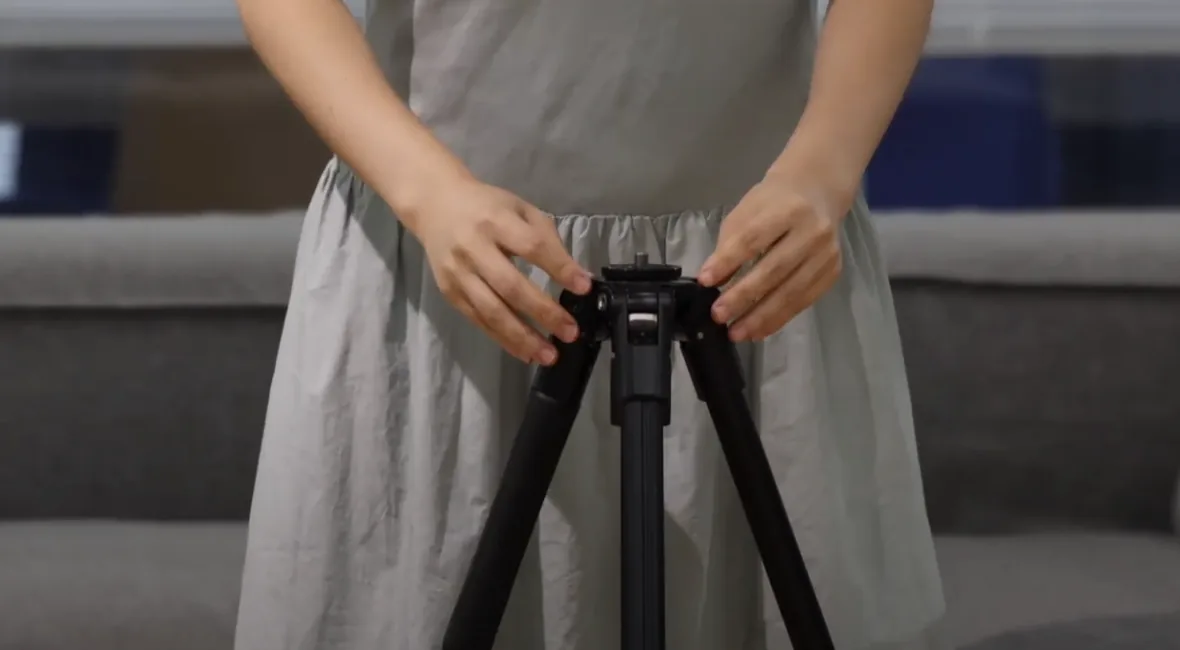
Set up the tripod at a height of 95 cm (37 in)
- Please install the tripod so that it is 95 cm above the ground. MT-20 delivers its most stable tracking at 95 cm (37 in) from the floor. Height directly affects data quality.
Tip: Using the MOVIN tripod from the box? Just extend it fully - it's built to sit at exactly 95cm (37 in). Using your own tripod? Make sure it has a 3/8-inch thread and measure to 95 cm (37 in).
-
Mount TRACIN to the tripod
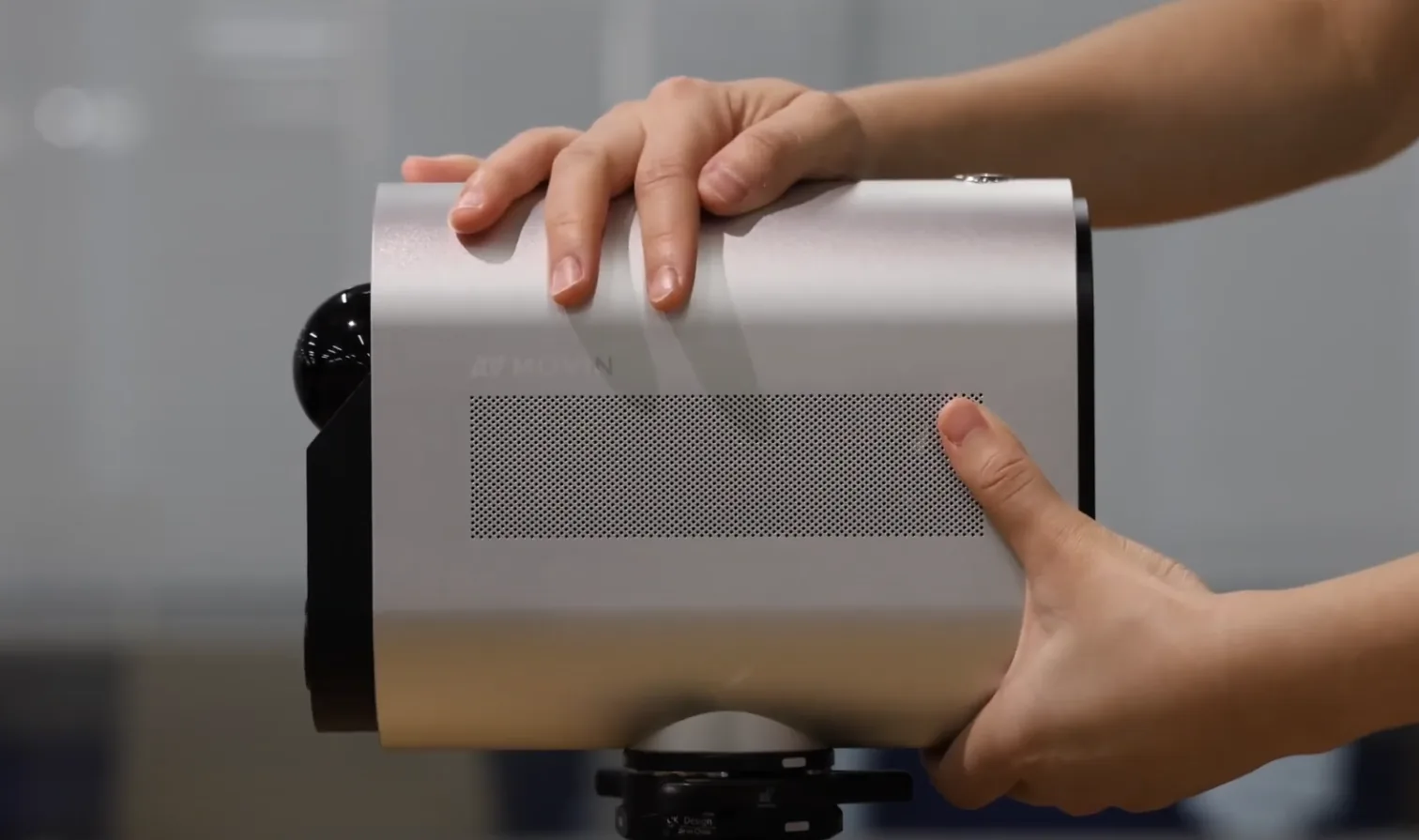
- Attach it to the tripod. Lift gently to confirm it's firmly secured.
- If you have a mount, secure the mount to both MOVIN TRACIN and the tripod, then attach them together.
- Attach it to the tripod. Lift gently to confirm it's firmly secured.
-
Level it
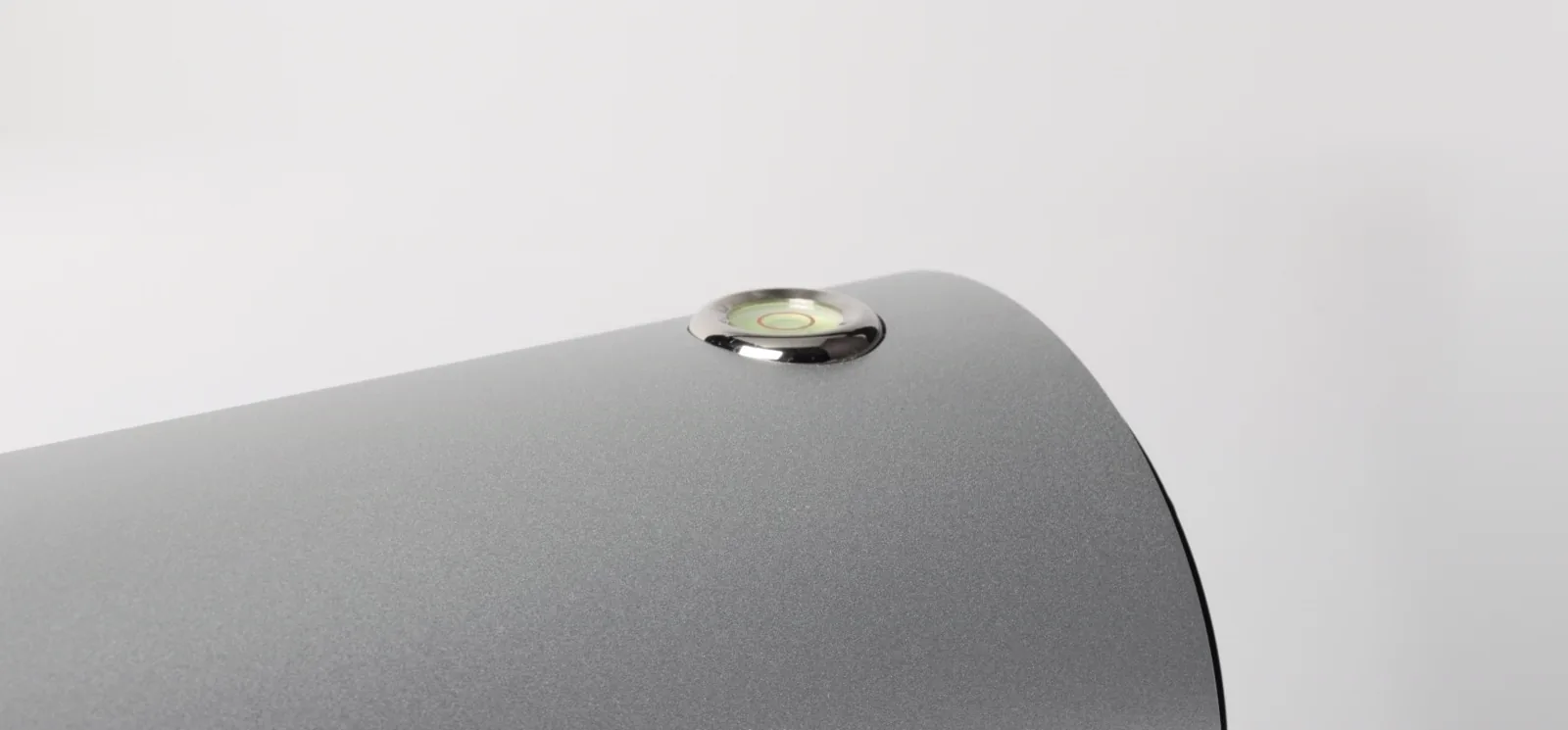
- Check the circular level indicator on top of TRACIN - the bubble should sit in the center.
- A tilted device can distort your motion capture data. If needed, reposition the tripod on a stable, flat surface.
- Check the circular level indicator on top of TRACIN - the bubble should sit in the center.
-
Face TRACIN toward open space
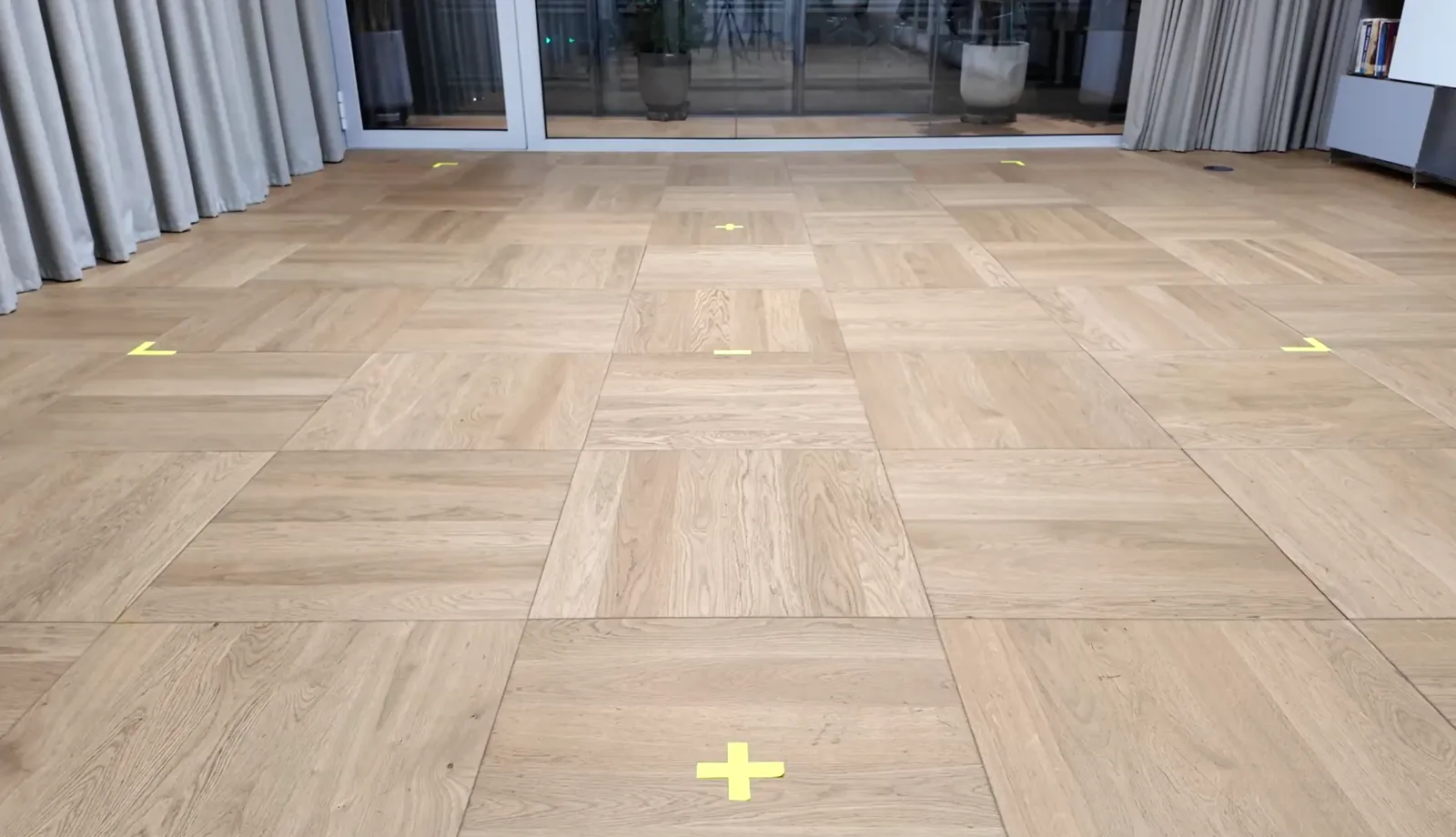
The (+) mark shows where to place MOVIN TRACIN, at least 1.2 m (4 ft) from the Mocap Zone
- Position the device facing a wide, open space with no clutter. MOVIN TRACIN recognizes the motion capture area (Mocap Zone) starting from a distance of 1.2 m (4 ft) in front of the device.
- You'll set up the full Mocap Zone later, in Set up your Mocap Zone.
- Position the device facing a wide, open space with no clutter. MOVIN TRACIN recognizes the motion capture area (Mocap Zone) starting from a distance of 1.2 m (4 ft) in front of the device.
-
Connect directly to your PC with the included Ethernet cable
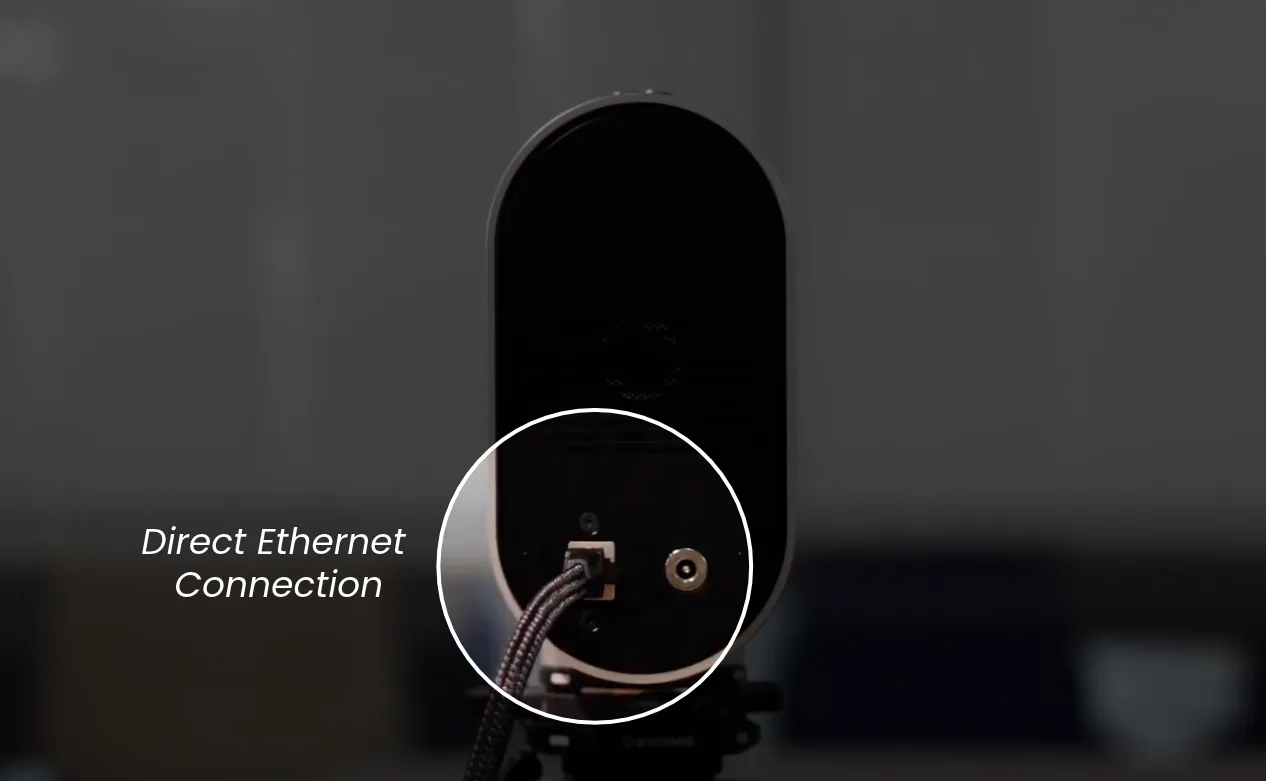
Connect the Ethernet cable to MOVIN TRACIN's port
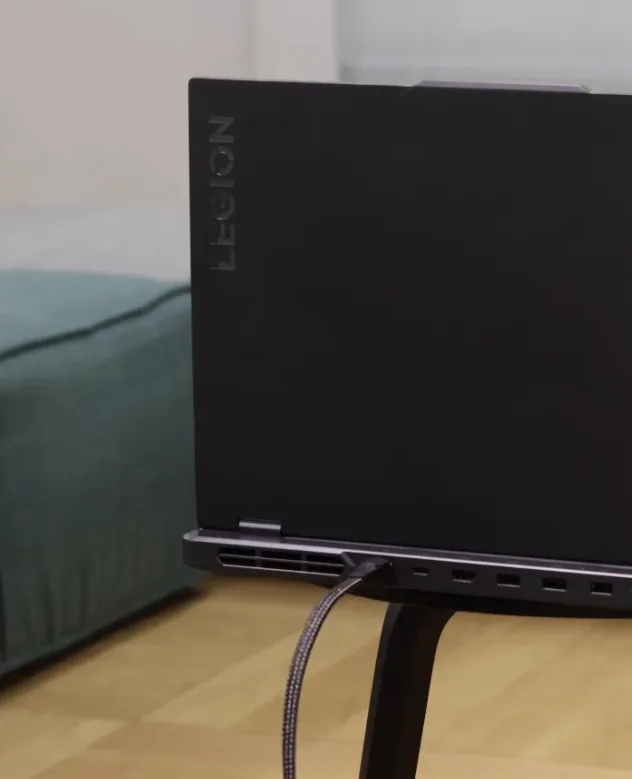
Connect the Ethernet cable directly to your PC
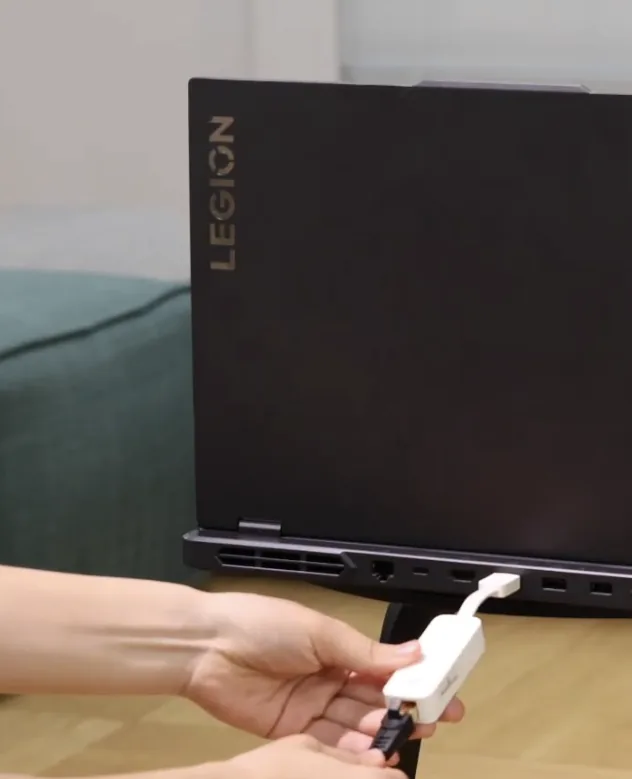
If no Ethernet port is available, connect with a
USB-to-Ethernet adapter- Run the Ethernet cable from TRACIN to your PC's dedicated Ethernet port.
- No routers, switches, docks or hubs in between.
- No free Ethernet port? Use a USB-to-Ethernet adapter.
- More than 1.5 m (5 ft) from your PC? Use a longer CAT6 (or higher) Ethernet cable.
- Run the Ethernet cable from TRACIN to your PC's dedicated Ethernet port.
-
Plug in the power cable and wait for the solid green light
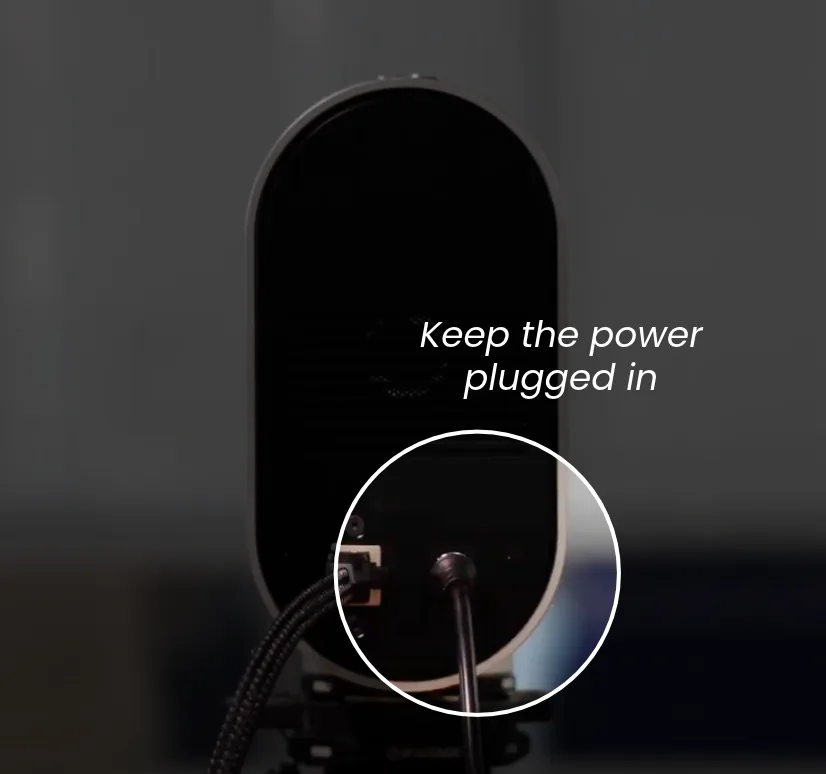
Connect the power cable to the power port
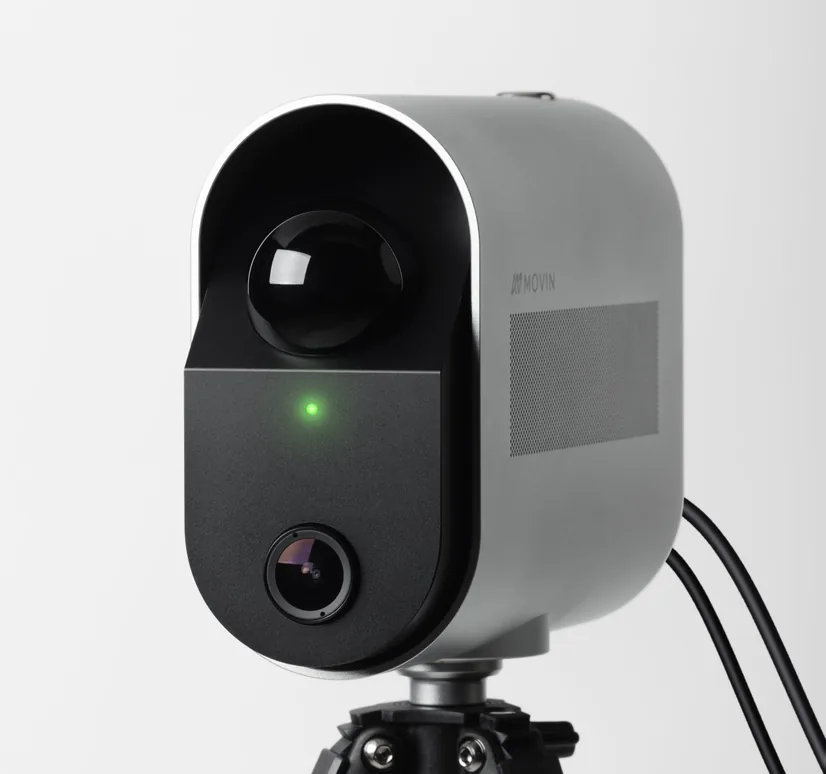
Wait for the solid green light
- Connect the included power cable to the MOVIN TRACIN power port.
- Wait for the solid green light (about 1 to 1.5 minutes) to confirm TRACIN is on.
- Indicator off or blinking? Unplug the power cable, wait a few seconds, and plug it back in. This clears most boot errors.
- TRACIN has no power button - it turns on when plugged in and needs continuous power while in use.
No light for the first minute? That's normal.
TRACIN starts booting with the light off - you'll only hear it running. After about 1 minute, the indicator starts blinking, then turns solid green. Solid green means TRACIN is ready.
Still no solid green after a reset?
If the problem persists even after several resets, message us in #cs-chat on the MOVIN Discord. We're always here to help.
Made it this far? Nice work - you're almost there!
Let's do a quick check before moving on to the next step - Install MOVIN Studio.
- Tripod at 95 cm (37 in)
- TRACIN secured and leveled
- Facing open space
- Ethernet cable connected directly to your PC
- Solid green light on
All checked? Let's get MOVIN!