MOVIN TRACIN · MOVIN Studio Usage Guide
Project, Toolbar and Puppet Mode
On this page
Goal of this chapter: You can organize your work into projects, check your motion with the toolbar, and use Puppet Mode to set up on your own.
Project
A project holds everything you make in MOVIN Studio - clips, actors, characters and retarget settings. The current project is shown at the center of the top bar.
- One project = one folder. To keep work separate (e.g. per client or per shoot), make a new project.
- Moving to another PC? Copy the project folder to that PC, then open the folder as a project.
Create a new project
- Create an empty folder where you want to keep the project.
- Click the project dropdown at the center of the top bar, then select Open new or existing project.
- Select the new folder. MOVIN Studio opens it as your project.
Open a project
- Click the project dropdown and select a project from the list.
- Not in the list? Select Open new or existing project, then select the project folder.
Open the project folder
- Click the folder icon next to the project dropdown.
Toolbar
The toolbar sits at the bottom center of the 3D view. Hover over a button to see what it does; a button is highlighted when it's on.
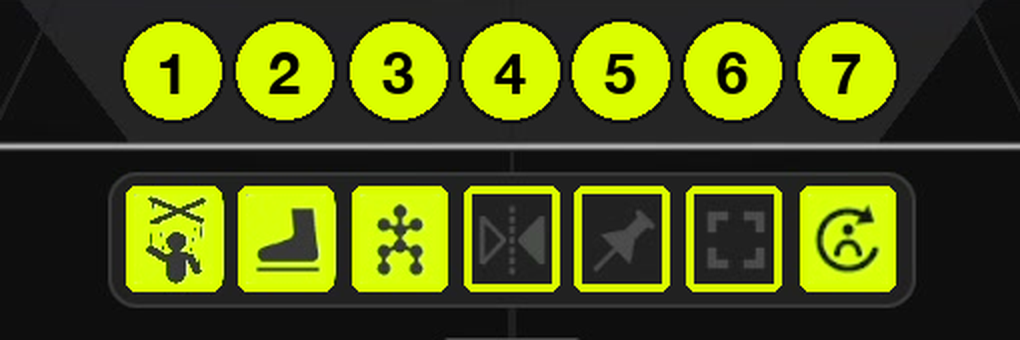
| # | Button | What it does |
|---|---|---|
| 1 | Puppet Mode | Turns a virtual Puppet on or off. See below. |
| 2 | Foot Contact | Highlights the feet when they touch the ground - check that the feet are grounded properly. |
| 3 | Show Skeleton | Shows the joints and bones - check the skeleton when reviewing quality or retargeting. |
| 4 | Mirror | Flips the motion left to right - handy when the actor watches a screen placed in front of the zone. |
| 5 | Inplace | Keeps the actor at the center of the zone - check motion even when the actor moves around or isn't facing forward. |
| 6 | Fullscreen | Expands the 3D view. Click it again to bring the panels back. |
| 7 | Refresh Motion | Refreshes tracking. Click it if the actor's pose or movement appears unnatural. |
In Clips, the toolbar shows only the review tools (Foot Contact, Show Skeleton, Mirror, Inplace and Fullscreen).
Puppet Mode
Puppet Mode places a virtual Puppet in your Mocap Zone that plays a motion clip. Use it to set up streaming, check a character or test your scene - without anyone in the zone. It's perfect when you're working alone.
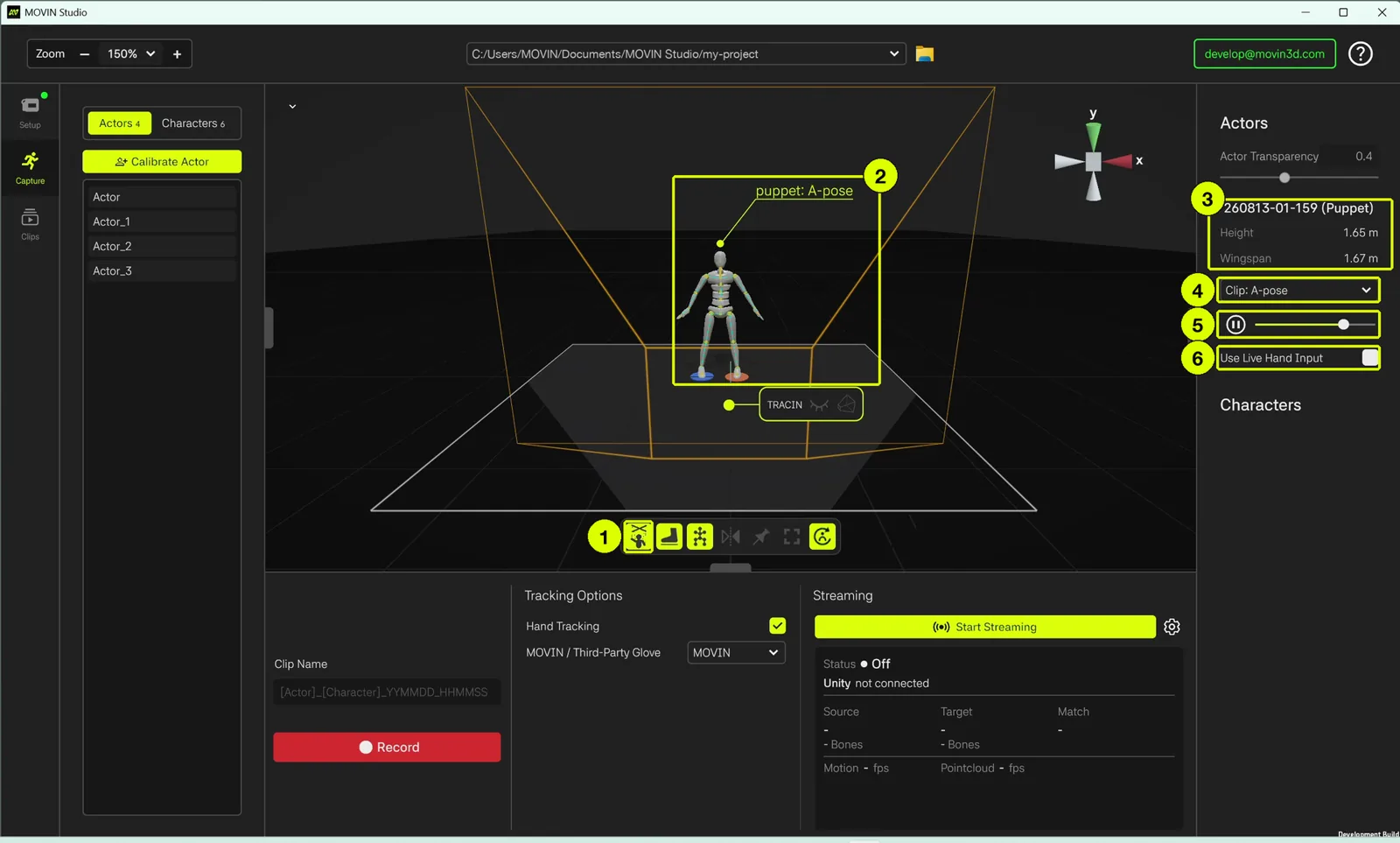
- Puppet Mode button: turns Puppet Mode on or off.
- Puppet: plays the selected clip inside your Mocap Zone. Its label shows the clip, e.g. puppet: A-pose.
- Puppet info (Details panel): the name, height and wingspan of the actor recorded in the clip.
- Clip: choose what the Puppet plays.
- Player: pause / play the clip, and drag the slider to move through it.
- Use Live Hand Input: when checked, the Puppet's hands follow your live hand tracking (MOVIN hand tracking or third-party gloves) instead of the hands recorded in the clip.
Choose a clip
Click Clip in the Details panel. MOVIN Studio comes with 16 built-in clips:
T-pose · A-pose · Standing · Standing 2 · Running · Jumping · Yoga · Crawling · Stretching · Body Wave · Subtle Movement · Body Touch · Dancing · Cartwheel · Marching · Breaking
Below them, the menu also lists every clip in your project - so you can record the moves you need once, then replay them with the Puppet anytime.
You can't record in Puppet Mode. To record, double-click an actor or click Calibrate Actor - Puppet Mode turns off automatically.
Your workspace is ready. Next, create an actor from your own body data - it only takes 3 seconds.
→ Create and Calibrate Actor