MOVIN TRACIN · Setup & Installation
Set up your Camera
Goal of this chapter: Complete the Setup Camera step to move on to the Setup Mocap Zone step. TRACIN's camera is tuned to your lighting, and your body and hands are ready to be tracked clearly.
Right after TRACIN connects, MOVIN Studio opens Setup Camera. TRACIN uses LiDAR and the camera together to track your body and fingers, so your lighting matters more than ever. This step makes sure TRACIN can see you clearly before you set your Mocap Zone.
Get to know the Setup Camera screen
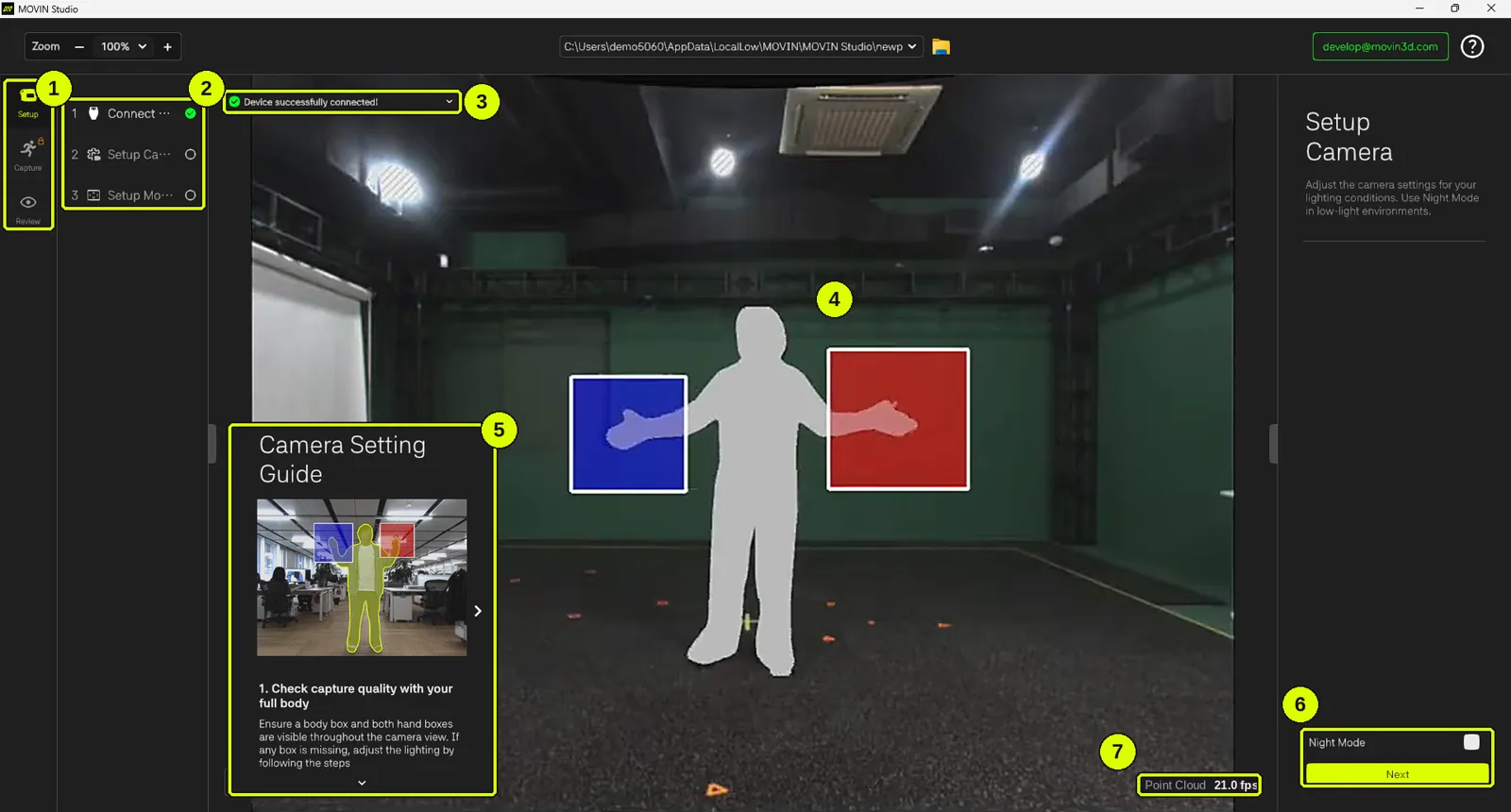
- Setup / Capture / Clips tabs (far left): you're in Setup. Capture unlocks once setup is complete.
- Setup steps: 1 Connect → 2 Setup Camera → 3 Setup Mocap Zone. A green check appears after each finished step.
- Notifications: shows Device successfully connected! once TRACIN is linked. Shows updates and errors from MOVIN Studio. Click ⌄ to expand it and see notification history.
- Camera view (center): TRACIN's live camera feed. Your body appears as a silhouette, and each hand gets its own box - one blue, one red. The boxes follow your hands as you move. Diagonal stripes (a zebra pattern) mark areas that are too bright.
- Camera Setting Guide (bottom left): four quick tips for a clear capture — full-body check, light facing the camera, too dark, too bright. Click ˄ to open it, > to browse, and ˅ to collapse.
- Setup Camera panel (right): the Night Mode toggle and the Next button.
- Point Cloud (bottom right): the live frame rate TRACIN is sending, e.g. Point Cloud 21.0 fps.
How to Setup Camera: Step by Step
-
Check that your full body and both hands are tracked
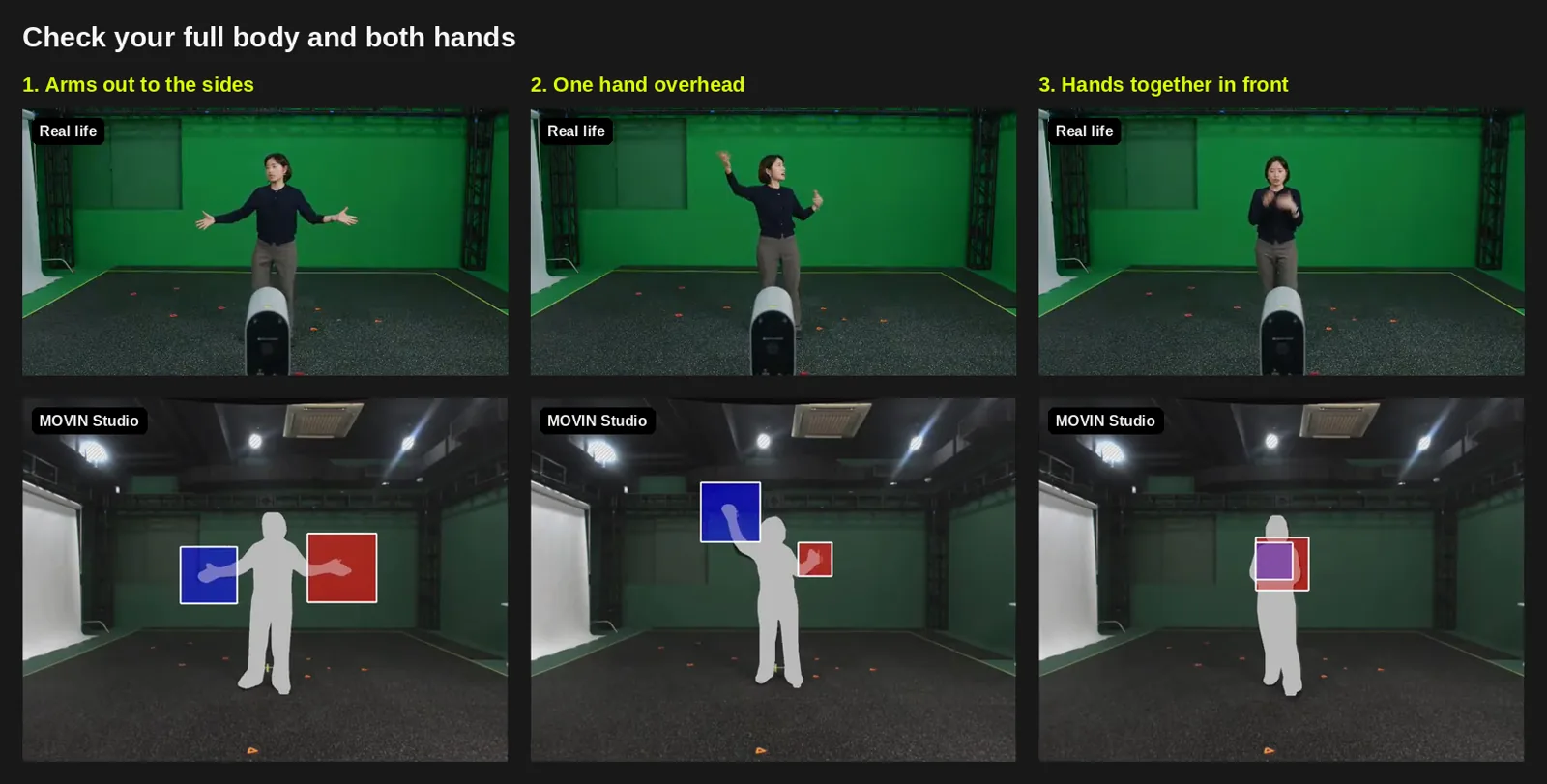
- Stand facing TRACIN, inside the area you plan to capture.
- Your body appears as a silhouette, and each hand gets its own box - one blue, one red. The boxes follow your hands as you move.
- Move your hands around the frame to make sure both hands are tracked.
- Your silhouette and both hand boxes should stay visible the whole time. If they do, your lighting is good - go straight to Step 4.
- Each hand box tracks that hand's fingers - check both, and make sure no light source behind you interrupts them.
-
Fix the lighting
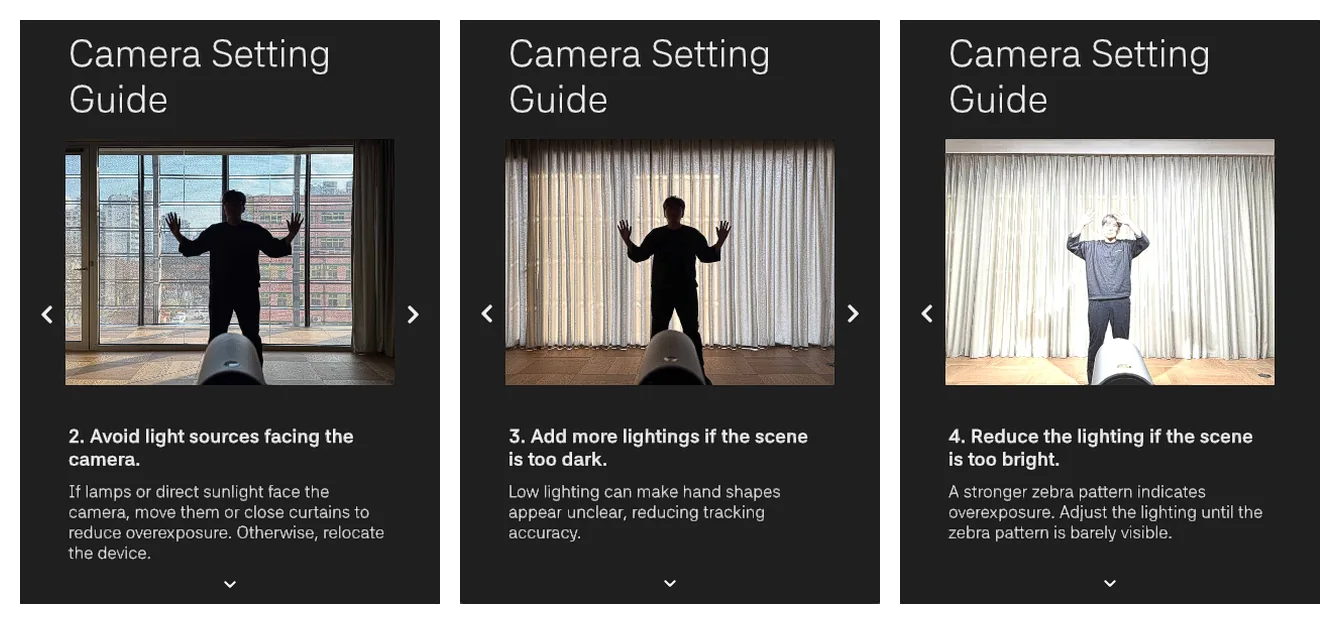
Problem What you'll see What to do Problem What you'll see What to do Too bright A zebra pattern (diagonal stripes). Fingers that move through it aren't tracked properly. Usually it's light behind the actor, facing the camera. Move or dim the lights, or close the curtains, until no zebra remains where your hands move. Otherwise, relocate TRACIN. Too dark Unclear hand shapes; hand boxes flicker or disappear. Add more lighting. No light at all Outdoors or at night. Turn on Night Mode -see Step 3. After each change, check again with Step 1. These tips are also on your MOVIN Studio screen, in the Camera Setting Guide — click > to browse them.
-
No light at all? Turn on Night Mode
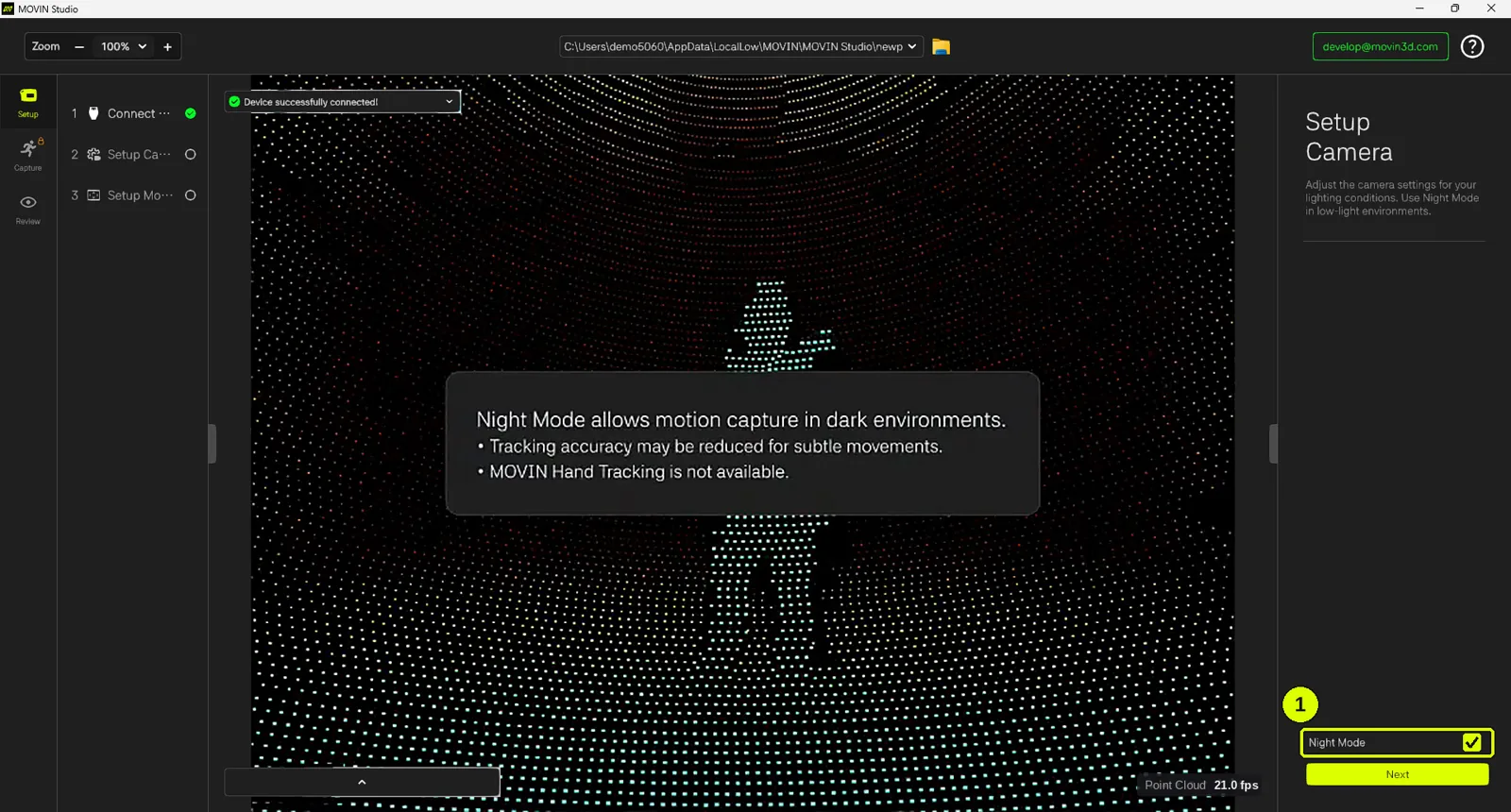
- Outdoors, at night or with no light at all? Check Night Mode in the right panel.
- The camera view switches to a point cloud view, and the message appears: Night Mode allows motion capture in dark environments.
- In Night Mode, TRACIN tracks your full body with LiDAR only - the camera isn't used, so it works without any light.
Night Mode has trade-offs: tracking may be less accurate for subtle movements, and Hand Tracking is not available. Try optimizing your lighting first, and use Night Mode only in environments where you can't.
-
Click Next when you are ready
Once your body and hands are tracked clearly (or Night Mode is on), click Next in the right panel - you will be redirected to Setup Mocap Zone.
TRACIN can now see you clearly. Next, set up the space where you'll capture - so TRACIN can track every move at its full potential. → Set Up Your Mocap Zone