MOVIN TRACIN · MOVIN Studio Usage Guide
Recording
On this page
Goal of this chapter: Your performance is saved as a clip, ready to review in Clips.
Before you start
- An actor is selected (check mark in the Actors tab) - see Create and Calibrate Actor
- Puppet Mode is off - you can't record in Puppet Mode
- A character is selected if you want to record with one (optional) - see Import Character and Retargeting
- Tracking Options are set: Hand Tracking on or off, and MOVIN or your glove - see Hand Tracking
- Using the free Basic License? Your PC must be online to start and save a recording.
Get to know the recorder
The recorder is at the bottom left of the Capture screen.
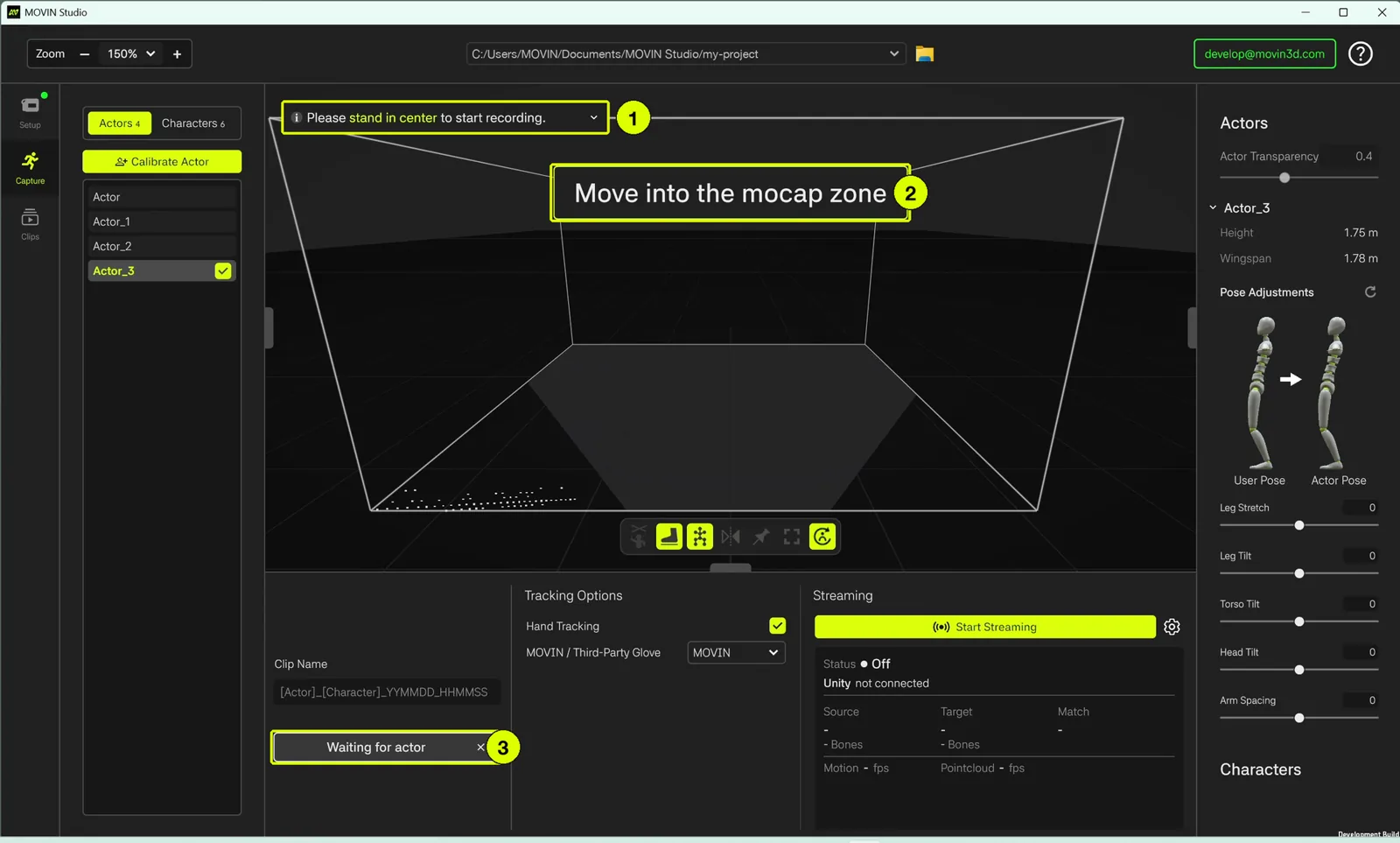
- Notifications: what MOVIN Studio needs from you, e.g. Please stand in center to start recording.
- On-screen guide: where the actor should go, e.g. Move into the mocap zone.
- Recorder: the Clip Name field and the Record button. While MOVIN Studio waits for the actor, the button reads Waiting for actor - click it to cancel.
How to record: Step by Step
-
Name your clip
- Type a name in Clip Name.
- Leave it empty to use the default: [Actor]_[Character]_YYMMDD_HHMMSS - the actor, the character (if one is selected) and the time recording started.
- A name can't use
< > : " / \ | ? *or end with a period. If it can't be used, a message appears below the field and Record stays disabled.
-
Click Record
- Click Record.
- If the actor is already being tracked in the zone, recording starts right away.
- If not, the button changes to Waiting for actor and the screen shows Move into the mocap zone. Step into the zone - the button counts down (Starting in 3s) while the screen shows Stay inside the mocap zone until recording starts, then recording starts automatically.
Puppet Mode on? Recording is unavailable in Puppet Mode - the notification shows Recording is unavailable in Puppet Mode. Select an actor to record. Double-click an actor to turn Puppet Mode off, then click Record again.
-
Perform
- The button turns into Stop with a timer, e.g. Stop 00:01:16. The Clip Name is locked until recording stops.
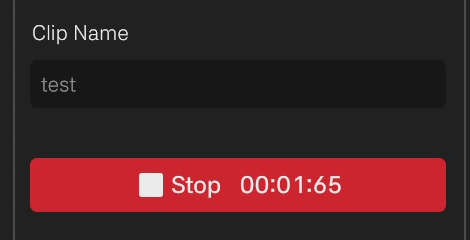
- You can still change the actor, character and hand options while recording. The clip is saved with the settings in use when recording stops.
-
Click Stop
- Click Stop to finish. Stepping out of the Mocap Zone also stops the recording - the clip is saved either way.
- MOVIN Studio refines the clip. When the notification shows [Clip Name] is refined, your clip is ready in Clips.
Don't switch to another tab while recording. If you leave the Capture screen during a recording, that recording is discarded.
On the free Basic License, MOVIN Studio shows how much free recording time remains each time you start and stop. If the PC goes offline, the last recording can't be saved. Learn more about licenses.
Tips: capture moves TRACIN can't see
MOVIN uses a single TRACIN, so it can't see body parts hidden behind the body (blind spots). Try these:
- Move into the pose continuously. Need your hands behind your back? Start from the front and move them back in one motion, so tracking follows them all the way.
- Turn toward TRACIN. Turn your body so the move faces TRACIN instead of being hidden by your torso.
- Use third-party gloves for hidden hands. If your hands are often out of view, gloves keep tracking them. See Hand Tracking Devices.
Your clip is saved. Next, play it back, trim it, retarget it and export it.
→ Play, Export and Stream Mocap Clip