MOVIN TRACIN · Setup & Installation
Install MOVIN Studio
Goal of this chapter: MOVIN Studio is installed, you're logged in, and you are ready to connect.
MOVIN Studio is the desktop app where you preview, record and export your motion data from TRACIN. Download and install it on your PC, then log in to get started. You'll need an internet connection to log in.
MOVIN Studio runs on Windows and Ubuntu. macOS is not supported, so please use a compatible PC to continue.
Set up MOVIN Studio
-
Download and install MOVIN Studio
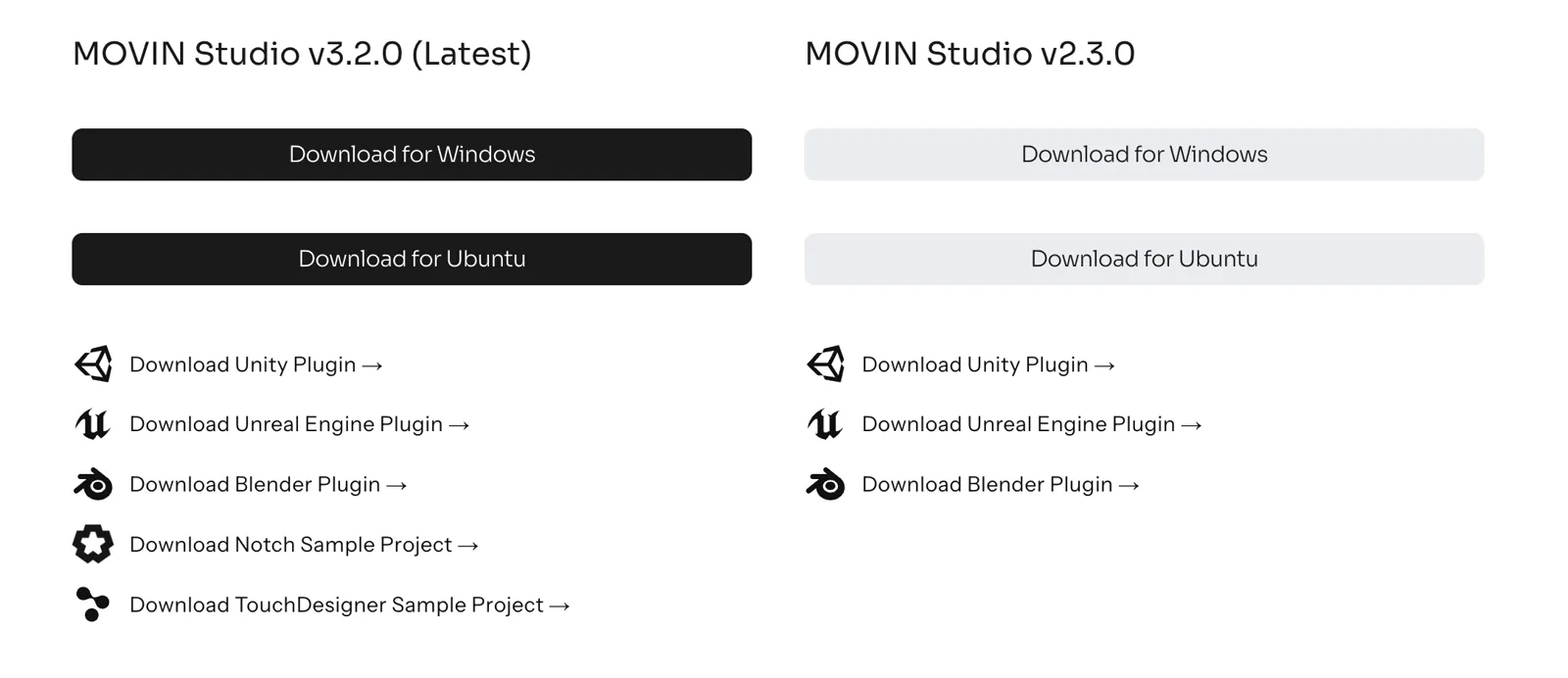
- Go to movin3d.com/downloads, download MOVIN Studio for your operating system (Windows or Ubuntu), and run the installer.
-
Open MOVIN Studio from the desktop shortcut or the Start menu
-
Sign up / Log in to MOVIN Studio
An internet connection is required to log in to MOVIN Studio. On the Unlimited plan, you can use MOVIN Studio offline for up to 24 hours after your first login.
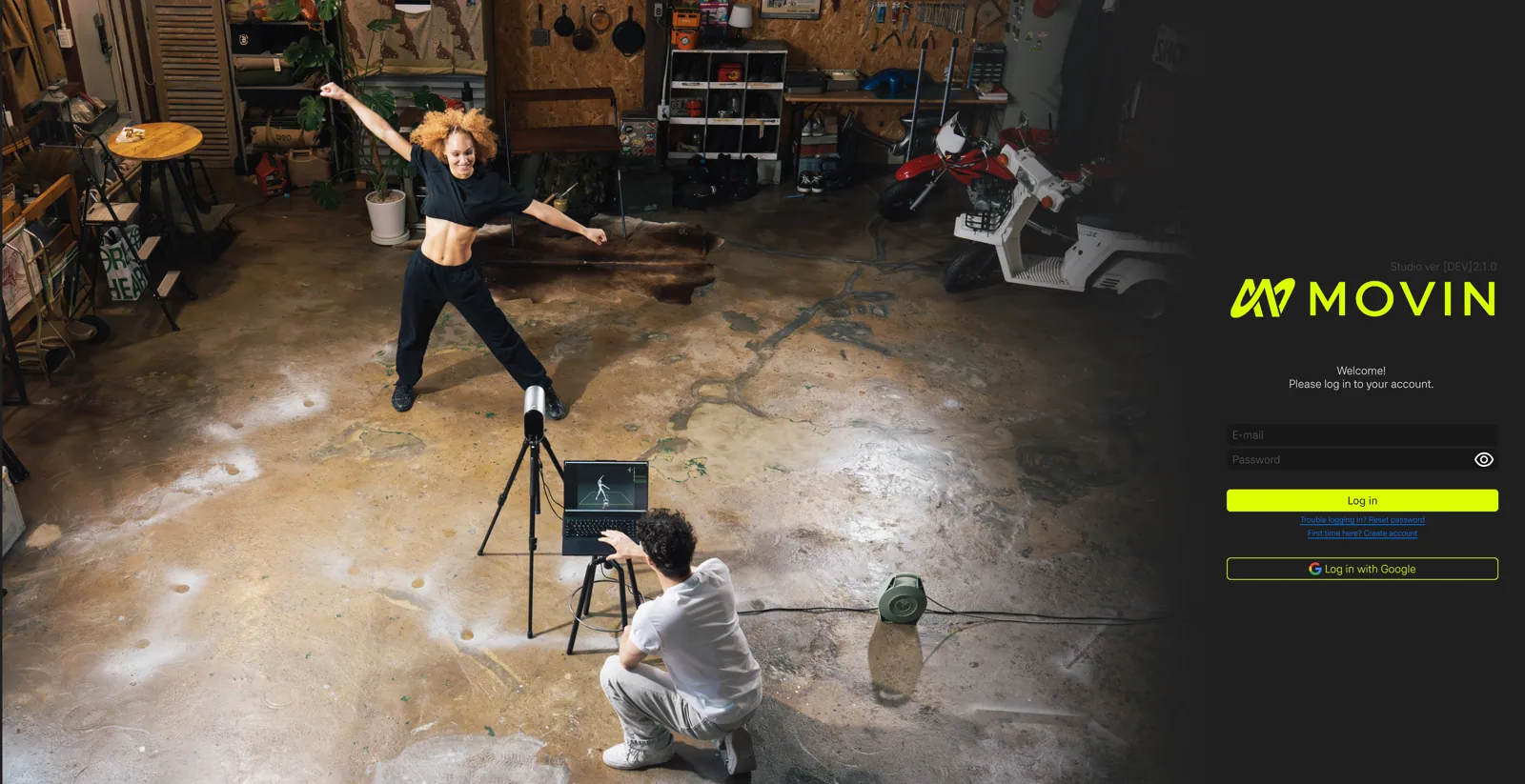
- New to MOVIN? Click Create Account to sign up.
- With email: enter your email and password. A verification email will be sent to you - you can't log in until you verify your email.
- With Google: click Log in with Google at the bottom to create an account linked to Google.
- Already have an account?
- Account linked to Google: click Log in with Google.
- Otherwise, enter your email and password.
- Logged in before? MOVIN Studio logs you in automatically and opens the Playback Scene (Step 4).
Your login method is set when you sign up. An account created with Google can't later log in with email and password - and an account created with email and password can't later use Login with Google.
- Forgot your password? Reset it
- On the login screen, click Reset password.
- Enter your email address and click Reset password again.
- Check your inbox for a reset link, and use it to set a new password.
- New to MOVIN? Click Create Account to sign up.
-
Meet the Playback Scene
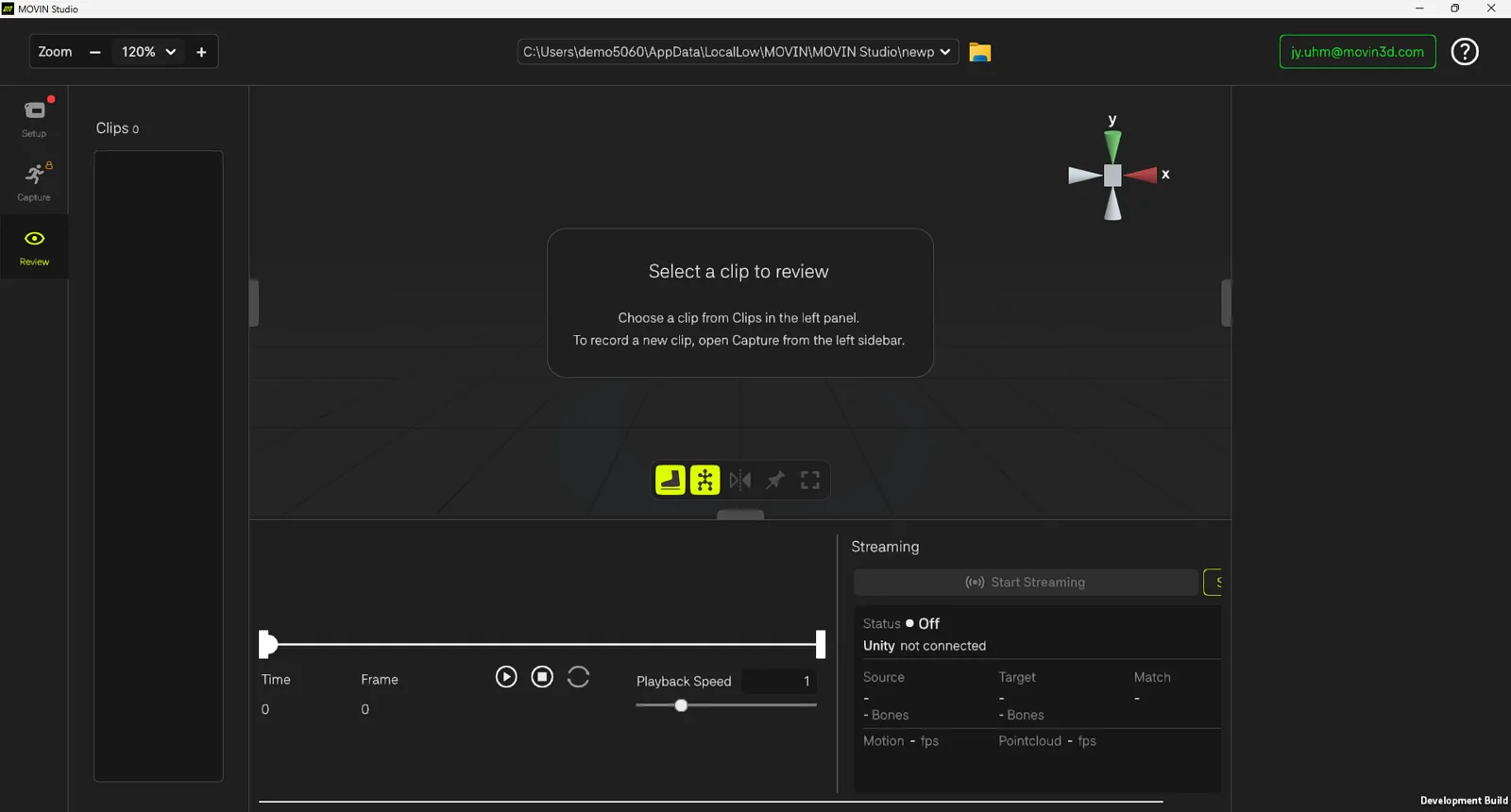
Once you're logged in, MOVIN Studio opens the Playback Scene - your home screen.
- Play back, export or stream previously recorded clips - even without connecting to TRACIN (MOVIN Studio v2.1.0 or later). For details, see Play, Export and Stream Mocap Clip.
- Ready to capture? Connect TRACIN to MOVIN Studio by completing TRACIN device setup in the Setup tab first. Then go to Capture.
MOVIN Studio is installed and you're logged in.
Next, let's connect TRACIN to Studio- it only takes a click.