MOVIN TRACIN · MOVIN Studio Usage Guide
Live-streaming
MOVIN Studio not only allows you to capture high-quality motion data, but also supports live streaming, enabling you to transmit your movement data to third-party platforms in real time. This means you can animate characters or drive virtual avatars live, whether for production, virtual events, VTubing, or game engine pipelines.
MOVIN Studio currently supports live streaming to the following platforms:
| Category | Platform | Support |
|---|---|---|
| Virtual Avatar Platforms | Warudo | Live-stream supported Please refer to Streaming Mocap Data into Warudo |
| VRChat | Live-stream supported Please refer to Streaming Mocap Data into VRChat | |
| Meligo | Live-stream supported Please refer to Streaming Mocap Data into Meligo | |
| 3D Engines | Unity | Live-stream supported Please refer to Streaming Mocap Data into Unity |
| Unreal Engine | Live-stream supported Please refer to Streaming Mocap Data into Unreal Engine | |
| Blender | Live-stream supported Please refer to Streaming Mocap Data into Blender | |
| Live Visual Tools | Notch | Live-stream supported Please refer to Streaming Mocap Data into Notch |
| TouchDesigner | Live-stream supported Please refer to Streaming Mocap Data into TouchDesigner | |
| Robotics & Simulation Tools | ROS | Live-stream supported Please refer to Streaming Mocap Data into ROS by OSC |
| Protocols | OSC | Live-stream supported any platforms that supports the OSC protocol. |
If you would like MOVIN to support streaming to a platform you use, please share your request in the MOVIN discord community.
Get to know the Streaming section
Streaming lives in the bottom panel of both Capture (live motion) and Clips (recorded clips).
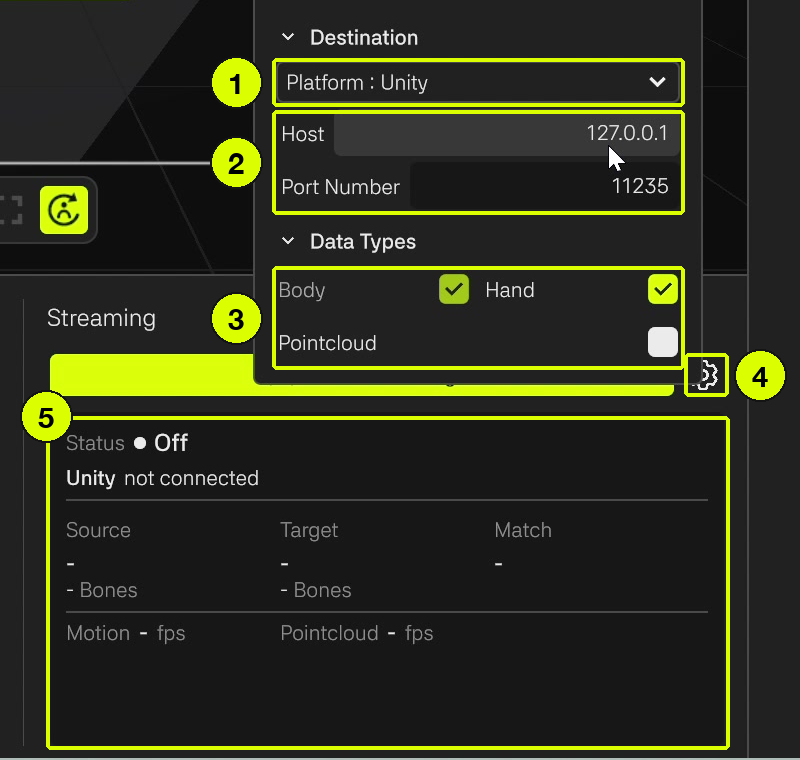
- Platform: where the motion goes - Unity, Unreal LiveLink, Blender, Notch, NotchJS (Beta), TouchDesigner, Warudo, SteamVR, OSC or VMC. Choosing a platform also sets its default port.
- Host / Port Number: the address of the PC running the receiving app (127.0.0.1 if it's the same PC) and the port it listens on.
- Data Types: choose what to send - Body, Hand and Pointcloud.
- Settings (⚙): opens the settings above.
- Status: whether streaming is On or Off, the host and port, and whether the platform is connected. It also shows the source and target skeletons, how many bones match, and the Motion and Pointcloud frame rates.
How to start streaming
- Click ⚙ and set the Platform, Host, Port Number and Data Types.
- Click Start Streaming. The button turns into Stop Streaming and the status shows On.
- Click Stop Streaming to stop.
- Platform, Host and Port Number are locked while streaming. Stop streaming to change them.
- SteamVR always streams the body only, to SteamVR on the same PC - so Host, Port Number and Data Types are hidden.
- Unreal LiveLink adds Bone Scale, Global Scale and Translation Scale settings.
For platform-specific steps, see the guide for your platform in the table above.