MOVIN TRACIN · MOVIN Studio Usage Guide
Streaming Mocap Data into Unreal Engine
Unreal Engine, developed by Epic Games, is a high-performance 3D engine renowned for photorealistic visuals, robust real-time rendering with flexible and scalable workflows.
With MOVIN TRACIN and MOVIN Studio, you can stream real-time motion capture data directly into Unreal Engine, making it ideal for high-end applications such as cinematics, virtual production and real-time VFX.
-
Download the Plugin
- On the MOVIN's Github page, download the file or the prebuilt plugin that matches your Unreal Engine version.
-
Install the Plugin into Your UE Project
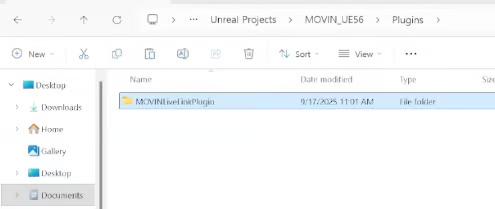
- Unzip the downloaded file, and copy the folder named 'MOVINLiveLinkPlugin' into your Unreal Engine project’s 'Plugins' directory.
- If your project does not have a 'Plugins' folder, simply create one before copying the plugin.
- Unzip the downloaded file, and copy the folder named 'MOVINLiveLinkPlugin' into your Unreal Engine project’s 'Plugins' directory.
-
Enable the Plugin in UE
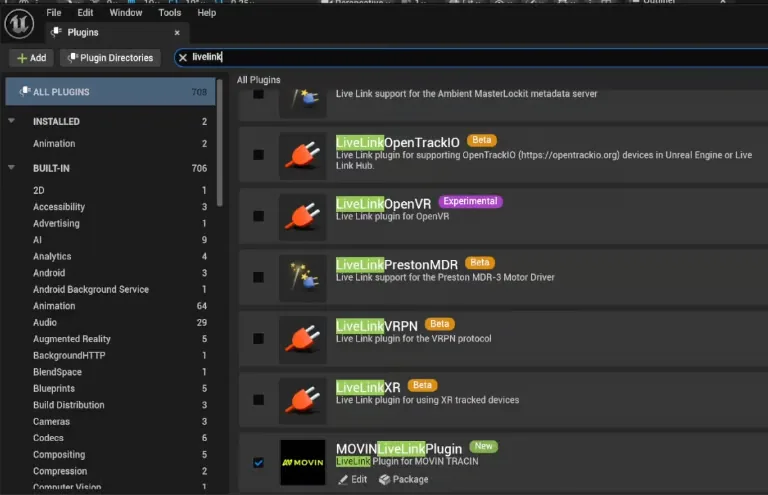
- In Unreal Engine, open the Editor Plugins window, and search for 'MOVINLiveLink'.
- Check the box to enable it, and restart the Unreal Editor to apply changes.
-
Import your character and start Streaming from MOVIN Studio
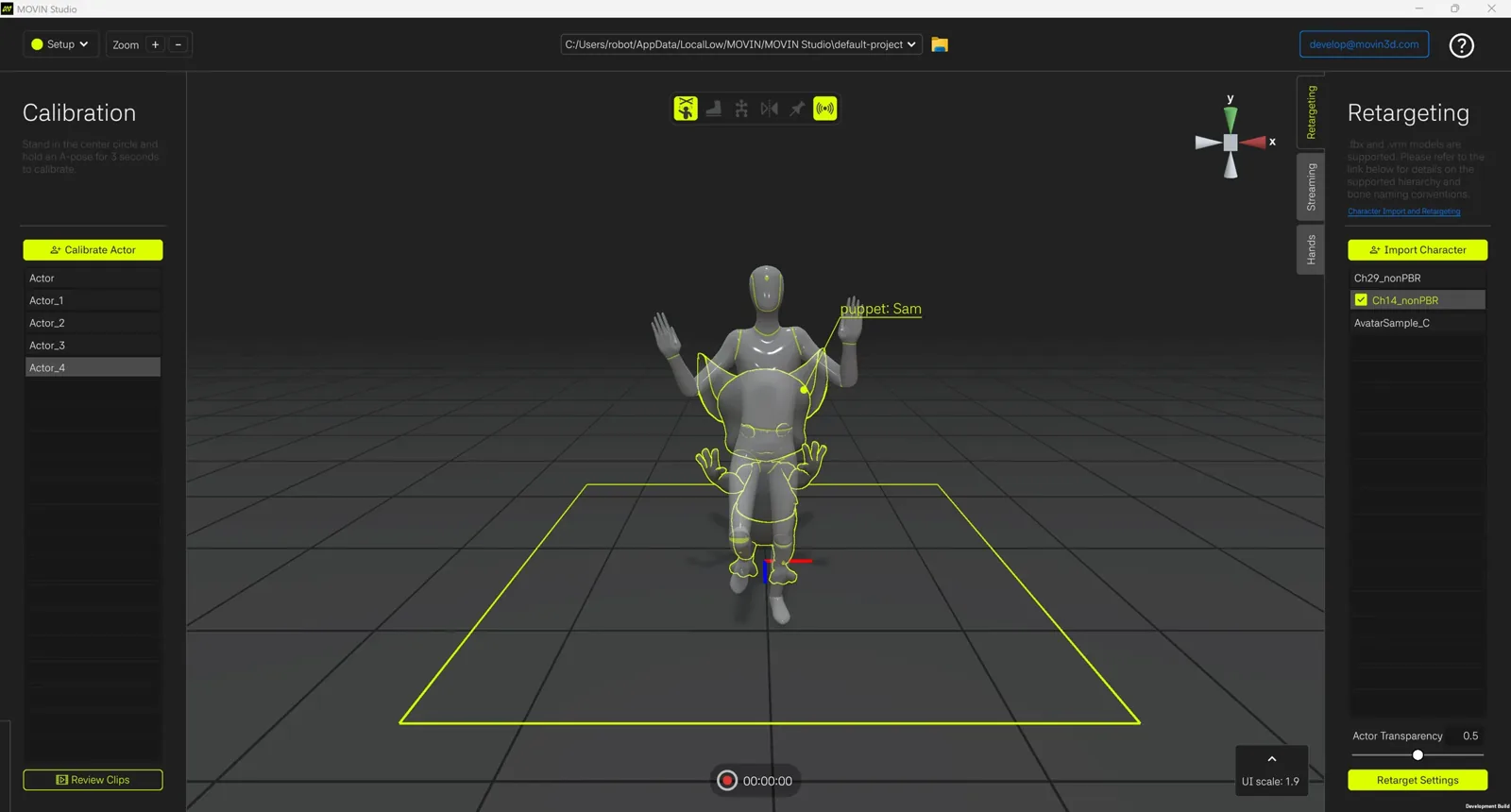
Please import the FBX file of the character you want to use in Unreal Engine into MOVIN Studio.
- For detailed instructions on this process, please refer to Import Character and Retargeting
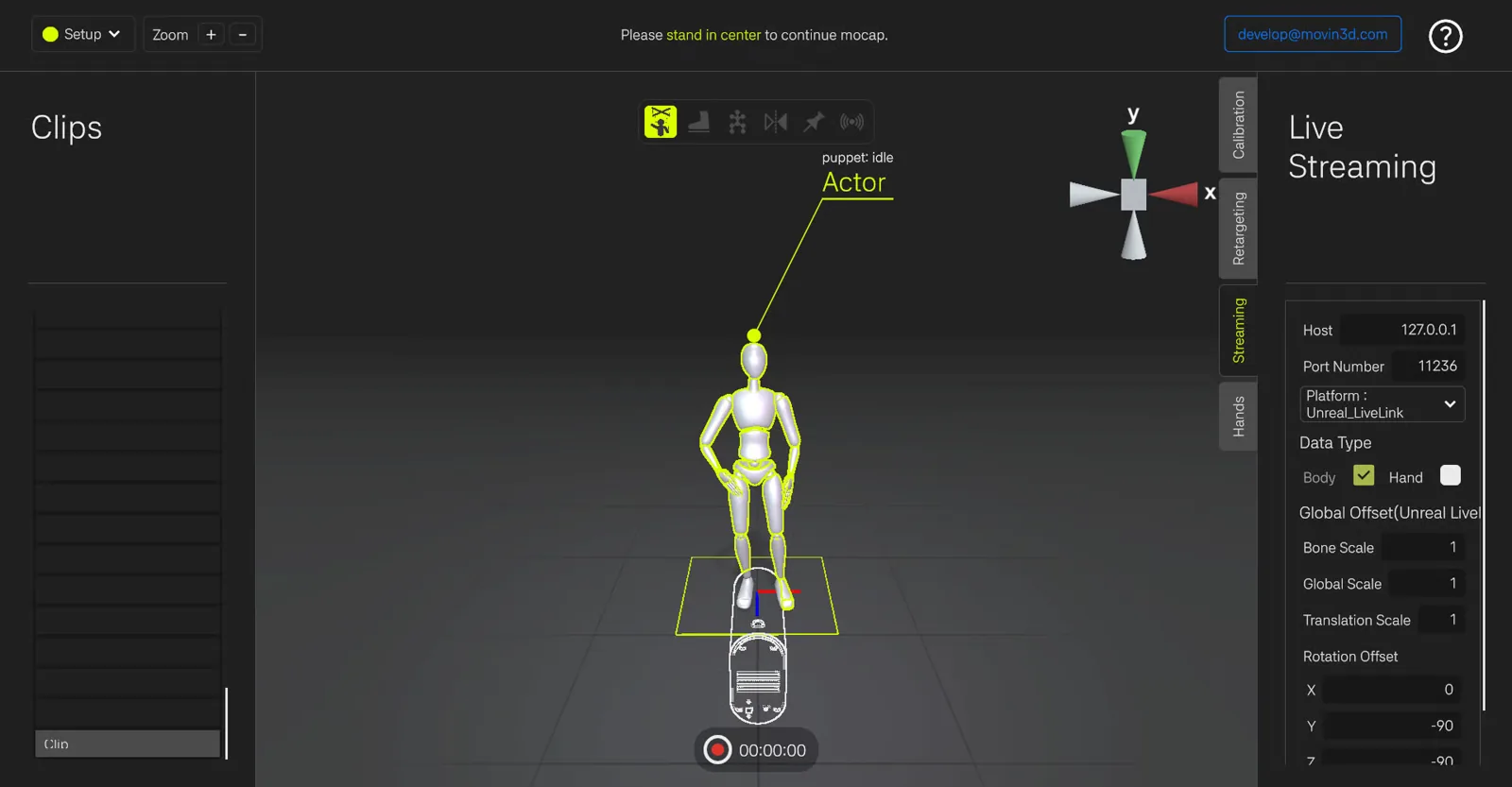
- In MOVIN Studio, start streaming to Unreal Engine.
- Return to Unreal and confirm that a subject has been created in the LiveLink panel.
-
Add MOVINLiveLink as a LiveLink Source
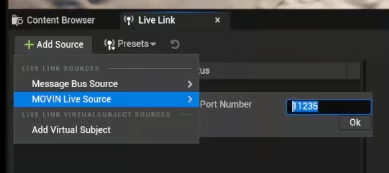
- Open the LiveLink panel in Unreal Engine.
- Add a new source and select 'MOVINLiveLink'.
-
Import Your Character into UE and then create a Anim Blueprint
- Load your custom character into your Unreal project, ready to receive LiveLink animation data.
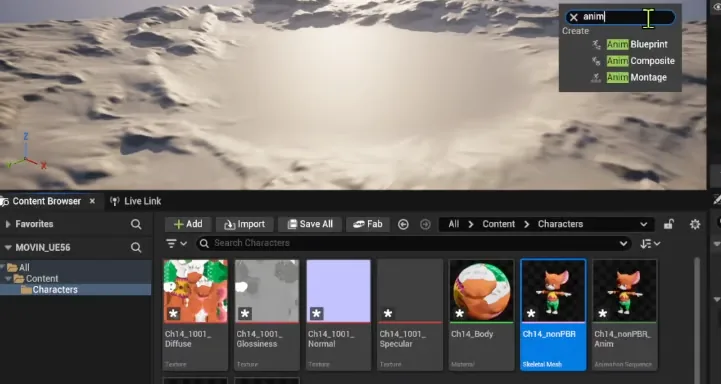
- Right-click on the imported character’s Skeletal Mesh, then search for “Anim Blueprint” and create a new one.
-
Creating and Setting up the Live Link Pose Node
- Open the Anim Blueprint you created earlier by double-clicking it.
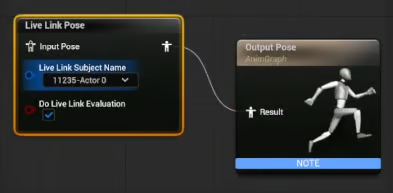
- Right Click in the Blueprint graph, search for 'Live Link Pose', and create a new Live Link Pose node.
- In the Live Link Pose node, set the Live Link Subject Name to the Actor you added earlier. Add MOVINLiveLink as a LiveLink Source
- Connect the Animation Pose output of the Live Link Pose node to the Result input of the Output Pose node.
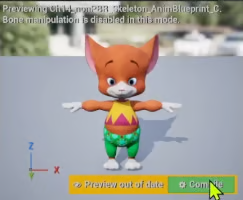
- Click the Compile button on the right to reset any expired preview state.
- You should now see the character being live-streamed with the same motion data as in MOVIN Studio.
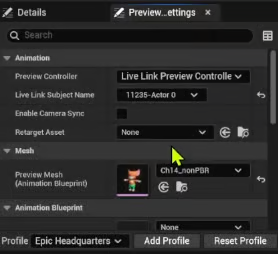
- If the Preview Does Not Work:
- Go to the Preview Settings tab.
- Under Animation > Preview Controller, set the value to Live Link Preview Controller.
- Set the Live Link Subject Name to the Actor you added earlier. Add MOVINLiveLink as a LiveLink Source
- Click Save to apply the changes
-
Set the character's Anim Class to the Anim BluePrint you created
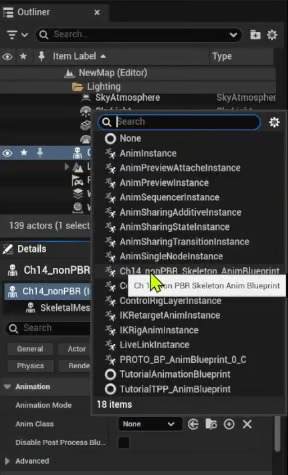
- In the View panel, select the imported character and set Animation > Anim Class to the Anim Blueprint you created. Import Your Character into UE and then create a Anim Blueprint
- Click the Play button. You should now see the character moving in the View panel as well.
If you've been streaming to Unreal Engine and want to switch back to Unity,
stop streaming in MOVIN Studio first. Then, remove the MOVINLiveLink source from Unreal’s LiveLink panel.
You can now safely reconnect to Unity and begin streaming again.
- Since Unreal Engine supports its own retargeting system, you can stream and apply motion data to a retargeted character in real time without retargeting in MOVIN Studio.
- For more details on this workflow, please check out the video linked below:
https://www.youtube.com/watch?v=kbc81MOpHZU&t=404s
- For more details on this workflow, please check out the video linked below:
- To stream live motion data to a MetaHuman character in UE, please check the video above for detailed instructions.