MOVIN TRACIN · MOVIN Studio Usage Guide
Streaming Mocap Data into Blender
Blender is an open-source 3D creation tool that lets you handle modeling, rigging, animation, and rendering.
With MOVIN TRACIN and MOVIN Studio, you can stream real-time motion capture data directly into Blender, making it ideal for a wide range of workflows, including character animation, post-editing, and asset creation.
-
Download the Blender Plugin
- On the MOVIN's Github page, download the file for Blender.
-
Install the Add-on in Blender
- Open your Blender project and go to Edit > Preferences.
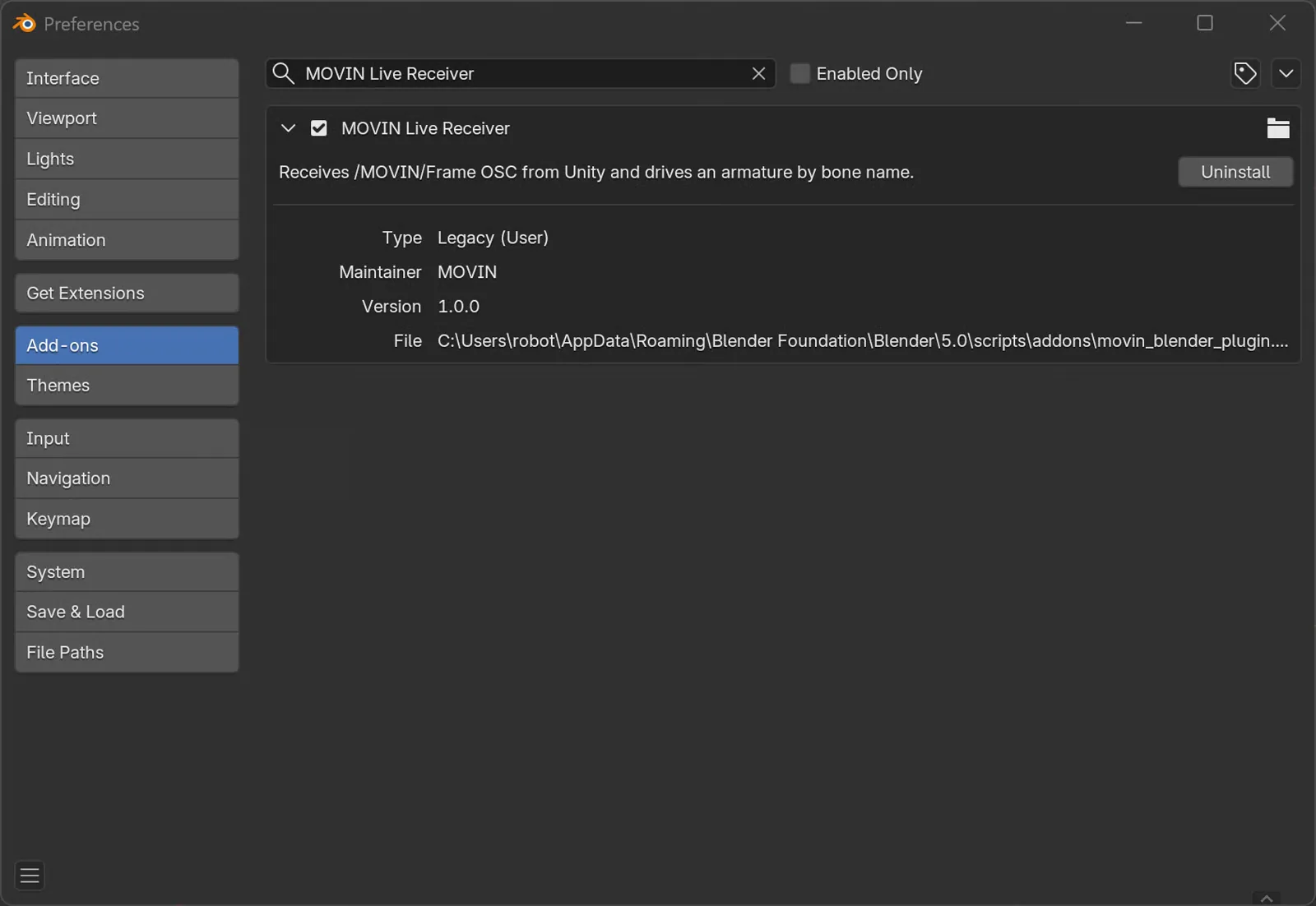
- In the Add-ons tab, click Add-ons Settings > Install from Disk in the upper-right corner.
Select the downloaded 'movin_blender_plugin.py' file to install the MOVIN Live Receiver add-on.
-
Set up MOVIN Live in Blender
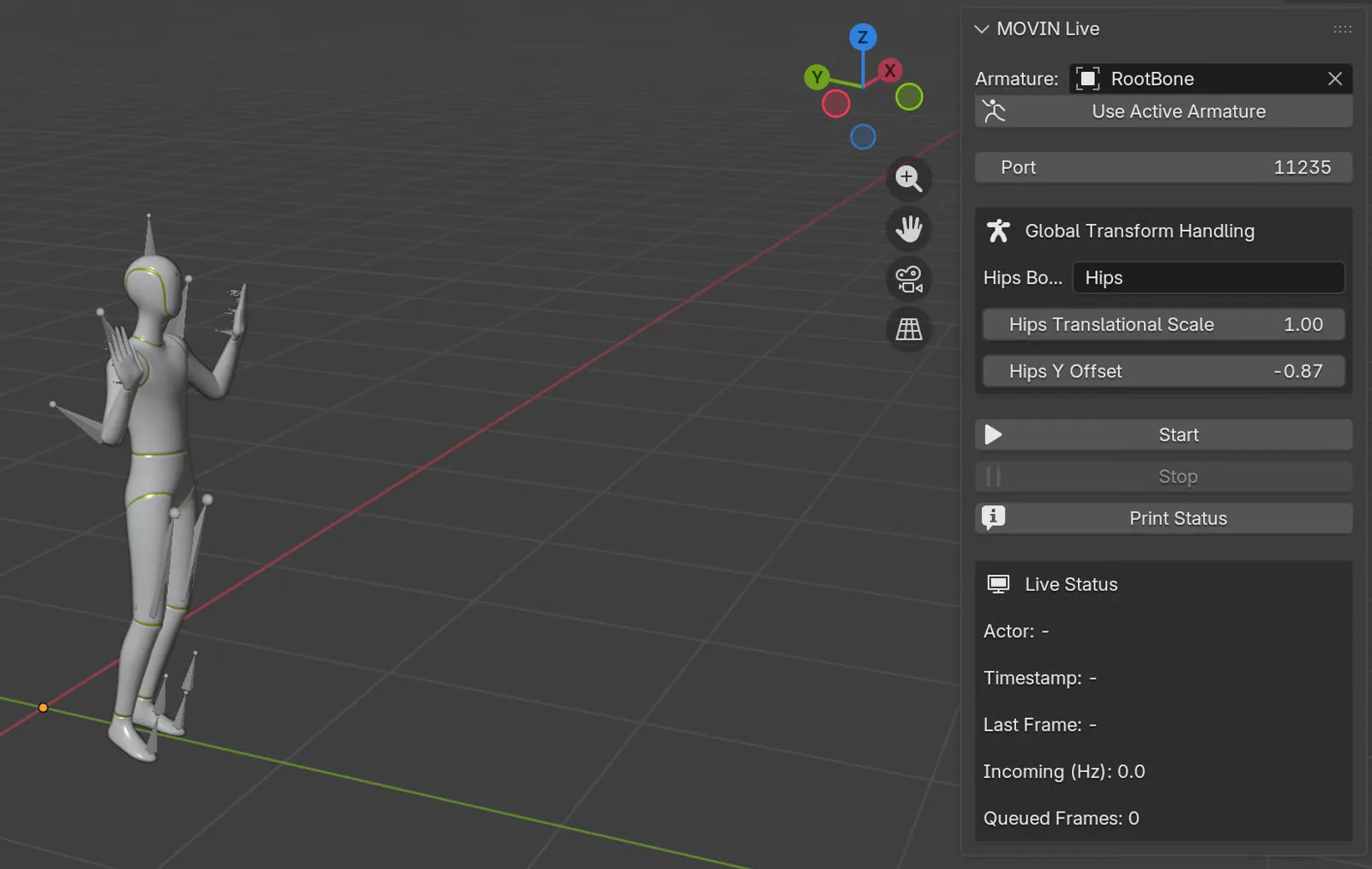
- In the MOVIN Live penal, set the appropriate Armature name and Hips Bone name for your character.
- After check the values, click the Start button
-
Start OSC protocol Streaming from MOVIN Studio
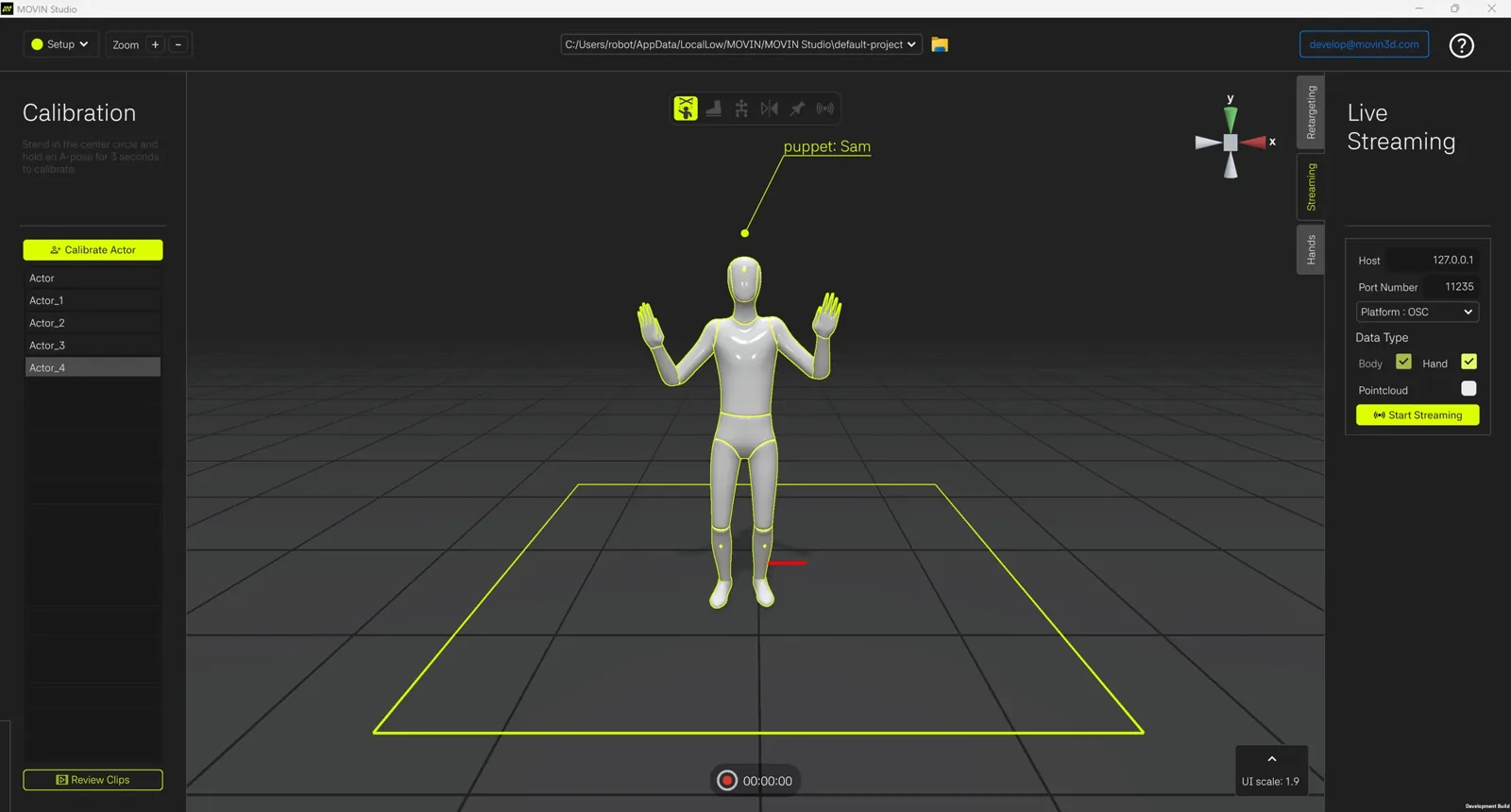
- Return to MOVIN Studio and start streaming using the OSC protocol.
- Before starting, make sure the port number set in blender matches the port number configured in MOVIN Studio.