MOVIN TRACIN · MOVIN Studio Usage Guide
Streaming Mocap Data into Meligo
Meligo is a tool that allows real-time motion data to be applied to virtual characters, enabling live operation and direction of virtual performances.
With MOVIN TRACIN and MOVIN Studio, you can stream high-quality motion capture data directly into Meligo in real time. This makes it suitable for virtual broadcasting and real-time content production.
-
Import the same character into MOVIN Studio and Meligo
-
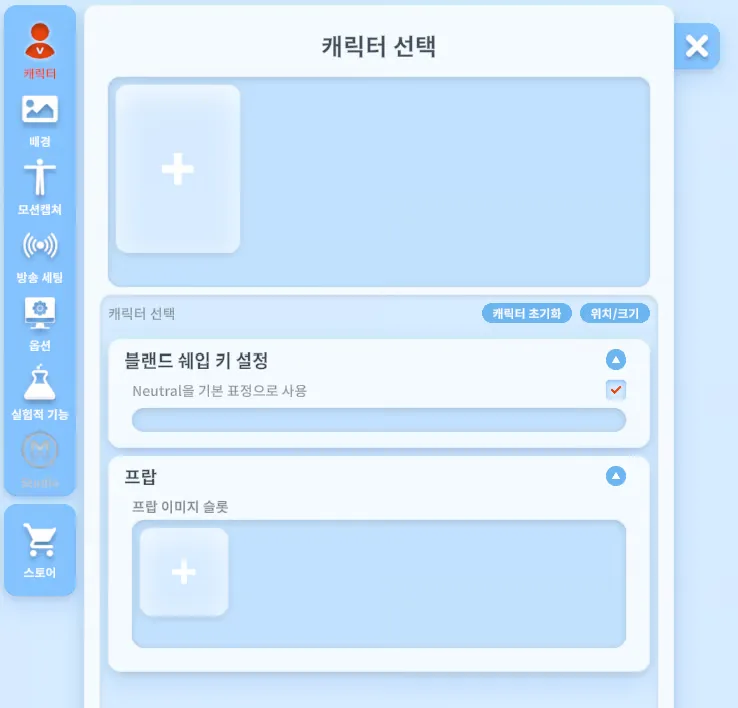
In Meligo, go to the Character tab and click the + button to import a VRM character file.
-
In MOVIN Studio, import the same VRM character file that was imported in Meligo.
-
For details on how to import a character, please refer to Import Character and Retargeting
-
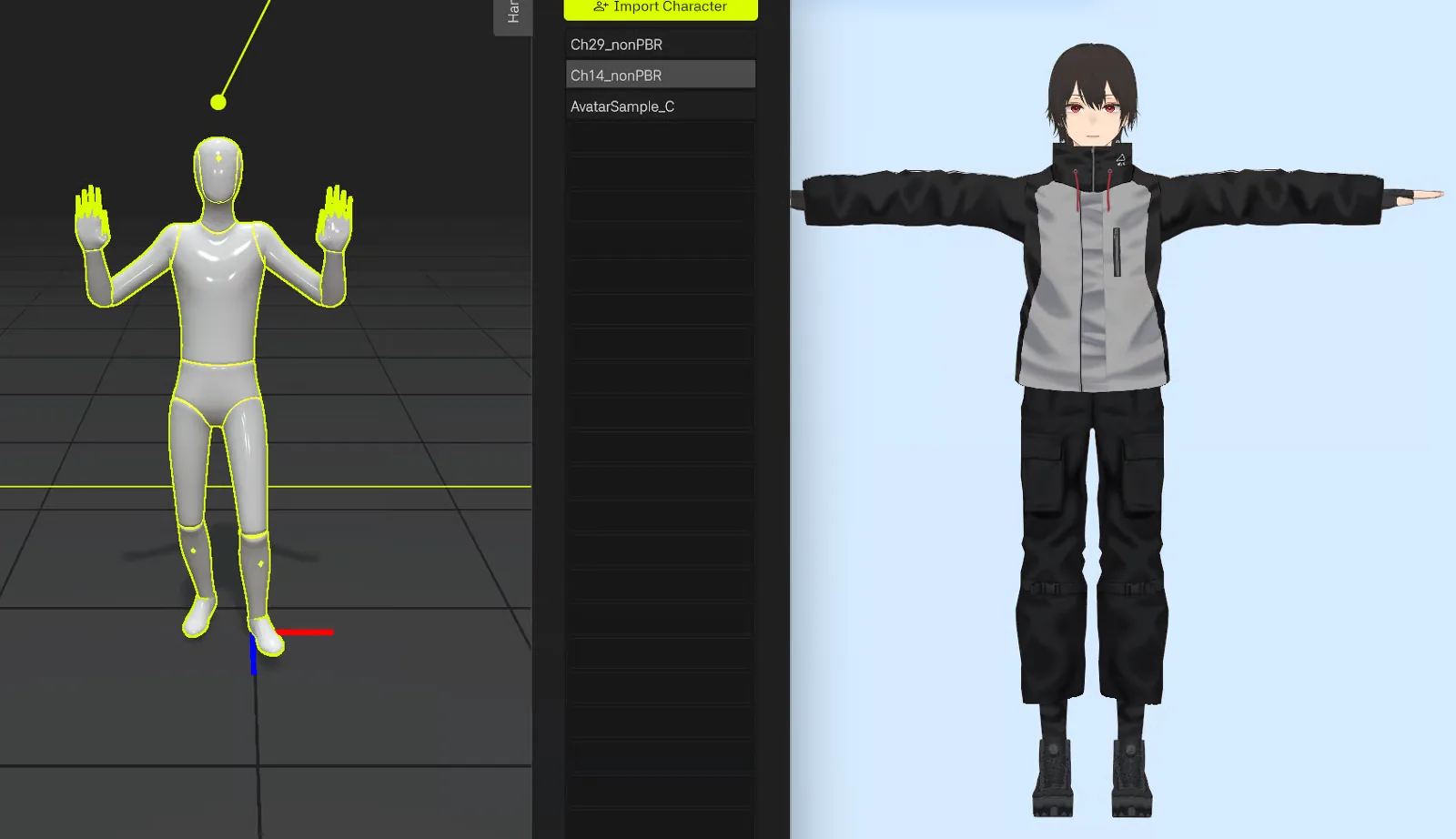
If a character file is not imported in MOVIN Studio, the motion data streamed live to Meligo may not be displayed
-
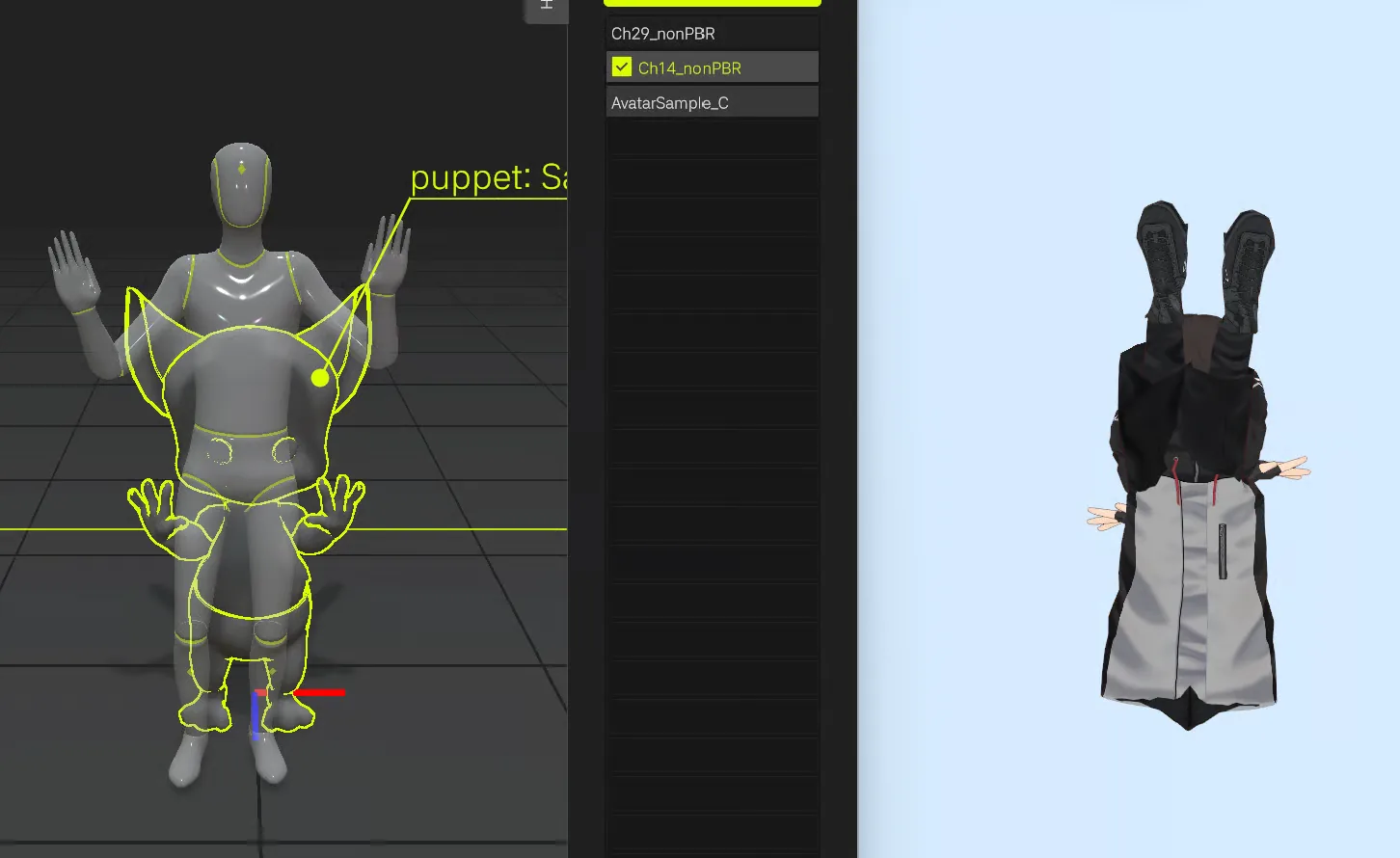
If different character files are loaded in MOVIN Studio and Meligo, the streamed motion data may appear broken or distorted in Meligo.
-
Even if the character appears to be the same, using different file formats can also cause issues with live streaming.
-
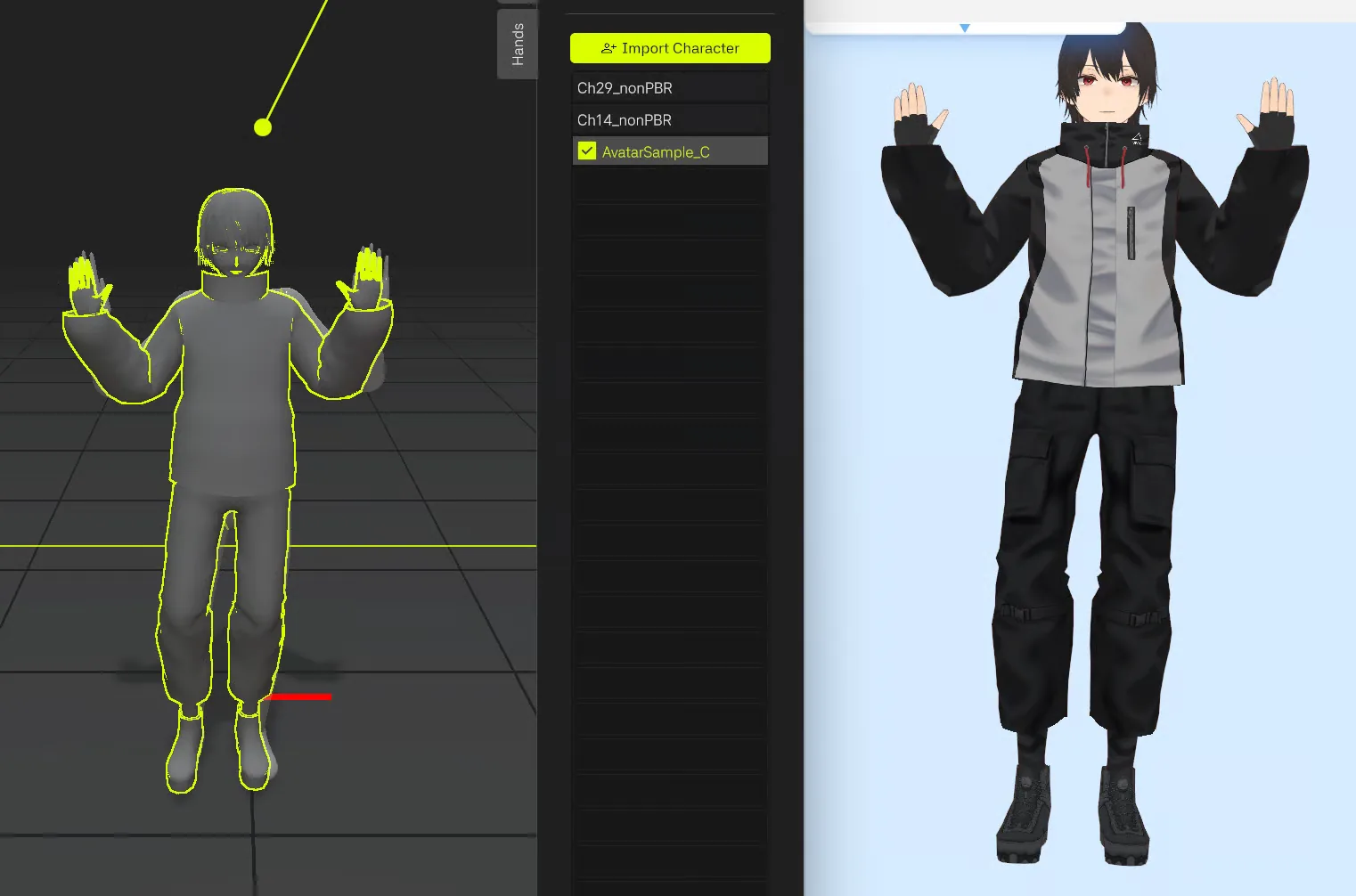
When the exact same character file is imported in both MOVIN Studio and Meligo, live streaming will work smoothly.
-
-
-
Enable OSC/VMC Protocol Reception in Meligo
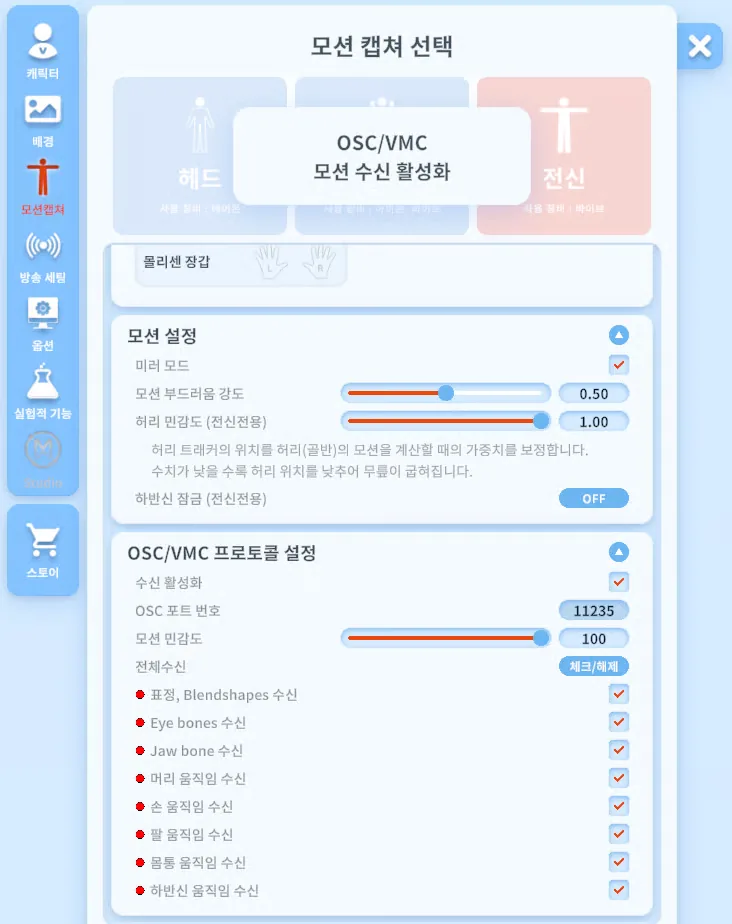
- In Meligo, go to Motion Capture Tab > OSC/VMC Protocol Settings. Check the “Enable Reception” checkbox.
- Check Full Body Reception to receive full-body motion data, or select specific body parts to stream partial motion data.
-
Start Streaming from MOVIN Studio
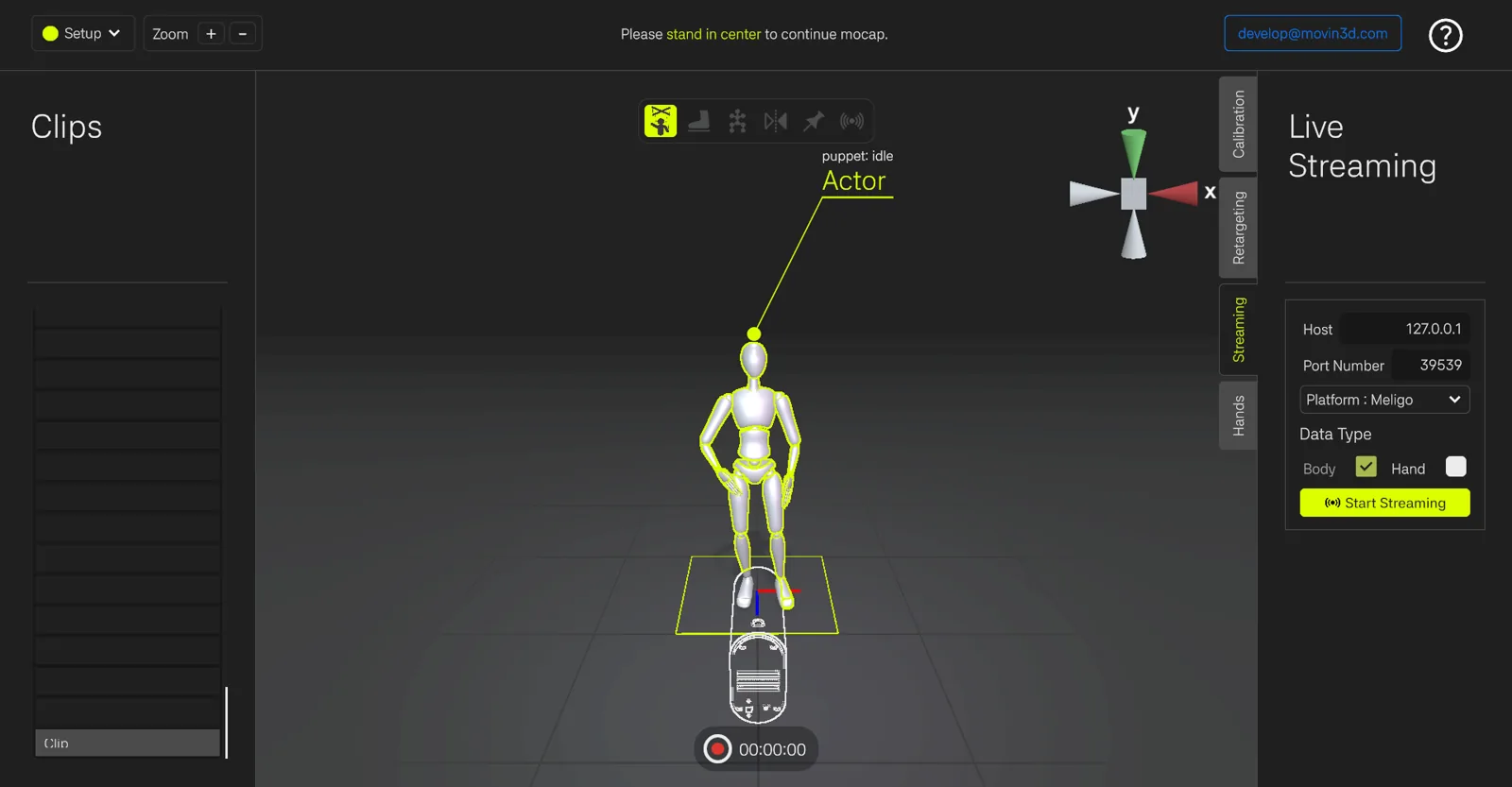
- In MOVIN Studio, open the Streaming tab and select Meligo as the platform.
Then, click Start Streaming to start streaming. - You can then see the motion data from MOVIN Studio streaming to Meligo in real time.
- In MOVIN Studio, open the Streaming tab and select Meligo as the platform.