MOVIN TRACIN Firmware Update - v3.3.0 is out
On this page
MOVIN TRACIN is an on-device system: all of our AI processing runs on the device itself. Keeping your firmware up to date means steadier performance and better motion capture quality.
💡 v3.3.0 is here, and it's a big one. A fresh new look for MOVIN Studio and Body Shape-Aware Retargeting that fits your character’s volume in a few clicks, and more - all running right on your device. Update before your next session and get every improvement the moment it ships.
→ See what's new in v3.3.0Make it a habit: check for an update before your first session, and whenever MOVIN Studio has a new release.
Which guide do I need?
Your update path depends on your firmware version. Don't know it? Think back to how you last connected TRACIN.
Did you set the IP manually (192.168.2.77) last time?
Your firmware is earlier than v3.2.0.
- Connect TRACIN to your PC with a manual IP, then open 192.168.2.100:8001 in your browser.
- Check Firmware Version in the System Information panel and find your path in the table below (B or C).
Did it connect without any IP setup?
Your firmware is v3.2.0 or later. Follow A. Latest update.
First time, or don't remember?
Try connecting without any IP setup first.
- Connect TRACIN to your PC, then click Find Device on the Connect TRACIN page in MOVIN Studio.
- With firmware v3.2.0 or later, TRACIN takes about 1 minute to become discoverable after you connect it. If it isn't found right away, check that the indicator is solid green, wait about a minute, and click Find Device again.
- Found? Your firmware is v3.2.0 or later. If it needs an update, the page shows Firmware update required with your current firmware version. Click Open System Monitor and follow A. Latest update.
- Still not found after more than a minute? Your firmware may be earlier than v3.2.0. Follow "Did you set the IP manually?" above.
Already know your version? Connect TRACIN to your PC, open the System Monitor in your browser, check Firmware Version in the System Information panel, and find your path in the table below.
- Firmware v3.2.0 or later:
http://<serial number>.local:8001(serial number is on the warranty card) - Firmware earlier than v3.2.0: 192.168.2.100:8001
Every step is required: older firmware has to pass through each version in order.
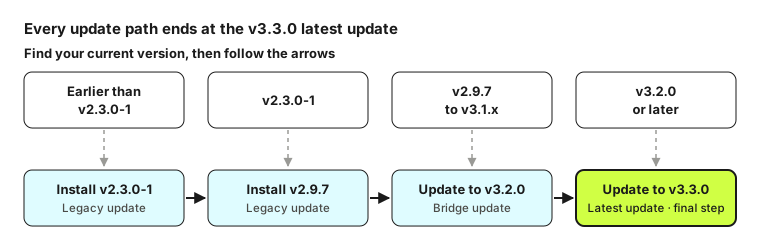
| Your firmware | Your path | Guide |
|---|---|---|
| v3.2.0 or later | Latest update to v3.3.0 | A |
| v2.9.7 to v3.1.x | Bridge update to v3.2.0, then latest update | B → A |
| v2.3.0-1 | Install v2.9.7, then the two steps above | C → B → A |
| Earlier than v2.3.0-1 | Install v2.3.0-1, then v2.9.7, then the steps above | C (twice) → B → A |
A. v3.2.0 or later: Latest update to v3.3.0
-
Connect TRACIN to your PC
- Follow Set up your MOVIN TRACIN and Connect TRACIN to MOVIN Studio.
- Make sure the front indicator is solid green.
- Indicator off or blinking? Unplug the power cable, wait a few seconds, and plug it back in. This clears most boot errors
-
Open the Firmware Update tab
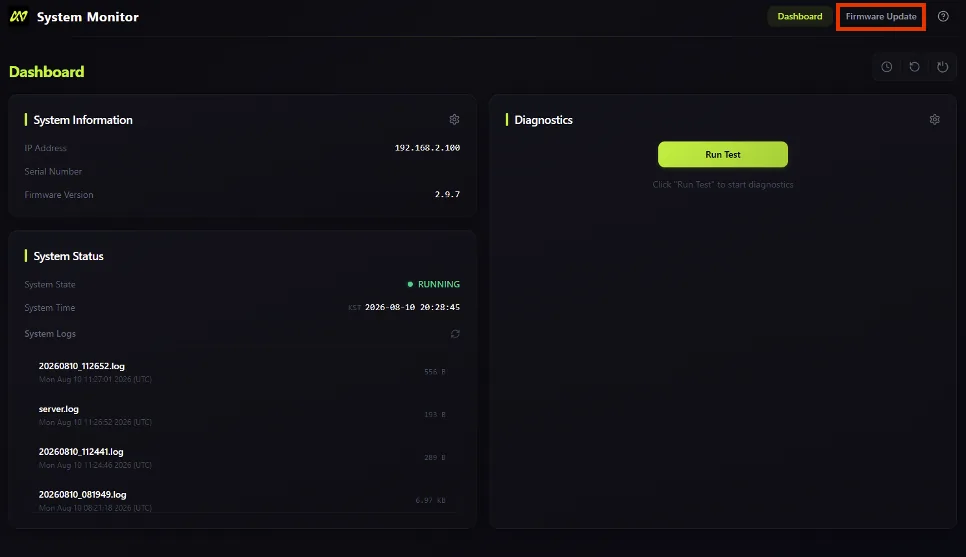
- In your browser, go to
http://<serial number>.local:8001/fw. - Or open the System Monitor (
http://<serial number>.local:8001) and click Firmware Update in the upper-right corner.- Don't see the Firmware Update tab?
- Check that your firmware is v3.2.0 or later. If not, follow B. Bridge update first.
- Hard-refresh your browser: Ctrl + Shift + R.
- Don't see the Firmware Update tab?
- In your browser, go to
-
Click the Update Firmware
- Check the Latest Firmware Version in the Online Update tab.
- Seeing Failed to fetch instead? Make sure your PC is connected to the internet.
- Click Update Firmware to start.
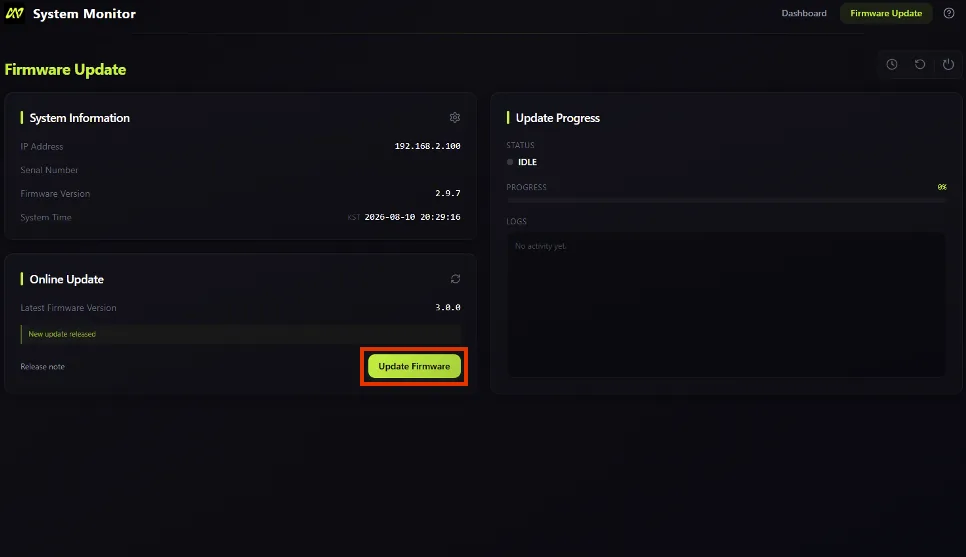
- Check the Latest Firmware Version in the Online Update tab.
-
Wait for the update, then reboot
Don't touch anything until a Success or Failure message appears. Don't refresh or close the System Monitor page, and don't unplug the power or Ethernet cable. Interrupting the update can stop it from completing and cause the device to malfunction.
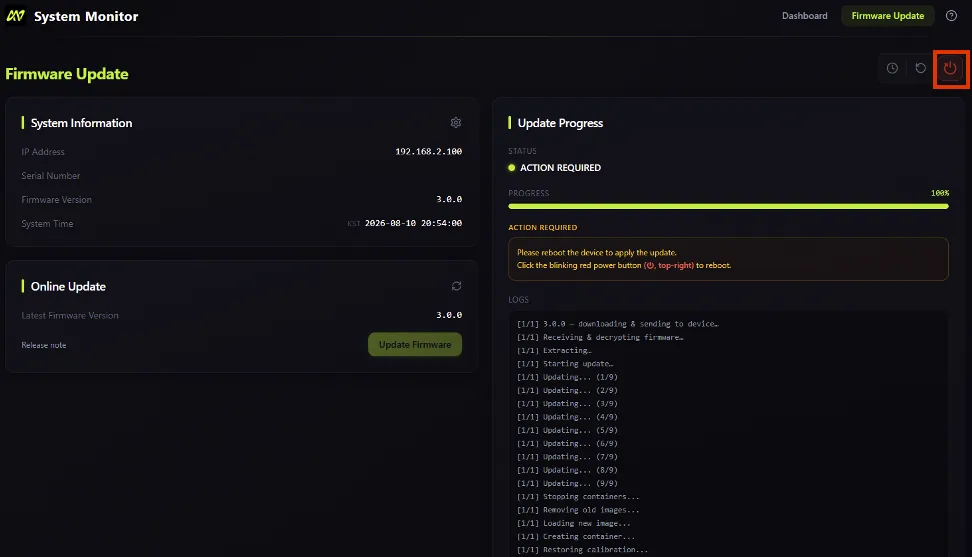
- When the update succeeds, click Reboot System in the upper-right corner.
- The page refreshes automatically until TRACIN reconnects. Stay on the page and wait.
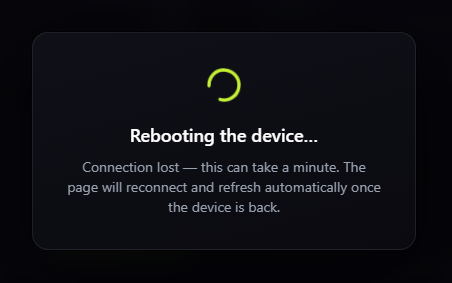
- Firmware update is done when the indicator on the TRACIN is solid green. Check that Firmware Version in the System Information panel shows v3.3.0.
Update keeps failing? Copy the full log and email contact@movin3d.com. We'll help as quickly as we can.
B. v2.9.7 to v3.1.x: Bridge update to v3.2.0
This update takes TRACIN to v3.2.0, which brings Plug & Play: MOVIN Studio finds TRACIN on its own, with no manual IP setup.
-
Connect TRACIN to your PC with a manual IP
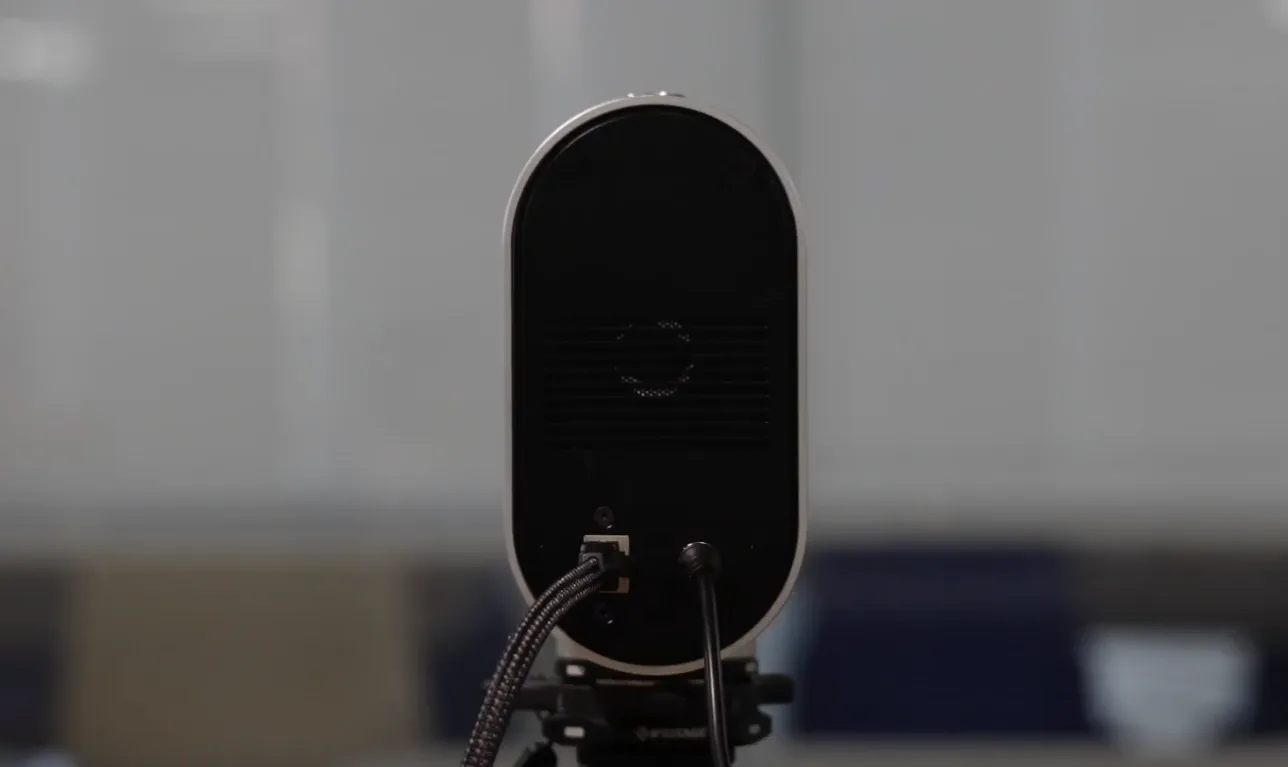
connect ethernet cable and power cable directly
- Connect TRACIN directly to your PC with the Ethernet cable. See Set Up Your MOVIN TRACIN for directions.
- Set up a manual IP on the Ethernet port connected to TRACIN. Connecting with firmware older than v3.2.0 walks you through each step.
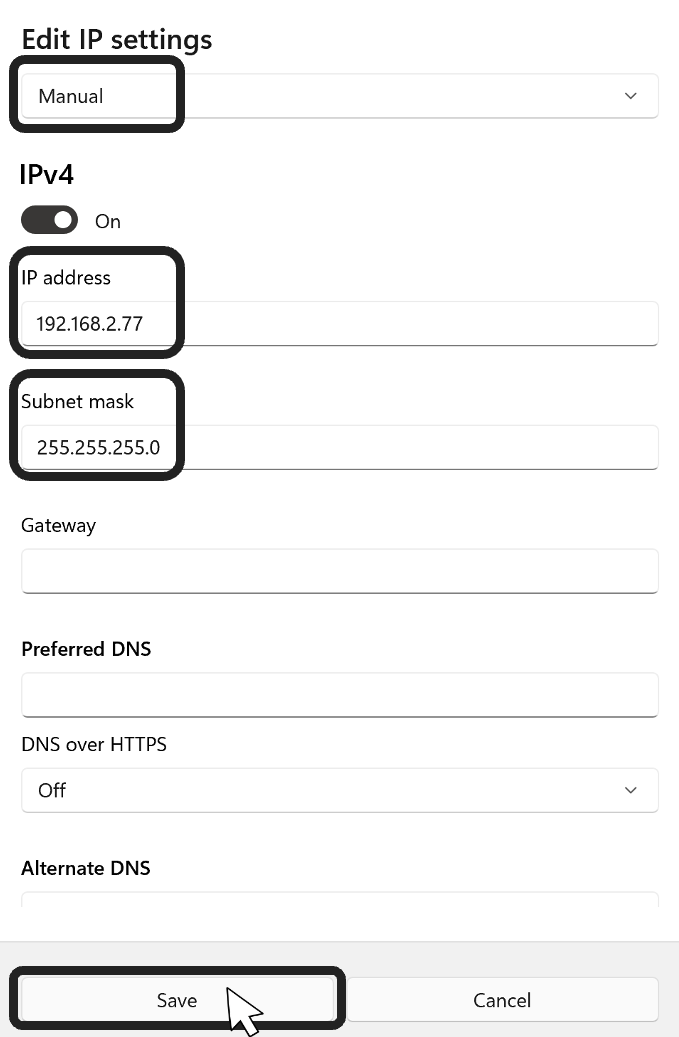
- Make sure the front indicator is solid green, not blinking. If not, unplug and replug the power cable.
-
Open the System Monitor and check your version
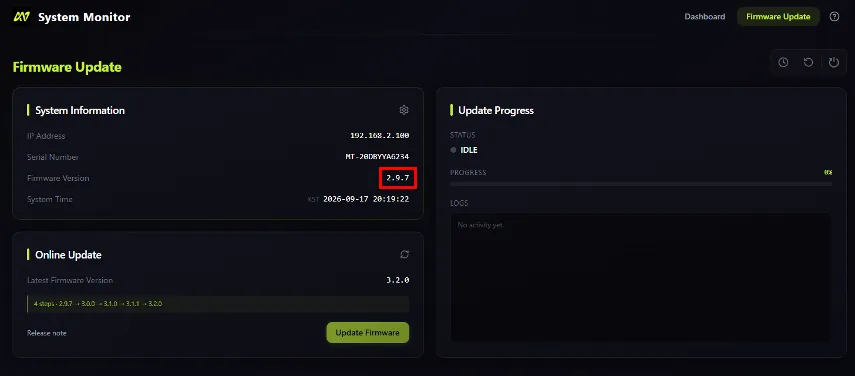
- In a web browser, go to 192.168.2.100:8001/fw.
- Check Firmware Version in the System Information panel:
- Earlier than v2.3.0-1, or exactly v2.3.0-1 → follow C. Legacy update first.
- v2.9.7 to v3.1.0 → continue to Step 3.
-
Copy your serial number
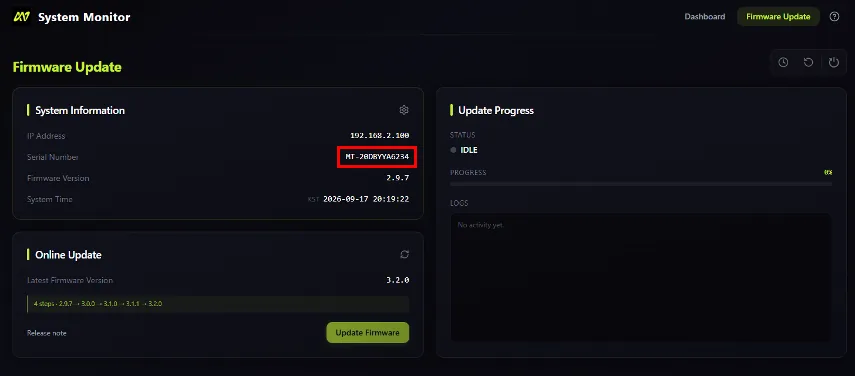
- Copy and save the Serial Number from the System Information panel.
- Keep it handy. After this update, you'll need it to open the System Monitor.
-
Start the update
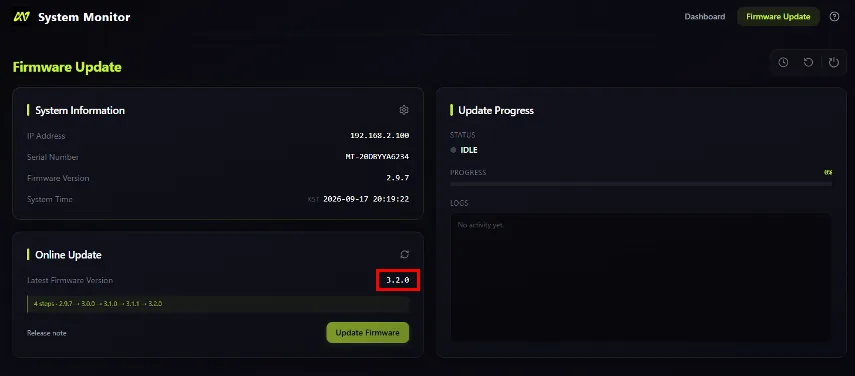
- Check the Latest Firmware Version in the Online Update tab.
- Seeing Failed to fetch? Make sure your PC is connected to the internet.
- If the latest version is v3.2.0 or later, click Update Firmware.
- Check the Latest Firmware Version in the Online Update tab.
-
Wait for the update to finish
Don't touch anything until a Success or Failure message appears. Don't refresh or close the System Monitor page, and don't unplug the power or Ethernet cable. Interrupting the update can stop it from completing and cause the device to malfunction.
- Failed with a WebSocket error (or similar)? Try these in order:
- Open the System Monitor in an incognito or private window (open your browser -> Ctrl+Shift+N).
- Still failing? Try either of these:
- Clear the browser cache: press F12 to open Developer Tools, right-click the browser's refresh button, and click Empty Cache and Hard Reload.
- Restart everything: close all browser windows, unplug and replug TRACIN's power cable, then open the System Monitor again.
- Still failing? Email contact@movin3d.com or reach out on Discord.
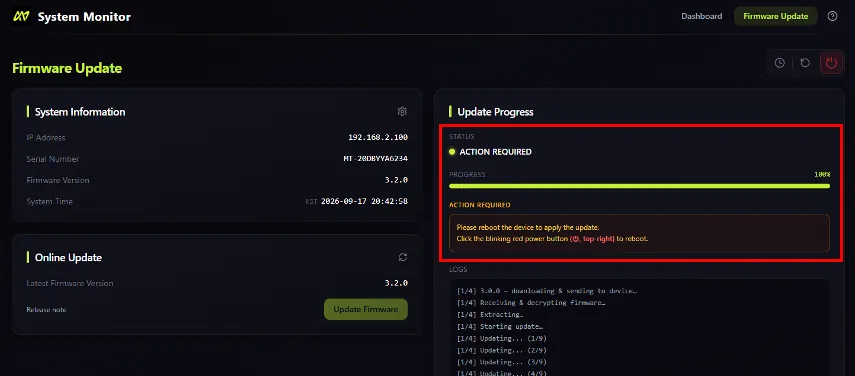
- If the firmware update is successful, proceed to next step.
- Failed with a WebSocket error (or similar)? Try these in order:
-
Reboot and wait for solid green
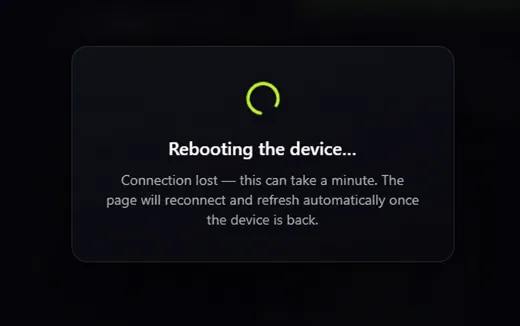
- Click Reboot, then wait for the front indicator to turn green.
- The page stays on “Rebooting the device...” That's expected. The System Monitor address changes with v3.2.0, so the old page won't refresh.
- No light or still blinking after 3 minutes? Unplug and replug the power cable.
-
Set your PC's IP back to Automatic
Windows:
- Search “Ethernet” →
Settings > Network & internet > Ethernet.
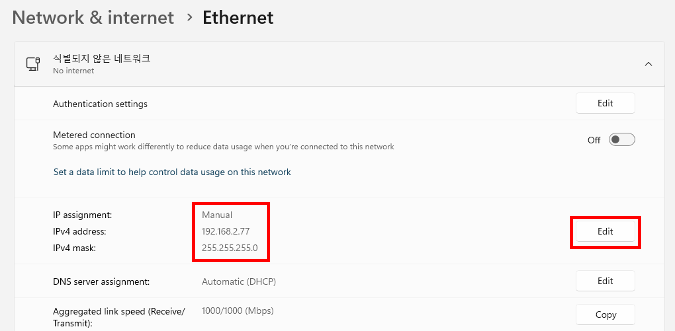
- Under IP assignment for the connection you set up, click Edit.
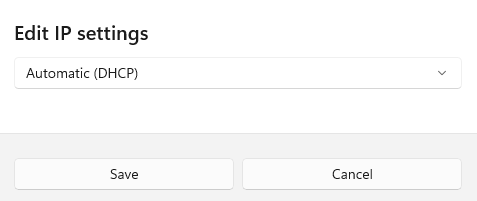
- Select Automatic, then Save.
Ubuntu:
- Open
Settings > Network.
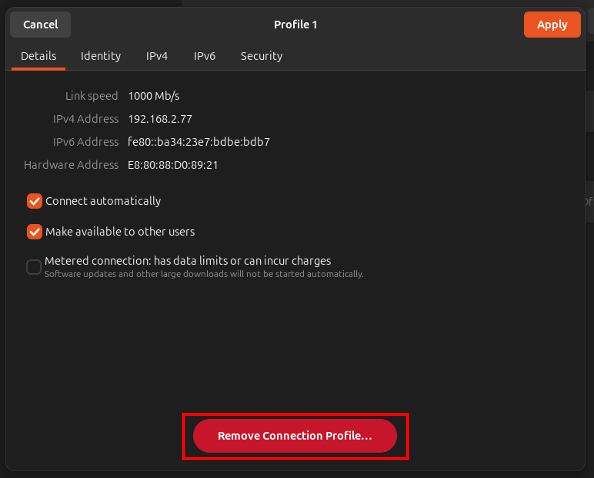
- Delete the profile with the old manual IP (Remove Connection Profile)
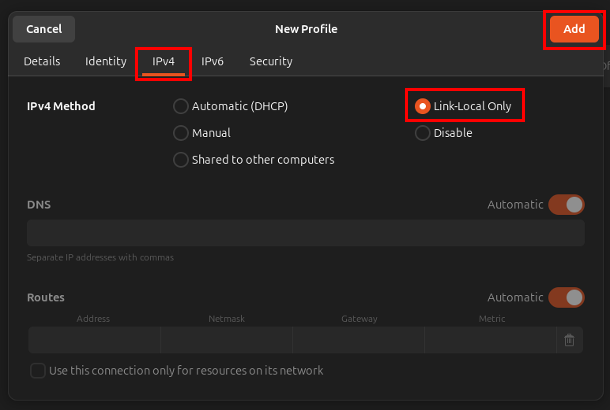
- Create a new profile with IPv4 > Link-Local Only.
- Search “Ethernet” →
-
Update MOVIN Studio.
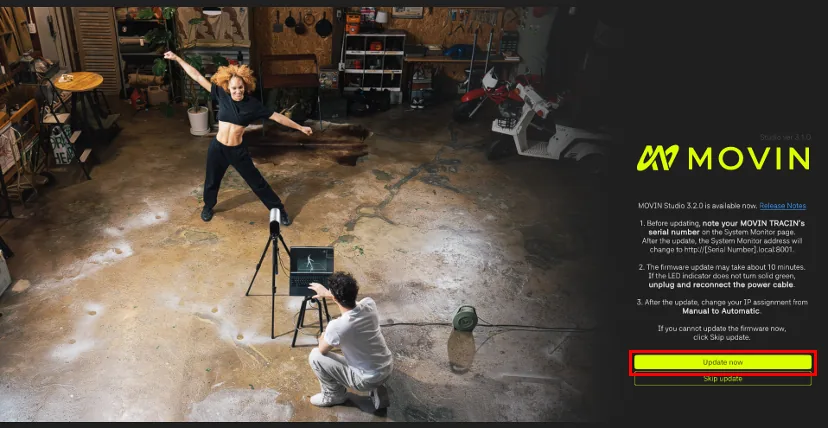
- Launch MOVIN Studio and install the update.
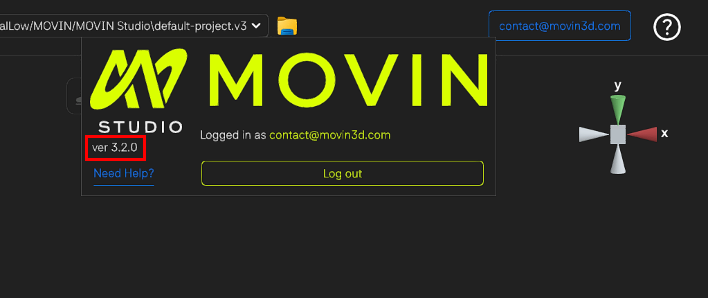
- After updating, log in and make sure your version is v3.3.0. Click the MOVIN logo in the upper-left corner and check App Version.
-
Click Find Device
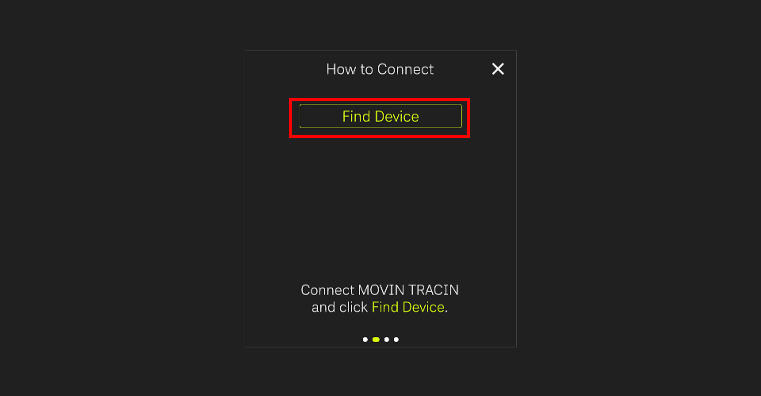
- In MOVIN Studio, click Setup in the left sidebar, then Find Device. MOVIN Studio should now detect TRACIN automatically.
-
Not detected? Open the new System Monitor
- From v3.2.0, the System Monitor moves from
http://192.168.2.100:8001tohttp://<serial number>.local:8001.- Example: serial MT-20XYZ →
http://mt-20xyz.local:8001
- Example: serial MT-20XYZ →
- Use the serial number you saved in Step 3. Can't open the page? Check that:
- The front indicator is solid green, not blinking.
- IP assignment for the Ethernet port connected to TRACIN is set to Automatic.
- No VPN (e.g. Tailscale) is running.
- The Ethernet cable works, and TRACIN is connected directly to your PC.
- Still not detected? Email contact@movin3d.com or reach out on Discord.
Check your Firmware Version. On v3.2.0? Finish with A. Latest update to reach v3.3.0. If not, go through the steps to get to v.3.2.0
- From v3.2.0, the System Monitor moves from
C. Earlier than v2.9.7: Legacy update
Older firmware is updated by uploading a file. How many times depends on your version:
- v2.3.0-1: install v2.9.7 directly.
- Earlier than v2.3.0-1: install v2.3.0-1 first, then repeat these steps with v2.9.7.
Then follow B. Bridge update to reach v3.2.0.
-
Download the Firmware File.
Firmware v2.9.7 can only be installed from Firmware v2.3.0-1.
on v2.3.0-1 yet? Install v2.3.0-1 first. It can be installed from any version.MOVIN TRACIN Firmware v2.9.7 Download
MOVIN TRACIN Firmware v2.3.0-1 Download
Firmware v2.3.0-1 can be updated directly from any firmware version.
-
Connect MOVIN TRACIN to your PC
- Connect TRACIN directly using a manual IP. Connecting with firmware older than v3.2.0 walks you through each step.
- Make sure the front indicator is solid green. If not, unplug and replug the power cable.
-
Open the System Monitor
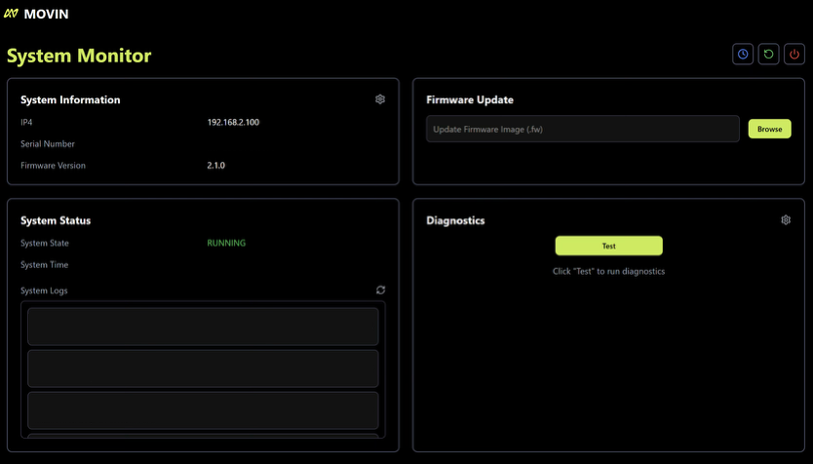
- In your browser, go to 192.168.2.100:8001
-
Click Set Current Time
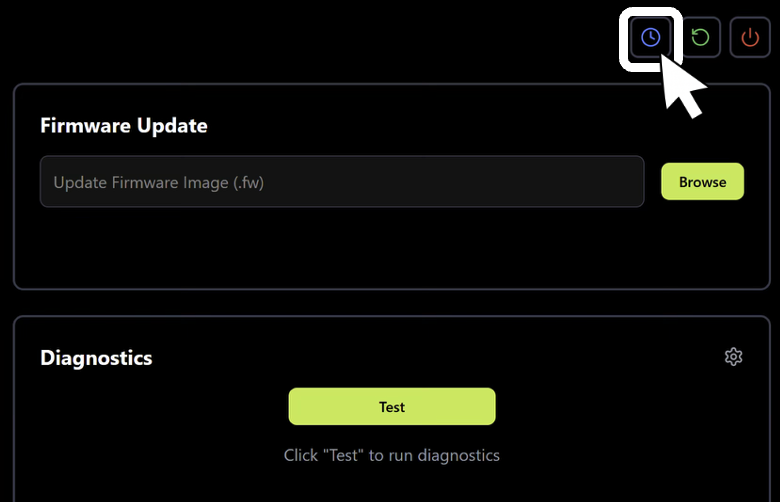
- Click the blue Set Current Time button in the upper-right corner to sync TRACIN's clock to your PC.
-
Upload the Firmware File
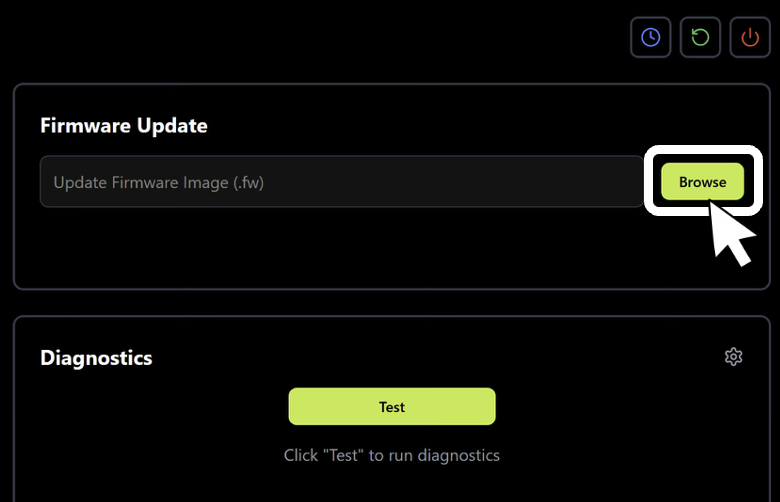
- In the Firmware Update panel (upper right), click Browse and select the file you downloaded.
- Click Upload.
-
Update and wait
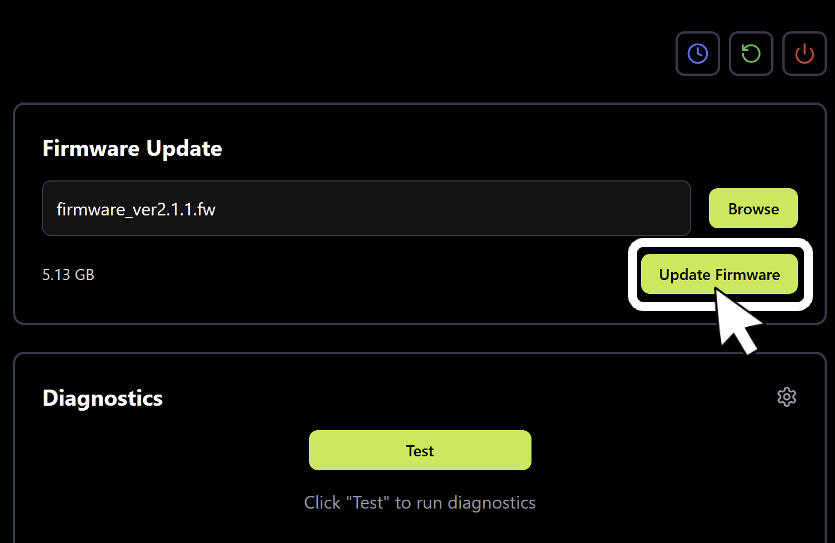
- Click Update Firmware in the Firmware Update panel.
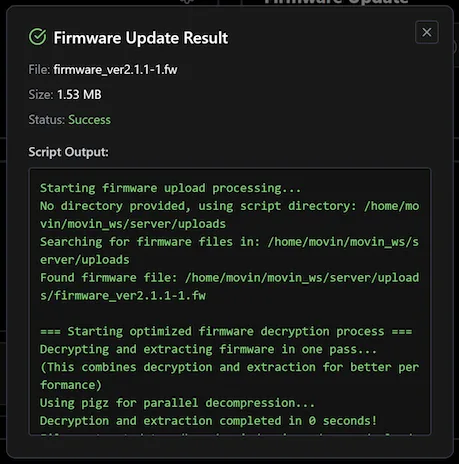
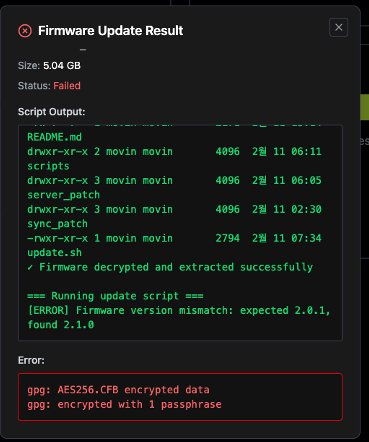
- Wait without doing anything until the Success or Failure pop-up appears.
- Don't refresh or close the page, or unplug any cables.
- The update can take 5+ minutes and may look frozen at 100%. It's still working, so keep waiting.
- Seeing Upload failed: Upload timeout? Restart TRACIN, then try the update again.
Seeing a Failure pop-up? Copy the full log and email contact@movin3d.com.
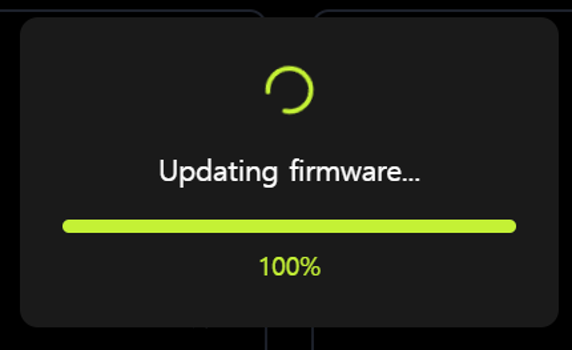
The update is still in progress even the progress reaches 100%, so please wait.
-
Refresh, then restart TRACIN
- Refresh the System Monitor. If Firmware Version shows the version you installed, the update worked.
- Unplug the power cable, wait a moment, and plug it back in. A solid green light means you're done.
No light after updating to v2.3.0-1 or v2.9.7? If you can still open the System Monitor, TRACIN is working. Continue with the next update.